






 Contributor
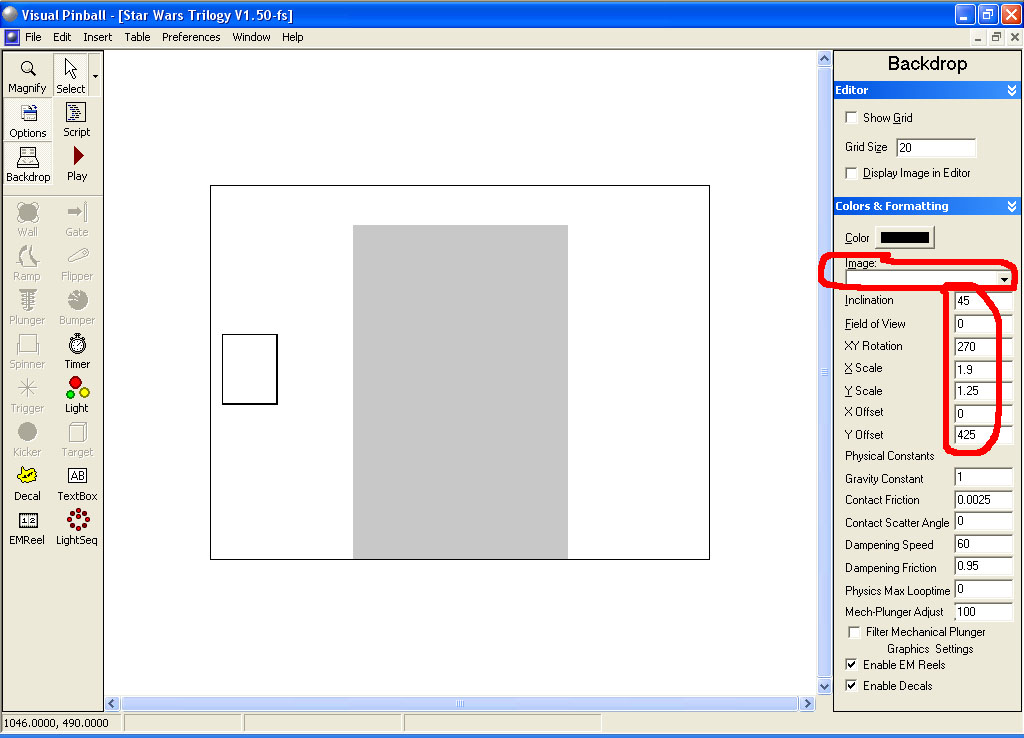
Load the table into the editor and go to the backdrop
Make the following changes:
For the image, select none.
Change the Inclination to 45
Field of View to 0
XY Rotation to 270
X Scale to 1.9
Y Scale to 1.25
Y Offset to 425
Note: I have no idea if the numbers above are good. I only have a one monitor (non-widescreen) setup so I attempted to adjust the table so it filled up the width of the monitor and was still in proportion. If someone has different numbers to use, please post them.
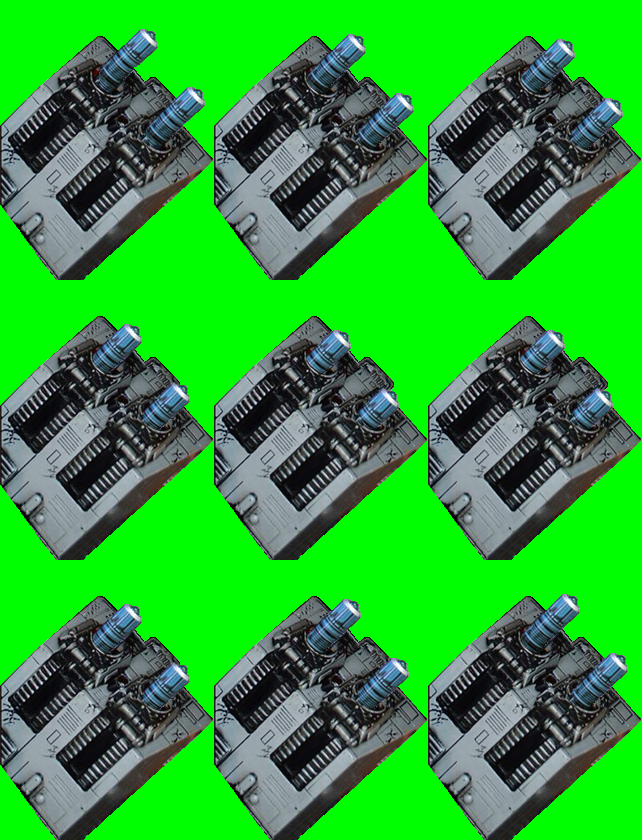
Import in the new emreel below into your table and set the transparency color to green (Red=0, Green=255, and Blue=0):
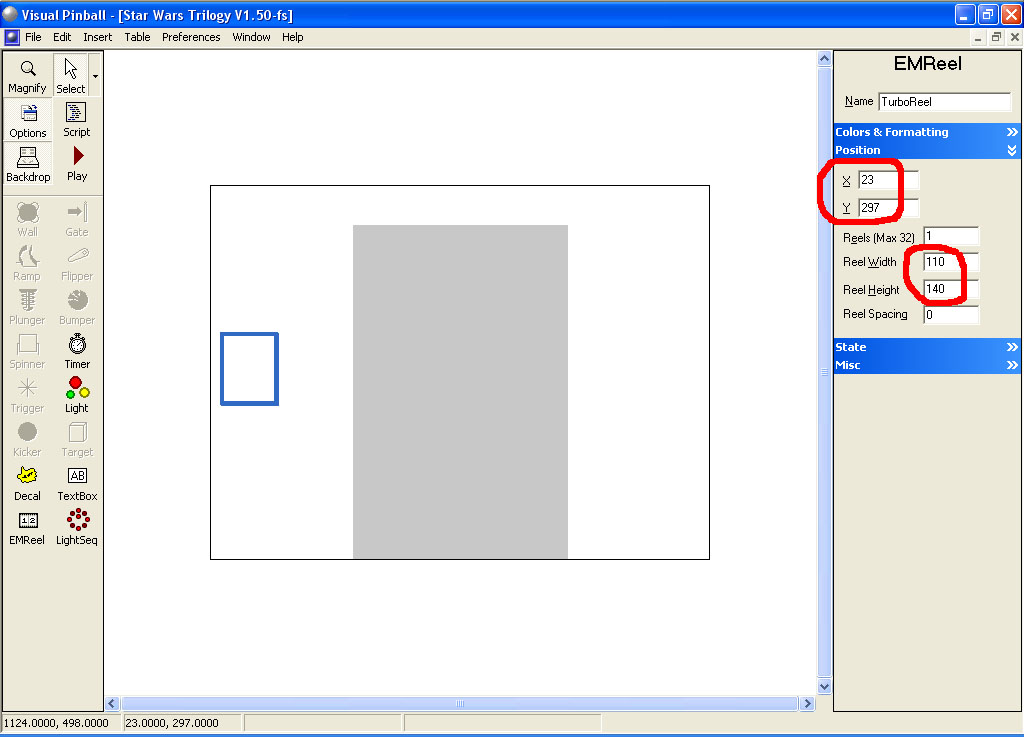
Click on the EMReel (it’s called TurboReel). Under the Position setting change the X position to 23 and the Y position to 297. Change the Reel Width to 110 and the Height to 140. Under Colors & Formatting select the new emreel image you just downloaded and imported.
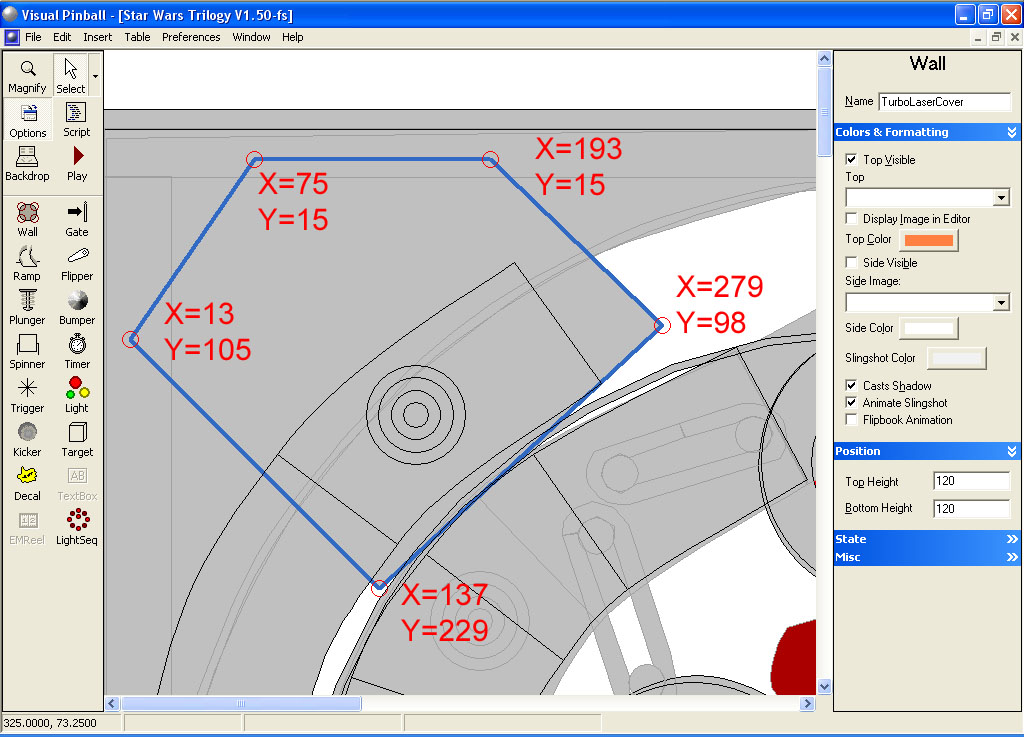
Click back on the Backdrop icon to switch back over to the table in the editor. In the upper left corner there is a wall called TurboLaserCover. It currently has 8 control points. Delete three of them on the right side so you only have 5 left. Change the X and Y values for each of them to match the image below:
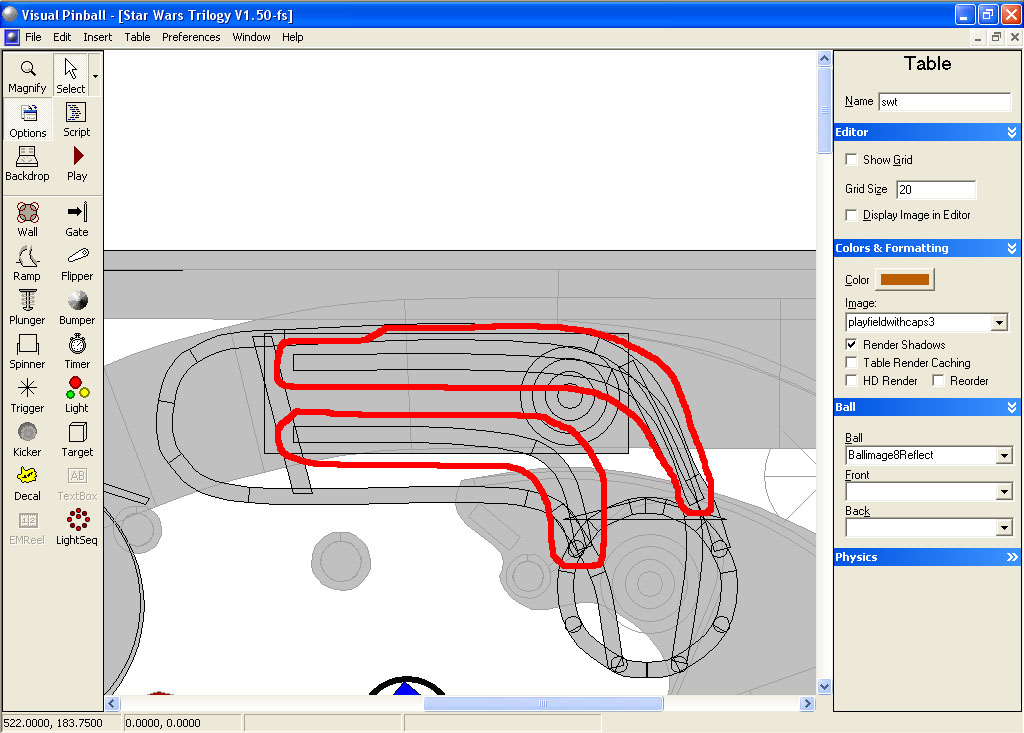
Now you need to adjust the VUK (Vertical Up Kicker). Refer to the image below and adjust the inner ramp object. Note that there are actually two ramps on top of each other. One has the metal gold image associated with it and the other doesn’t. Also they have a height difference of 6 units (the one with the metal gold wire is set at 130 and the one without that image is 124). You may also want to add another “wire” above. If you feel that it still doesn’t look quite right, adjust accordingly.
That’s it.
 Top
Top











 are all trademarks of VPFORUMS.