


Hello.
No need to give thanks or answers, just for begginers who needs some information:
After reading bad experiences with kinect and visual pinball...i must say...have a kinect v1 from several days ago and the playability in visual pinball or future pinball it`s f...awesome..(now the tables looks better and plays better, more realistic and i can`t be happier using kinect)
But kinect i's not the oculus quest or VR experience, kinect doesn`t convert your pc monitor into 3D active monitor.
kinect It`s not perfect at every view point or angle when you are looking at the objects on the pinball, and the reshade anaglyph program (you have to download separetely,it`s another program different than kinect stuff) )works good almost 80 %of the view points (in future pinball...you don't need reshade program...the anaglyph works good almos the 100% of the view points of the table ) but i have to say that the anaglyph or the green-magenta glasses are not 3D monitors.
You can`t expect a realistic 3d object when you have a 2d image like the family guy characters in Family guy pinball bigus version.
Some objects (vpw team, etc..)are 3d and you see a realistic object on your monitor (lying up from the screen or the pinball board) but this it`s not perfect...and when you go to bizarre angles (go to your corner room) the realistic sensation dissapears...i think this it`s normal...
But you have to reach the point configuring the table and kinect-bam in which you move your head (one eye must be closed) and you don`t see the camera moving on the screen, you don`t see any angle movement on the screen, if you move your head to the left, you see the left side of the pinball, and you don`t see any camera movement in the screen.
The good configuration must be when you are normally watching the back of the flippers during gameplay, and when you move your head upon the table...then... you are watching the front of the flippers.
But it`s impossible a realistic sensation at every corner of your room.
It`s possible to get a good configuration for almost every table when you are in the same position in front of your virtual pinball (you can move your head to side to side of the screen and you can move your head upon the screen and down also , beneath the screen (like when you lie down in front of one real pinball looking for aim a good shoot in both side flippers)
I am gonna help you to make a good configuration and the calibration for kinect camera and you can test everything i have told you..
But i must say that i love this VR system...maybe the reshade program (green-magenta anaglyph glasses) works better and more realistic 3D with a static camera view point(not with kinect). but when you calibrate correct the camera and make a good configuration for the table view in future pinball (bam options menu)
it`s freakin awesome..
Then you have to go to visual pinball and make a good configuration.
And the configuration for bam in visual pinball it's very, very easy guys:
You have only 6 boxes and 6 parameters for make this configuration in visual pinball.
You have 3 axys.
X, Y ,Z (maybe one day... we can see the fourth axy.., but probably you will need some kind of substance or beer).
Ok, in visual pinball you press Q and the VP menu appears and you have to select ADJUST HEAD TRACKING..
You can see a menu with 6 boxes with numerical digits.
The top boxes are for positioning the table
The bottom boxes are for resizing the table.
The first box it's for X axy (top box it`s for horizontal table position, bottom box it`s for horizontal table resize)
The second box it's for Y axy (top box it`s for verticall table position, bottom box it`s for vertical table resize)
And the most important parameter, guys..it`s for the third box...
The third box it's for Z axy (top box it`s for position Z axys camera point, and the bottom box it's for resize the z axys on the table)
It`s sooo important you make a good configuration of the Z axys camera position here.
My trick it`s moving my head from side to side of the screen (like during gameplay) and change this parameter (the z axys camera view point parameter, you can change pressing left click with your mouse and move your mouse left or right to change this parameter).
You have to reach that point (in some tables are different values) where you move your head from side to side of the screen and the camera movement it`s something minimal (not something exagerated, like when you move your head to one side of the screen and the half of the pinball goes out of the screen, this it's what we are not looking for...).
You need to move the z position value box, until the camera gives a good and realistic movement in the monitor.
Example: you have very bad position value for Z (right top box) and the camera movement it's very weird and exagerated....if you go side to side of the table (moving your head in front of the camera) the camera moves too much exagerated and weird in the table monitor (with your head in the left side you only see half table and the other half it`s empty and black).
The table moves too much when you move around.
This it`s no good, you will need to position the table and the camera movement it`s not exagerated and the table doesn´t move too much in the monitor.You need to find this value in the z axis two boxes.
You need to position the z axis for you to move around and the table doesn`t move too much in the playfield monitor, and the camera movement in the playfield monitor it`s not something crazy or weird.
I's possible to get a realistic playability (please, not perfect..like in your room with oculus quest VR glasses)
You need to put your eyes in the bottom of the playfield (like when you lay down in front of one real pinball to see some things or objects in the playfield or when you are looking for point to shoot one ramp or target) and the objects must seem realistic.
Now I love to point to shoot a ramp or hole (really love it, it`s working perfect)
So you change this value (z axys camera view point)and look for a minimal camera movement on the screen.
Verify you get a realistic 3d view activating reshade anaglyph (you don't need reshade program as visual pinball have 3d stereo mode with anaglyph, but now i prefer reshade program effect)and moving your head from side to side and closing one eye (i close left eye) you are watching a real pinball on your screen)
Easy guys... TOP boxes are for positioning, BOTTOM boxes are for resizing.
First box for the X axys, Second box for Y axys and third box for Z axys.
But now
The most important parameter to configure (more important or maybe equal than Z axys) it`s the angle of the table...
You need to select a realistic angle (the values 2-15 gives me very good results almost every table) if you have negative values in the table angle, you are gonna walk a very rough journey for configuring a good and realistic view point, but this it's not true on every table, you could find one table where a negative value it's something positive in realistic configuration.
I have i7 9700KF and a graphics card AMD RX580 8 gb ddr4 (a 70 euros graphics card) and 16 gbs ram dddr4 3600 mhz.
I use an m2 with1 tb hard drive. and i use windows 11.
For calibrating... put your camera focusing the playfield (you have to watch the camera screen in bam options menu in future pinball and you must look for a symetrical view and look for position the playfield monitor in the center of the camera screen in BAM options menu).
I like to focus 100 % of the playfield monitor during the calibration.
For me works perfect positioning the camera in the bottom backglass.
And you move the camera motor to focus 100% playfield monitor ,after the calibration it's success... then i have no problem to move up the camera lens for focusing my head during the playtime standing up right in front of the playfield monitor (in the camera screen bam options we must see our heads perfectly).
If you have a kinect v1 you must move the camera lens motor via BAM menu options (don`t force the motor with your hands)
In kinect v2 you move up or move down the camera lens via manually.
Ok...i want to build a friendly guide for people wants to test.
The existing guides for kinect are a good start point, if you have a kinect v2 are definitely the best choice.
Ravarcade guide for BAM and Kinect
The kinect v2 it's definitely by far the best option by now...The kinect v1 also works perfect but everything it`s better in kinect v2 (the depth effect on the table, the camera movement, certainly more view points and you can get closer to the camera and still recognised, etc.. it`s simply better than v1..).
But kinect v1 it`s certainly by far best option than a satic camera view point.
I was happy with kinect v1.
There are people complaining about framerates, and this it`s not true...
Pup packs are problem framerate.
kinect it`s not a problem framerate.
But you need to have a good system and everything must be running smooth before kinect.
If you have stutter problems, there will be more with kinect (i think this it`s simple).
But i have noticed more framerate losses with reshade than with kinect.
You can toggle on/off reshade effect pressing only one button (and the problem dissapears)
The reshade effect doesnt`t works good with some pup packs for me (simpsons pinball party, flinstones, etc at certain moments there are stutter ball movement)...
So i need to choose between good playability and the ball smooth movement or the up-pack (i choose playability, no problem).
My experience..
I have purchased firstly a kinect v1... and it's very good option (but i had problems at beginning installing drivers).
But i have bought recently a kinect camera v2 (20 euros)and the wire connector (20 euros plus)
(the kinect v2 and the kinect v1 have different wire adaptors and connectors, the kinect v1 it's an HDCP conector and the v2 it`s a new different connector i haven't seen before).
If you can buy a kinect v2, go for it...it's excellent..
If you have a v1 , no problem...it's good..
I was happy with kinect v1, but kinect v2 blowed my mind
KINECT V2:

But if you have a kinect V1, i will start this tutorial because...Santo Job doesn`t want you loose your time with no reason..maybe others walked this rough desert path and they have crossed a bizarre journey with lonely and coldy nights after hopeless days.
They moved forward and now they don`t remember anything about their coursed journey.
KINECT V1:

OK..lol..I am here ready to cross this desert with my suitcase (no bills inside, no oldman with a rifle).
Stopping LOL mode....received.
Description kinect V1 camera
On both sides of the device there are audio mics.
The center camera it`s RGB sensor
And the both sides cameras are depth sensors, the left one it`s infra-red (dark places).
And you have the motorized tilt for positioning the view camera (only Y AXIS or vertical)
If i am wrong please let me know..
CONEXION TO WINDOWS:
The first thing you must know it`s about connecting the kinect v1 to a windows pc (windows 10/11 tested).
The camera have one wire with an HDCP connector.
But you really need another different wire:

This wire have one FEMALE HDCP connector (this connector goes to the hdcp male camera connector) and one USB MALE connector for the pc conexion (tested on usb 3.0 computer ports).
You can see a plug (12 volts and 1.5 amperes transformer to 230/120 volts).
You will need everything for pc connexion, 12 volts to the camera (1.5 amperes maximum), the usb conexion to the pc and the HDCP conector of the camera connected to all that stuff (yep little mess).
But if you don`t have this wire, no problem...you will only need a 12 volts/1.5 amperes transformer plug conector and a usb male connector, and little patience for build this thing: (not tested because my camera was delivered with the wire, lucky me... only 18 euros..):

Now you have evrything you need for connect to the pc, now it`s time to begin to move forward...
DRIVER INSTALLATION:
When you first connect the camera to the pc (first conexion plug transformer, second conexion usb to pc, and the third and last conexion it`s the HDCP conector male and female), maybe it`s not so important and you can connect evrything at the same time...but i don`t have tested yet...
The first thing you are going to see it`s XBOXNUIMotor in device manager...
You will have to open device manager:
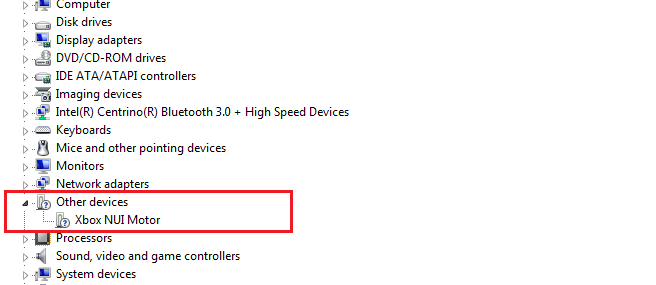
ñññ, only motor recognized, ñññ, ok..
DRIVERS TO INSTALL :
My solution was install this driver (Kinect for Windows Runtime 2.2.1905)
https://www.microsof....aspx?id=100067
And then install this driver (Kinect for Windows SDK 1.8):
Download Kinect for Windows SDK v1.8 from Official Microsoft Download Center
That`s it...if you want you can download the developer toolkit with the kinect studio and the kinect configuration verifier..
But you must know...i have passed several problems with the camera being not recognized at all..
I mean.. everything it`s correct and it`s installed and wonderful but the camera doesn`t connect at all.
Not recognized by windows, no image and black screen (plugin not detected in BAM)
If you download the configuration verifier for kinect you must know there it`s a version 2.0 and i think this version will never work with a V1 camera (the camera V1 doesn`t connect with the 2.0 version drivers).
The same with the other programs. i recommend you to install only the first two drivers i have gave you uplines.
DRIVERS NOT TO INSTALL (V1 CAMERA):
Anyways...if you want to walk your own paths here you have this programs, but i don`t recomend at all install this programs: (camera v1)
I have only found the 2.0 version for the kinect configuration verifier (i haven`t found an 1.8 version, would be awesome to test a 1.8 version...maybe works.... not like the 2.0 version which make impossible the detection or the conexion for this camera to the pc)
Developer toolkit browser 1.8 version
Again..only have found this 1.8 version (there it`s a 1.51 version also), this program it`s the same like before, you will not need for vpx and fp (at least in early stages of configuration).
You have also a kinect for windows SDK 2.0 version...but again i don`t recomend install it (for me only works the 1.8 kinect for windows SDK version).
Now we have this beauty in device manager:

Now we have the camera working, you can see the green led blinking in the camera front side..
CONFIGURATION FOR FUTURE AND VISUAL PINBALL
(UNDER CONSTRUCTION)
It`s time to open the BAM folder inside our future pinball folder, execute FPLoader
Open a table and press play. then you have to press Q to bring the options menu.
Search for kinect (please don`t loose your time with desktop kinect, it`s a f...sh..)
You have to pass the three points calibration for bring this into life...
TO BE CONTINUED=======><========OR EDITED
PLEASE BE PATIENCE...MORE PICS TO COME, FOR SURE..
Edited by Junkyerd, 21 April 2024 - 03:07 PM.
 Top
Top


 are all trademarks of VPFORUMS.