> I just noticed that screens 2 and 3 together might be SLIGHTLY taller than the main
> playfield screen. Could this be a problem? Combined height 1480px and playfield is 1440px.
It really shouldn't matter, since it's all based on window size. What's in your Settings.txt, under all of the PlayfieldWindow.* properties?
Here is my full "Settings.txt" file from the PinballY directory:
# PinballY configuration settings
#
# PinballY modifies this file each time it runs, so don't edit the file
# manually while the program is running.  However, you can safely edit the
# file between sessions.  The program will preserve comment lines (any line
# starting with "#", like this one) and preserves the overall order of the
# file's contents, so you can apply manual comments and formatting as
# desired to make the file more easily readable.
#
# Note: Variable names are case-sensitive!  Upper/lower case must be matched
# exactly in variable names.

# time of last update by the program
UpdateTime = Sun 01 Feb 2026 11:20:35

# First run time.  The system automatically sets this to the date and
# time when the program is first run on your machine.  This is used as
# the install date for any games that are found already installed from
# your PinballX game database.  This is in YYYYMMDDhhmmss format, in
# the GMT time zone (e.g., 20180725162715 for 2018-July-25 at 16:27:15
# GMT).
FirstRunTime = 20260131002010


# Log file features.  PinballY writes certain information to a log file
# as it runs ("PinballY.log", in the PinballY install folder).  This is
# a simple human-readable text file with information on certain events
# that occur as the program runs, with some internal details of the
# program's operation.  The idea is to store away some additional
# information that would be too technical and unfriendly to report in
# the graphical UI, but that are occasionally useful for troubleshooting
# purposes.  The main UI intentionally tries to hide a lot of technical
# detail for the sake of a friendly and game-like playing experience,
# but when something goes wrong, it's nice to have a more transparent
# view of the inner workings of the program.
#
# The program normally writes very little information to the log file,
# since we don't want to create additional work for the CPU and waste
# a bunch of disk space on pointless messages when things are working
# properly.  The log file is really here for troubleshooting.  So we
# provide a number of "feature flags" that let you enable particular
# types of log information:
#
# Log.MediaFiles - media file searching
#
# Log.MediaDrop - media file drag-and-drop installation
#
# Log.SystemSetup - player system setup and table file searches
#
# Log.MediaCapture - media capture
#
# Log.TableLaunch - table launch (running a game)
#
# Log.RealDMD - real DMD (dot matrix display) device operations
#
# Log.DOF - DOF (DirectOutput feedback device control) operations
#
# Log.Javascript - Javascript scripting
#
# Log.HighScoreRetrieval - high score retrieval via PinEMHi
#
# Log.WindowLayoutSetup - initial window layout setup
#
Log.MediaFiles = 0
Log.MediaDrop = 1
Log.SystemSetup = 0
Log.MediaCapture = 1
Log.TableLaunch = 0
Log.RealDMD = 1
Log.DOF = 1
Log.Javascript = 1
Log.HighScoreRetrieval = 1
Log.WindowLayoutSetup = 0

# Vertical Sync Lock.  If this is enabled (1), the graphics rendering
# rate is throttled to the monitor's physical refresh rate.  If disabled
# (0), the graphics are rendered as quickly as possible, so the limiting
# factor is basically the CPU speed.  On machines with fast video cards,
# rendering "as quickly as possible" can use excessive system resources,
# so it can be better to throttle rendering to the actual refresh rate.
# You can display the current frames-per-second rendering rate in each
# window using the right-click context menu.
VSyncLock = 0


# Media folder path.  This is the root of the our media folder tree, where
# we look for the various table media files (images, videos, sounds, etc).
# We use the same subfolder structure as HyperPin and PinballX, so you
# simply point this to your existing PinballX or HyperPin Media folder to
# use your existing files, if you installed one of those programs.
#
# If you enter a "relative" path here (that is, a path name that doesn't
# start with a drive letter, X:\...), the path is relative to your PinballY
# installation folder.
#
# If you enter an "absolute" path (starting with a driver letter, X:\...),
# that exact folder is used with no changes.
#
# If the path starts with "[PinballX]" (e.g., [PinballX]\Media), the folder
# is relative to the PinballX program install path.  This will only work
# if PinballX is installed.
#
# If you leave this completely blank, the program will ask you to choose
# one of those options at startup.
#
MediaPath = Media


# Table database path.  This is the root of the game list folder tree,
# where we look for the XML files listing games by system.  PinballY can
# read the XML format used by PinballX and HyperPin, so if you previously
# used one of those, you can reuse your existing game lists simply by
# pointing this to the old folder path.
#
# If you enter a "relative" path here (that is, a path name that doesn't
# start with a drive letter, X:\...), the path is relative to your PinballY
# installation folder.
#
# If you enter an "absolute" path (starting with a driver letter, X:\...),
# that exact folder is used with no changes.
#
# If the path starts with "[PinballX]" (e.g., [PinballX]\Media), the folder
# is relative to the PinballX program install path.  This will only work
# if PinballX is installed.
#
# If you leave this completely blank, the program will ask you to choose
# one of those options at startup.
#
TableDatabasePath = Databases

# Sort the XML database files when saving changes.  By default, PinballY
# preserves the original order of the XML files when saving changes.  Set
# this option to 1 if you'd prefer to have the XML files sorted
# alphabetically by game title.  (Note that the sorting will only occur
# when you make changes that require updating the XML files.  This option
# by itself won't make PinballY update the files; you have to make some
# change to the metadata that forces PinballY to save updates to the XML
# files, such as changing the title of a game defined within the file.)
#
SortTableDatabases = 0


# Should PinballY automatically launch at system startup?
#
# "off" means that the program doesn't launch automatically.  Use this
# setting if you want to run it manually from the Windows desktop each
# time you want to use it.
#
# "on" means that the program will launch automatically each time you
# log in to Windows.  PinballY will arrange for this by updating the
# following registry key:
#
# HKEY_CURRENT_USER\Software\Microsoft\Windows\CurrentVersion\Run[PinballY]
#
# "admin" means that the program will launch automatically in Administrator
# mode each time you log in.  This creates a Windows Task Scheduler entry
# for you named "PinballY Startup Task".  The Task Scheduler entry is used
# instead of the registry key in this case because the registry key doesn't
# allow for Admin mode launches.
#
# IMPORTANT:  Unlike most settings, this setting can't be updated by
# editing the Settings.txt file manually.  You must use the Options dialog
# to update this setting, because the setting has to be
AutoLaunch = off

# Autolaunch delay time, in seconds.  When launch at startup is enabled,
# the launch is delayed after you log on by this amount of time.  This
# can be used to avoid conflicts with other programs that are also
# launched when you log on, by sequencing the program launches so that
# they don't all start at the same time.  It's usually desirable to
# make sure that PinballY runs last when launching other programs, for
# a couple of reasons.  One is that other programs can thrash the disk
# while loading, which can make video playback jumpy; making PinballY
# wait until other programs have finished loading can make the initial
# video playback smoother.  Another is that the most recently launched
# program usually has control of keyboard focus, so if another program
# launches after PinballY, it can steal away the keyboard focus, which
# can prevent PinballY from responding to button presses.  Delaying
# PinballY's startup until after other programs have finished loading
# can make sure that PinballY has the initial keyboard focus.
AutoLaunch.Delay = 0


# Should we force keyboard focus into the PinballY window at program
# startup?  On some systems (particularly Windows 10), Windows doesn't
# give PinballY keyboard focus when launching it at system startup, so
# it won't accept keyboard input until you use the mouse to click in
# the window.  We can try to work around that by simulating a mouse
# click in our window automatically.  This option enables a simulated
# mouse click at the given delay after the program starts.  The delay
# might be necessary to wait for other activity at system startup to
# settle down, since other programs that are starting up at the same
# time might try to "steal" focus away from us the same way we're
# trying to grab it here.  The delay is given in seconds.
LaunchFocus.Enabled = 1
LaunchFocus.Delay = 5


# Should we wait for monitors to come online at startup?  Most pin cabs
# have multiple monitors, and on many pin cabs, these are regular TVs rather
# than computer monitors.  One of the little snags using TVs as monitors is
# that Windows can be slow to recognize them at system startup.  In fact,
# this process can be so slow that Windows can finish booting and can start
# launching programs before all of the TVs have been recognized.  This can
# cause screen layout problems for a program like PinballY that launches at
# startup, because it might not be possible to restore the saved window
# layout if some of the windows are located on screens that are still
# off-line.
#
# This option offers a way to work around that problem.  This lets you
# tell PinballY that it should wait, when first starting up, until Windows
# has recognized all of your monitors.  PinballY won't open any of its
# UI windows until the system reports that all of your monitors are
# on-line.
#
# This string should use this format:
#
# <N> monitors, <S> seconds
#
# <N> monitors tells the program that it should wait at startup until
# Windows has recognized at least that many monitors.  Specify a maximum
# waiting time with <S> seconds.
#
# The program displays a little dialog box during the wait, with a Cancel
# button that lets you manually cancel the wait if desired.  So you can
# set safely set a long wait time if necessary to accommodate monitors
# with unpredictable startup times, in that you can always cancel the
# wait if necessary.
#
WaitForMonitors = 1 monitors, 10 seconds

# Additional wait time after the monitors are online, in seconds.
# Some video cards have a quirk where they appear in Windows as soon
# as an attached TV is powered on, but then disappear again briefly
# while the physical connection (e.g., HDMI) is established.  This
# added delay can be used in such cases, to ensure that PinballY
# doesn't try to open any windows during that connection interval.
WaitForMonitors.ExtraDelay = 0

# Force windows into the valid desktop area at startup?  If this is
# true, PinballY will check the saved position for each window that's
# initially displayed to make sure that it's within the visible area
# of the desktop.  Any window that's entirely off the screen will be
# repositioned so that it's within the visible area of the nearest
# monitor to the saved location.
#
# This is enabled by default to ensure that windows don't fall off
# the edge of the visible area after a change to the desktop layout.
# If you rearrange your desktop layout or change monitor resolutions
# between PinballY sessions, the saved positions from the last session
# might place some windows in parts of the screen that aren't visible
# in the new session.  That can be confusing because it'll look like
# the window has disappeared, when it's actually there, just beyond
# the bounds of the visible desktop area.
#
# You might want to disable this option if you change your desktop
# layout dynamically for different applications using an external
# tool.  In that case, it can appear to PinballY during program
# startup that the saved window positions are invalid, so if this
# option is enabled, PinballY can think it needs to reposition some
# of your windows into the apparently valid desktop area.  Disabling
# this option tells PinballY to restore the old window positions
# unconditionally, preserving your old layout.
#
Startup.ForceWindowsIntoView = 1

# Method for restoring full-screen windows at program startup.
# When PinballY starts up, it restores window positions saved in the
# settings file.  For windows that were set to full-screen mode, there
# are two ways to restore the saved position, which can be selected
# via this setting:
#
# "Nearest Monitor": this is the default.  This means that PinballY
# saves the PRE-full-screen position of the window - that is, the
# position of the original window just before you switched it into
# full-screen mode.  PinballY restores the full-screen window by
# first restoring that PRE-full-screen position, then finding the
# monitor that most completely contains the window (the "nearest"
# monitor), and expanding the window to fill that monitor.
#
# "Pixel Coordinates": In this mode, PinballY simply saves the pixel
# coordinates of the full-screen window itself, and restores those
# exact coordinates when the program starts.  It doesn't try to fit
# the position to a monitor.
#
# The "Nearest Monitor" method is more flexible, because it
# automatically adapts to any changes you make to the resolution
# settings or layout of your monitors.  When the program starts,
# PinballY looks at the CURRENT monitor layout, and finds a
# suitable monitor to use as the full-screen monitor.  However,
# this might not be ideal for you if you routinely make TEMPORARY
# changes to your monitor setup, because it might move your windows
# around in the different resolution modes.  One case in particular
# where this can happen is if you use remote desktop access software
# to log into your PC remotely, since remote access software tends
# to virtualize the monitor layout.  If you have problems with
# saving and restoring the positions of full-screen windows, try
# the "Pixel Coordinates" method.
Startup.FullScreenRestoreMethod = Nearest Monitor


# Splash screen.  If true (1), the program displays a "splash screen"
# briefly at program startup, showing the program name and version.
# Set to false (0) to disable this.
SplashScreen = 1


# Mouse hiding.  PinballY hides the mouse pointer at program startup,
# and again whenever you press a command button.  Normally, it does
# this using a standard Windows "hide the mouse" command.  But for
# reasons not yet understood, this standard command doesn't work on
# some systems.  So we offer this alternative for systems where the
# mouse refuses to be hidden: instead of hiding the pointer, we move
# it to a parking position at a corner of the screen where it won't
# be visible, or if that's not possible, where it at least won't be
# in the way.  Set Mouse.HideByMoving to 1 if you want to enable this
# alternative way of hiding the mouse, and set Mouse.HideCoords to
# the screen coordinates in pixels where you want the mouse to be
# parked.
#
Mouse.HideByMoving = 0
Mouse.HideCoords = 1920,540


# DOF.  PinballY can use DOF to activate effects on your pin cab
# feedback devices, such as firing the flipper solenoids when you
# press the flipper buttons and showing lighting effects when switching
# between games.  The program detects and accesses DOF automatically,
# using DOF's registered COM objects, so there's nothing extra that
# you have to install or configure to make DOF work with PinballY.
#
# The specific DOF effects that PinballY triggers are controlled by
# the DOF config files.  Most people set these up using the online
# DOF Config Tool, https://configtool.vpuniverse.com/.  PinballY
# pretends to be yet another pinball game as far as DOF is concerned,
# so PinballY's effects can be customized just any table's effects
# can be customized.  PinballY's pretend table name in the DOF
# config is "PinballY".  If you're using the online DOF Config tool,
# you can find the PinballY settings by clicking the Table Configs
# tab in the top nav bar, then selecting "PinballY" from the Table
# Name drop list.
#
# PinballY's DOF events are "virtual" events, with names starting
# with $PBY.  For a full list of these events, refer to the Help
# section on DOF Events.
#
# If you'd like to disable PinballY's DOF usage completely, set
# DOF.Enable to 0.
DOF.Enable = 1


# Real DMD setup.  This is for real pinball-style Dot Matrix Display
# devices.  (It's NOT for normal video monitors used to display simulated
# DMD images; it's only for physical DMD devices, such as the commercial
# PinDMD products or the DIY Pin2Dmd device.
#
# Set RealDMD as follows:
#
# RealDMD = Auto - searches for DmdDevice.dll in your VPinMAME folder,
# then in your PinballY program folder.  If the DLL exists, PinballY
# will use the DMD device.  If the DLL doesn't exist, no error is shown.
#
# RealDMD = On - same as above, but an error is shown if the DLL
# can't be found.  Use this for troubleshooting if you think the DLL
# is installed but nothing is happening on the DMD device.
#
# RealDMD = Off - disables the real DMD, even if the DLL exists.
#
# If you haven't already done so, install Visual Pinball, and check that
# it works properly with your DMD device.  PinballY will use your Visual
# Pinball installation to access the DLL that interfaces with the device,
# so no additional configuration should be required for PinballY.
#
# Special case only: If for some reason you DON'T plan to install Visual
# Pinball, but still want to use the DMD with PinballY, you can install
# the appropriate DmdDevice.dll for your device directly in the PinballY
# program folder.  You should be able to get the right DLL from your
# device manufacturer or from the Visual Pinball distribution.  If you
# get the DLL from the VP files, make sure you select the DLL version
# that matches your physical DMD device.
#
RealDMD = Off

# Real DMD mirroring modes.  These are for cabinets where the user views
# the display via a mirror (e.g., "Pinball 2000" style cabinets).  If a
# mirror is involved, it's necessary to flip the pixel layout either
# vertically or horizontally to compensate.  You can control these via
# menu commands in the main window, so you can experiment with the
# settings interactively if you're not sure how to set these.
RealDMD.MirrorHorz = 0
RealDMD.MirrorVert = 0

# Real DMD grayscale gamma.  This sets the gamma correction value used
# for playback of grayscale video.  Adjust this if video playback looks
# too bright or dark on your real DMD display.
RealDMD.GrayscaleGamma = 2.8


# External program to run at startup.  This is executed when PinballY first
# starts, before PinballY loads the game list or displays any UI windows.
# This uses the same command line syntax that you'd type at a CMD prompt
# or into the Windows system "Run" (Windows+R) dialog.
#
# To run a .CMD or .BAT script, use this syntax:
#
#    CMD /c <script file name>
#
# With the exception of Windows system programs like CMD.EXE, you should
# always specify the full path to the program you want to launch.  If the
# program name or its path contain spaces, you must enclose the name in
# double-quote marks:
#
#    "c:\my path\my program"
#
RunAtStartup =

# External program to run at exit.  This is executed just before PinballY
# terminates, after it closes all of its UI windows.  This follows the same
# rules as RunAtStartup for specifying the command line.
RunAtExit =


# Popup info box settings.  Whenever a game is selected in the "wheel",
# the program normally pops up a little box near the top of the playfield
# window showing basic information on the game.  These settings control
# whether the box is shown at all, and if so, which items it displays.
#
# InfoBox.Show -> controls whehtehr or not the box is shown at all
# .Title -> include the game's title in the box
# .GameLogo -> use the game's logo graphics in place of the title, when available
# .Manufacturer -> show the manufacturer name
# .ManufacturerLogo -> use the manufaturer's logo graphics in place of the name, when available
# .System -> show the player system name (Visual Pinball, etc)
# .SystemLogo -> use logo graphics for the system when available
# .Year -> show the original release year of the real pinball machine
# .TableType -> show the table type (Solid State, etc)
# .TableTypeAbbr -> use the abbreviated table type (SS, EM, etc) instead of the full type name
# .Rating -> show the star rating
# .TableFile -> show the table file name (.vpt, .vpx, .fpt, etc)
#
InfoBox.Show = 1
InfoBox.Title = 1
InfoBox.GameLogo = 0
InfoBox.Manufacturer = 1
InfoBox.ManufacturerLogo = 1
InfoBox.Year = 1
InfoBox.System = 1
InfoBox.SystemLogo = 1
InfoBox.TableType = 0
InfoBox.TableTypeAbbr = 0
InfoBox.Rating = 1
InfoBox.TableFile = 0


# Playfield background layout.  By default, the playfield background
# image/video is shown at its original aspect ratio.  Set this to 1
# to stretch the video to fill the entire window, even if that distorts
# the aspect ratio.
Playfield.Stretch = 1

# Where should instruction card pop-up images be displayed?  Enter
# Playfield, Topper, or Backglass to select the desired display window.
# (If the window you designate here isn't visible when you ask to
# display an instruction card, the card will be shown in the playfield
# window instead.)
#
# Note that this only controls the pop-up images that appear when you
# use the "Instructions" command.  You can also have a whole dedicated
# window where the instruction card for the current game is always
# shown without having to select a menu command at all.  If that
# window isn't already displayed, right-click on the main window and
# select "Show Instruction Card" from the menu.
#
InstructionCardLocation = Backglass

# Are Shockwave Flash (.swf) files allowed for instruction cards?  If
# this is enabled, the system will look for .swf files in addition to
# the usual complement of image types (.png, .jpg, .jpeg) when searching
# for instruction card images.  If this is disabled, .swf files will be
# ignored.
#
# In order to use .swf files, the Adobe Shockwave Flash Player ActiveX
# control must be installed on your system.  (Note that Flash Player
# has separate plug-ins for IE and for other browsers.  PinballY can
# only use the ActiveX IE plug-in, so you might have to install that
# separately even if you already have another Flash plug-in for a
# different browser.)  If for some reason you don't want to install
# the Flash ActiveX on your system, you can disable this option to
# make PinballY ignore SWF files, to avoid any error messages from
# attempts to load them.
#
# Why is this even an issue, you might ask, when SWF is an obsolete
# format?  Even Adobe, its creator, says it's obsolete.  The reason
# is purely historical.  HyperPin, the first front end for pin cabs,
# used SWF for instruction cards.  That led to a large number of
# downloadable Media Packs for HyperPin including instruction cards
# in SWF format.  Those old Media Packs are still around and they're
# still the most convenient way to get all of the media "extras" for
# your games.  PinballY therefore supports SWF so that you can use
# the many existing Media Packs without having to go through any
# tedious format conversions every time you download one.
#
InstructionCards.EnableFlash = 1

# Should we use the internal SWF (Flash) renderer?  If this is set
# to 1 (for "true"), PinballY uses its own internal reader and
# renderer for SWF files.  If not, we use the Flash Player DirectX
# control (also known as the Flash plug-in for Internet Explorer).
# This is true by default starting with 1.1 Beta 5, since Adobe
# officially declared Flash Player as obsolete, and pushed out an
# update in January 2021 to disable all existing installations.
#
# PinballY's built-in SWF renderer provides limited support for
# SWF display without the need for any external plug-ins.  It only
# supports a very limited subset of Flash Player's capabilities,
# but it's designed to handle the limited needs of the one special
# use case for SWF in PinballY: HyperPin Media Pack instruction
# cards.  The instruction cards found in nearly all HyperPin media
# packs are in SWF format because of SWF's vector graphics
# capabilities.  At the time most of these files were created,
# there weren't any other vector formats in common use.
#
# If you set this to 0, PinballY will continue to use Adobe Flash
# Player, but it's up to you to keep that working despite Adobe's
# best attempts to disable it by remote control.  And of course
# you'll be exposing your system to greater security risks; Flash
# Player has always been a bit of a security nightmare, and it's
# now entirely unsupported.
#
UseInternalSWFRenderer = 1


# Timing for game selection updates in the different windows.  This
# controls how new images and videos are loaded into the windows when
# you select a new game in the wheel UI.
#
# By default, PinballY loads new media into one window at a time.
# It updates the playfield window immediately, and then after a
# slight pause updates the backglass window, then the DMD window,
# and so on.  The one-at-a-time loading is designed to make the video
# loading process smoother, by only asking the video player system to
# open one file at a time.
#
# Alternatively, you can set this to "simultaneous" mode, which tells
# PinballY to load all of the new images and videos into all of the
# windows at the same time, without any delay between them.  You
# might prefer this if your system is fast enough to load and start
# several videos at the same time without any hiccups.
#
# Set this variable to 0 for the default one-at-a-time video loading.
# Set it to 1 for simultaneous loading in all windows.
#
SimultaneousWindowUpdate = 0

# Media crossfade time, in milliseconds.  This is the length of the
# crossfade effect in the various windows when switching to a new
# game in the wheel UI.
CrossfadeTime = 120

# Default font family for most UI elements.
DefaultFontFamily = Tahoma

# Fonts for UI elements.  Specify as <point size> <weight/style> <family>.
#
# <point size> is a number, with optional "pt" suffix.
#
# <weight/style> can be a standard font weight value from 100 to 900,
# (400 is normal weight in most fonts, 700 is bold), or one of the
# standard weight names: "thin" (100), "extralight" (200), "light"
# (300), "normal" (400), "medium" (500), "semibold" (600), "bold"
# (700), "ultrabold" (800), "black" (900).
#
# You can also add a style to the <weight/style> setting, by adding
# a "/" and the style name, which can be "regular" or "italic".
# For example, "400/italic" or "normal/italic" would select the
# italic style for the font in normal weight.
#
# <family> is a font family name (e.g., Tahoma or Comic Sans MS).
# Specify the full name as it appears in the Windows Fonts control
# panel.
#
# Any of <point size>, <weight>, and <family> can be entered as *
# (an asterisk) to use the system default value for that item.
# The system default for <point size> varies for each item; the
# default for <weight> is always "normal", and the default for
# <family> is always the value of DefaultFontFamily above.
#
# The default entries below use all default values.  For your
# reference, the normal system point sizes are listed in the
# comments below.
#
# MenuHeaderFont = menu headers (36pt)
# MenuFont = menu items (42pt)
# PopupFont = base font for popup dialogs and messages (24pt)
# PopupTitleFont = large font for title text in popups (48pt)
# PopupSmallerFont = smaller text font in popups (20pt)
# PopupDetailFont = even smaller detail text font in popups (18pt)
# MediaDetailFont = small font for line items in media file listings (12pt)
# WheelFont = game titles in the wheel when logos aren't available (80pt)
# HighScoreFont = font for the high score list in the info box (24pt)
# InfoBoxTitleFont = large font for title text in info box displays (38pt)
# InfoBoxFont = font for main text in info box displays (28pt)
# InfoBoxDetailFont = small font for fine print in info box displays (16pt)
# StatusFont = status line font (36pt)
# CreditsFont = credits message font (42pt)
# LaunchStatusFont = launch status messages (48pt)
# TTHighScoreFont = font for typewriter-style high scores in DMD window (Courier New, auto sized to fit)
#
MenuFont = * * *
MenuHeaderFont = * * *
PopupFont = * * *
PopupTitleFont = * * *
PopupSmallerFont = * * *
PopupDetailFont = * * *
MediaDetailFont = * * *
WheelFont = * * *
HighScoreFont = * * *
InfoBoxTitleFont = * * *
InfoBoxFont = * * *
InfoBoxDetailFont = * * *
StatusFont = * * *
CreditsFont = * * *
LaunchStatusFont = * * *
TTHighScoreFont = * * *

# Text message colors.
#
# MenuHeaderColor - menu header (explanatory message at the top of a menu)
# MenuTextColor - regular menu items
# MenuBackgroundColor - menu background
# MenuGroupTextColor - menu group section titles
# PopupTextColor - popup message box main text
# PopupBackgroundColor - popup message background
# PopupTitleColor - popup message box titles
# PopupSmallTextColor - popup message box small text
# PopupDetailTextColor - popup message box detail (extra-small) text
# MediaDetailTextColor - media detail text
# WheelTitleColor - game title shown in the wheel when there's no icon
# WheelTitleShadowColor - drop shadow for game titles
# HiScoreTextColor - high score text
# InfoBoxTextColor - game info box main text
# InfoBoxBackgoundColor - game info box background
# InfoBoxTitleColor - game info box titles
# InfoBoxDetailTextColor - game info box small detail text
# StatusLineTextColor - status line text
# StatusLineShadowColor - status line text drop shadow
# CreditsTextColor - coin/credit message text
# LaunchStatusTextColor - launch status message text
# LaunchStatusBackgroundColor - background fill color during launch
# TTHighScoreTextColor - text color for typewriter-style high scores in DMD window
#
MenuHeaderColor = #FFFFFF
MenuTextColor = #FFFFFF
MenuBackgroundColor = #000000
MenuGroupTextColor = #00FFFF
PopupTextColor = #FFFFFF
PopupBackgroundColor = #000000
PopupTitleColor = #FFFFFF
PopupSmallTextColor = #FFFFFF
PopupDetailTextColor = #A0A0A0
MediaDetailTextColor = #FFFFFF
WheelTitleColor = #FFFFFF
WheelTitleShadowColor = #000000
HiScoreTextColor = #FFFFFF
InfoBoxTextColor = #FFFFFF
InfoBoxBackgroundColor = #000000
InfoBoxTitleColor = #FFFFFF
InfoBoxDetailTextColor = #C0C0C0
StatusLineTextColor = #FFFFFF
StatusLineShadowColor = #000000
CreditsTextColor = #FFFFFF
LaunchStatusTextColor = #FFFFFF
LaunchStatusBackgroundColor = #1E1E1E
TTHighScoreTextColor = #000000


# Mute videos.  Turns off sound playback on all videos (playfield,
# backglass, DMD).  You can change this while the program is running,
# using the "Exit" menu.  Note: this doesn't affect Table Audio
# tracks - use TableAudio.Mute to mute those.
Video.Mute = 0

# Mute Table Audio tracks.  Turns off sound playback of Table
# Audio tracks.
TableAudio.Mute = 0

# Master volume control for videos.  This sets the volume level
# for all video playback, relative to the Windows system volume.
# This is a percentage of the system volume, 0 to 100.
#
# You can also control the volume level for each game's videos
# separately, via Operator Menu > Adjust Audio Volume.  The volume
# level for each game is combined with the master volume, so a
# change to the master volume will still affect all games, even
# games with individual level settings.
Video.MasterVolume = 100

# Enable videos.  This allows using video media for the playfield,
# backglass, etc when available.  If this is set to 0, still images
# will be used instead.  You can change this within the program
# using the "Setup" menu.
Video.Enable = 1

# Mute sounds when in attract mode.  Turns off sound playback for
# all videos when attract mode is active.  You can also change this
# from the "Exit" menu.
AttractMode.Mute = 1

# Mute the sound effects for all button presses.  You can also change
# this from the "Exit" menu.
Buttons.Mute = 0

# Mute the sound effects for auto-repeat button presses.  This
# prevents the button sound effects from playing repeatedly when
# you're holding down a button.
Buttons.MuteAutoRepeat = 0

# Audio volume level for the button sound effects, relative to the
# Windows system volume setting.  This is a percentage value, from
# 0 to 100.
# Buttons.Volume = 100


# Is the Exit menu enabled?  If this is true (1), pressing the Exit
# button when no menus or popups are shown brings up the Exit menu,
# which offers commands for exiting PinballY (returning to the Windows
# desktop) and a few other miscellaneous system options.  Set this to
# 0 to prevent the Exit menu from being displayed.
#
# Disabling the exit menu is useful if your pin cab is in a public
# setting, since it prevents users from accidentally (or on purpose)
# quitting out of PinballY and accessing the Windows desktop, shutting
# down the system, etc.
ExitMenu.Enabled = 1

# How should the Exit button act in the Exit menu?  "Select" means that
# the Exit button can be used to select items in the menu, just like the
# Start button.  "Cancel" means that it simply cancels out of the menu,
# the same way it does in other menus.  I find it more natural for the
# Exit button to select items in the Exit menu, because you had to press
# the Exit button to bring up this menu in the first place, so that's
# where your finger is poised while operating the menu.  As a result, I
# always found PinballX's treatment of it as the Cancel button, even in
# this context, to be irritating and wrong.  Granted, it's more
# consistent overall to treat it as the Cancel button, since that's
# how it acts everywhere else, but in my opinion this is one of those
# "foolish consistencies" that makes things worse rather than better.
# And even in terms of consistency, it's arguably more consistent in
# the local context of the Exit menu to treat it as "select".  But if
# you disagree and you prefer the old PinballX handling, just change
# this setting to Cancel.
#
# Select -> treat the Exit key as a select button in an Exit menu
#           [this is the default]
#
# Cancel -> Exit key simply cancels out of an Exit menu
#
ExitMenu.ExitKeyMode = Select

# Should the Exit menu include an "Operator Menu" command?  If this
# is true (1), the Exit menu will include a command that lets you
# access the Operator menu, which provides commands for game setup
# and various PinballY option settings.
#
# If you have a coin door with service buttons, you might want to
# disable this, so that the Operator Menu is only accessible via the
# service buttons.  That will prevent guests from accidentally
# accessing the setup options.
ExitMenu.ShowOperatorMenu = 1

#
# Button assignments.  Each button assignment uses syntax like
# this:
#
#   Button.<Name> = ...
#
# The button names and their meanings are listed below.  On the
# right side of the "=", you can assign one or more keyboard keys
# and/or joystick buttons to each function.  To map a keyboard
# key, use this syntax:
#
#   Button.<Name> = keyboard A
#
# Each key has a name; the alphabetic and number keys simply use
# their normal keyboard symbols, and most of the special function
# keys use the names printed on the key: Escape, Tab, Enter, etc.
# All of the "modified" keys (Shift, Control, Alt, Windows) come
# in left and right versions: LShift, RShift, LControl, etc.
#
# To map a joystick button, use this syntax:
#
#   Button.<name> = joystick * 7
#
# That maps button 7 on any joystick.  If you have multiple
# joysticks, and you want to tie a button to a particular joystick,
# that gets a bit tricker.  Change the * to a "logical joystick"
# unit number, then add a separate entry to the config like this:
#
#   JoystickDevice[N] = VID:PID:Product Name
#
# Where N is the logical joystick number you used above (you
# should number these consecutively from 0), VID and PID are the
# USB Vendor ID and Product ID for your joystick, and Product Name
# is the product name string for your joystick.  I'd recommend
# just using the * notation and ignoring all of this!
#

# Select = show menu/select current menu item.  This is normally
# mapped to the Start button in a cab (usually the "1" key).
Buttons.Select = joystick * 9

# Launch = start current game (bypasses the menu).  This is normally
# mapped to the Launch Ball button in a cab ("Return" key).
Buttons.Launch = joystick * 16

# Exit = exit menu, or show Exit menu.  This is normally mapped to
# the Exit button in a cab ("Escape" key).
Buttons.Exit = joystick * 8

# Exit Game = terminate the currently playing game.  This is normally
# mapped to the same button as Buttons.Exit, since you usually want
# to use the same physical button for both purposes.  You can map this
# to a different key if you prefer, though.
Buttons.ExitGame = joystick * 8

# Pause Game = pause the current game.  This brings the PinballY
# window to the foreground, which has the effect in Visual Pinball
# (and hopefully other systems) of freezing the game.  PinballY
# presents a menu with options to resume or terminate the game.
Buttons.PauseGame = none

# Next/Previous = game/menu navigation.  These are normally mapped to
# the flipper buttons in a cab (Right/Left Shift keys).
Buttons.Next = joystick * 2
Buttons.Prev = joystick * 10

# Next Page/Previous Page = next alphabetical letter group in game list.
# These are normally mapped to the MagnaSave buttons in a cab (Right/
# Left Control keys).
Buttons.NextPage = joystick * 3
Buttons.PrevPage = joystick * 11

# Service menu buttons.  These are used to call up the internal
# setup menu within PinballY, in analogy to the operator menus in
# a modern pinball machine.  I recommend using the normal VPinMAME
# mappings for these:
#
#   Service1 = Exit/Escape  = 7
#   Service2 = -/Down       = 8
#   Service3 = +/Up         = 9
#   Service4 = Enter/Select = 0
#
# The Service4 "Enter" button brings up the Setup menu, which lets
# you set global program options and set up tables.  This menus is
# only accessible from the service buttons for the same reason that
# the operator menus on a real pinball are only accessible from the
# service buttons, namely that it prevents guests from messing
# around with your configuration while still providing easy access
# to the owner, the difference being that the owner has the key to
# the coin door!  Once you're in the Setup menu, you can navigate
# it with the flipper buttons just like the other menus, or you can
# continue using the service buttons if you prefer.
#
# The Service1 "Exit" button cancels the current menu, if one is
# open, but it has a special extra function outside of menus: it
# adds a "service credit", meaning that it adds one credit to the
# credit balance.  This feature is for the sake of simulation, as
# the real 1990s machines have this same feature.
#
Buttons.Service1 = keyboard 7
Buttons.Service2 = keyboard 8
Buttons.Service3 = keyboard 9
Buttons.Service4 = keyboard 0

# Show the frame counter.  There's no typical cab mapping for this;
# the default is F10.  You can also access this via the right-click
# menu in the window where you want to show the counter.
Buttons.FrameCounter = keyboard F10

# Toggle full-screen mode.  There's no typical cab mapping for this;
# the default is F11.  You can also access this via the right-click
# menu in the window that you want to resize (each window can be
# individually set to full screen or windowed mode).
Buttons.FullScreen = keyboard F11

# Rotate the display 90 degrees.  There's no typical cab mapping for
# this; the default is the keypad "*" key ("Multiply").  You can also
# access this via the right-click menu in the window you want to
# rotate (each window can be individually rotated).
Buttons.RotateMonitor = keyboard MULTIPLY

# Show game information.  This pops up a box with information on the
# game, including historical information and statistics on usage on
# your cab.  Some cab builders include dedicated buttons for extra
# "front end" functions like this, but you can also access this
# feature from the main menu, so a dedicated button is optional.
# If you have any otherwise unused buttons (such as an "Extra Ball"
# or "Fire" button), you can map that to this function if you wish.
# The default is the "2" key, which is normally used for the Extra
# Ball button.
Buttons.Information = keyboard 2

# Show the instruction card for the current game.  This displays
# an image of the original instruction card from the game's apron.
# Some cab builders include dedicated buttons for extra "front end"
# functions like this, but you can also access this feature from
# the main menu, so a dedicated button is optional.  You can map
# any otherwise unused button here if you wish (e.g., an "Extra
# Ball" or "Fire" button).
Buttons.Instructions = keyboard I

# Options settings button.  This button brings up the Options
# dialog.  There's no standard pin cab button for this command;
# you can assign it to any otherwise unused button if you have
# extra buttons on your cab for miscellaneous special functions.
Buttons.Settings = keyboard O

# Coin door button.  Some pin cab builders include a switch that
# senses the position of the coin door like on a real machine, since
# that information is useful to VPinMAME and other simulators.
# PinballY doesn't current use this button for anything, but if you
# do have a coin door switch in your cab, you can provide the key
# mapping here in case it becomes useful in PinballY in the future.
# For VPinMAME compatibility, this is normally assigned to the END
# key.
Buttons.CoinDoor = keyboard END

# Should new joystick button assignments be tied to individual
# devices (1) or assigned generically (0)?  "Generic" means that
# joystick button assignments aren't tied to specific devices,
# so pressing the same button on any joystick will trigger the
# command.  This doesn't affect any existing key assignments; it
# only determines how new button assignments are handled in the
# Options dialog.
RememberJSButtonSource = 0


# Status line messages.  These messages are displayed in continuous
# rotation in the status area at the bottom of the screen.  Use "|"
# to separate messages.  Use "||" to insert a "|" into a message.
# If you want a blank message, use a single space character as the
# message text for that slot.  For example, "first| |last" will show
# "first", then a blank message, then "last", then repeat.
#
# The following substitution variables can be used within a message
# insert special text:
#
#   [Game.Title]   - title of currently selected game
#   [Game.Manuf]   - manufacturer of current game
#   [Game.Year]    - release year of current game
#   [Game.System]  - system of current game (Visual Pinball, etc)
#   [Filter.Title] - current filter name ("All Tables", "70s Tables")
#   [Filter.Count] - number of games in the current filter set
#   [Credits]      - number of "credits" from inserted coins
#   [lb]           - literal left square bracket ("[")
#   [rb]           - literal right square bracket ("]")
#
# There's a special form for grammatical agreement in number for
# the Filter.Count and Credits fields.  You can create a variable
# singular/plural form like this: {Filter.Count:Table:Tables:Tablez}.
# The word after the first colon is used as the expansion if the
# count is 1, so this gives you the singular form.  The word after
# the second colon is selected if the count is greater than one.
# The word after the third colon is used if the count is zero.
# The third "zero" variation is optional; the plural form is used
# if it's not specified.  So {Filter.Count:Table:Tables:Tablez}
# expands to "Table" if the filter count is 1, "Tables" if it's
# greater than 1, or "Tablez" if it's 0.  In English, you only
# need the first two for grammatical agreement, since zero is
# grammatically plural in English ("0 things").
#
UpperStatus.Messages = Welcome to PinballY!|[Filter.Title] ([Filter.Count] [Filter.Count:Match:Matches])
LowerStatus.Messages = Free Play|Press Start|[Game.Title] ([Game.Manuf], [Game.Year])

# Status line enable/disable.  Setting this to 0 disables the
# status line display entirely.
StatusLine.Enable = 1

# Status line update times, in millseconds.  These set the time
# intervals for rotating messages in the status lines.  Using
# slightly different intervals will make the two messages switch
# out of sync with each other, at apparently random different
# times, which creates a more pleasing effect than having them
# always update together.
UpperStatus.UpdateTime = 2513
LowerStatus.UpdateTime = 2233

# Game Wheel auto-repeat rate.  When you press and hold one of
# the wheel navigation buttons (Next, Previous, Next Page,
# Previous Page), the button auto-repeats as long as you hold
# it down, so that you can rapidly step through games on the
# wheel.  This controls the rate of the repeats.
#
# By default, if you leave this empty, the wheel button repeat
# rate is simply the same as the Windows keyboard repeat rate.
# You can change this to a different rate here.  You can also
# use this to set up a custom speed "ramp" that gradually
# increases or decreases the speed the longer you hold down
# the button.
#
# Specify the repeat rate as a list of timing entries separated
# by commas.  Each entry is the time between repeats for that
# "step" in the list.  When you press one of the navigation
# buttons, the wheel will immediately turn one game (or page)
# in that direction.  It'll then wait for the first time step
# in this list and turn one more time, then wait for the second
# time step and turn again, and so on.  The last step in the
# list is then repeated for as long as you hold down the
# button.
#
# Each time step is simply a number of milliseconds, but you
# can say so explicitly with the units "ms", as in 250ms.  You
# can also express the time in seconds if you prefer by using
# the unit "s", as in 0.25s.
#
# As a really simple example, this sets up a fixed repeat rate
# that switches games every 1/4 second (250 milliseconds):
#
#  wheel.AutoRepeatRate = 250ms
#
# PC keyboards usually have a slight delay before auto-repeat
# kicks in.  You can achieve that by listing two time steps in
# the repeat rate.  The first step says how long to wait before
# the first repeat, and the second step says how long to wait
# between subsequent repeats.  For example, if you want to
# wait half a second before the first repeat and then repeat
# every 1/10 of a second, you could write this:
#
#  wheel.AutoRepeatRate = 500ms, 100ms
#
# You can get even more elaborate.  Say you want the repeat
# rate to start slow and then gradually speed up the longer
# you hold down the button.  Let's start at 500ms for the
# first repeat, and then gradually speed up over the next
# several repeats until we get to 100ms between repeats:
#
#  wheel.AutoRepeatRate = 500ms, 400ms, 300ms, 200ms, 100ms
#
# The last time listed is applied to all subsequent repeats
# after reaching that point, so the instructions above will
# continue repeating at 100ms intervals as long as you hold
# down the button.
#
# One more detail: for each time item, you can optionally
# specify the number of times to repeat that interval, by
# adding an asterisk (*) and the number of repeats:
#
#  wheel.AutoRepeatRate = 500ms*4, 100ms
#
# That performs the first four repeats at 500ms intervals,
# then speeds up to 100ms intervals after that.
#
# If you leave this blank, PinballY uses your keyboard auto-
# repeat rate, as you have it currently set up in the Windows
# control panels.  You can also use those time settings
# explicitly using the special terms KbRate and and KbDelay
# in the time list.  KbDelay is the initial delay time before
# the first repeat as set in your Windows settings, and KbRate
# is the repeat rate after the initial delay.  PinballY's
# default settings are thus equivalent to:
#
#  wheel.AutoRepeatRate = KbDelay, KbRate
#
Wheel.AutoRepeatRate =


# Wheel sizing and position. These variable adjust the sizing
# and position of the wheel to get the layout you prefer.
#
# The screen space for the wheel is in D3D space which makes
# (0,0) is the middle of the window and (-0.5,0.5) at the top
# left. The wheel is drawn as a circle with the center (window
# horizontal center) at Wheel.YCenter.
#
#  (-0.5, 0.5) ------ ( 0.0, 0.5) ------ ( 0.5, 0.5)
#       |                  |                 |
#       |                  |                 |
#       |      -x,+y       |     +x,+y       |
#       |                  |                 |
#  (-0.5, 0.0) ------ ( 0.0, 0.0) ------ ( 0.5, 0.0)
#       |                  |                 |
#       |                  |                 |
#       |      -x,-y       |     +x,-y       |
#       |                  |                 |
#  (-0.5,-0.5) ------ ( 0.0,-0.5) ------ ( 0.5,-0.5)
#
#
# YCenter: Vertical center of the wheel circle.
#
# Radius: The radius of the circle the wheel is laid out on.
#
# Angle: Angle between games on the wheel circle.
#
Wheel.YCenter = -0.803645833
Wheel.Radius = 0.4760416667
Wheel.Angle = 0.25

#
# ImageWidth: Width of selected wheel image. The wheel images
# are stretched/shrunk to match this height when displayed on the
# wheel.
Wheel.ImageWidth = 0.14

#
# YSelected: Vertical location to place the currently selected
# wheel image when idle (not animating).
Wheel.YSelected = -0.07135

# Enable the wheel underlay?  The underlay is an image that's
# displayed displayed near the bottom of the screen, in the area
# where the next/previous game icons are shown.
Underlay.Enable = 0

# Wheel underlay sizing.  These variables let you adjust the
# sizing to get the layout effect you prefer.
#
# The sizes are given as percentages of the window's height.  This
# makes them adapt automatically to different window layouts.
#
# Height: the display height of the underlay image.  The image in
# the file is stretched or shrunk vertically to match this height.
#
# Y Offset: the distance from the bottom of the screen to the bottom
# of the image.  The underlay is normally shown at the very bottom
# of the window, so this is usually zero.
#
# Max Width: the maximum width of the image.  Normally, the image
# is stretched horizontally to exactly fill the window's width.
# This lets you limit the stretch.  Note that this is a percentage
# of the window's HEIGHT, even though we're talking about limiting
# the width.  The main reason you'd want to set a maximum width is
# to prevent the image from getting stretched out to ridiculously
# skinny proportions if your main monitor is oriented in the
# "landscape" mode typically used for desktop PCs, rather than the
# "portrait" mode that most pin cabs use.  The default is simply a
# very high percentage that we won't ever reach in practice, so
# it effectively means there's no maximum, equivalent to always
# letting the default full-width scaling apply.
#
Underlay.Height = 20.7292%
Underlay.YOffset = 0%
Underlay.MaxWidth = 1000%


# Attract mode enabled
AttractMode.Enabled = 1

# Attract mode idle time, in seconds.  Attract mode kicks in
# after there hasn't been any button input for this long.
AttractMode.IdleTime = 180

# Attract mode game switch time, in seconds.  When attract mode is
# active, it automatically switches to a new game selection after
# this interval.
AttractMode.SwitchTime = 15

# Attract mode status messages.  The normal status lines are hidden
# during attract mode and replaced with this message cycle.
AttractMode.StatusLine.Messages = Welcome to PinballY!|Free Play|Press a button to continue
AttractMode.StatusLine.UpdateTime = 1000

# Hide wheel images while in attract mode.  Wheel images can defeat
# the screen saver aspect of attract mode, since some people use
# images with very uniform background areas.  Hiding them helps
# avoid overly static images in those areas of the display.
AttractMode.HideWheelImages = 1

# Hide the Game Info Box while in attract mode.  Like the wheel
# icons, the Info Box is usually undesirable in attract mode
# because it's such a static graphic that it could cause burn-in
# on susceptible displays if displayed continuously for long
# periods.
AttractMode.HideInfoBox = 1

# Game timeout, in seconds.  If this is set to a non-zero value,
# the system will automatically terminate a running game when there
# hasn't been any keyboard, joystick, or mouse input for this length
# of time.  This lets the system return to the main menu and enter
# attract mode if you leave a game running while away from the
# machine for a while.  Set to zero to disable this feature.
GameTimeout = 300


# Wheel "Paging" navigation mode.  This controls how the Next Page
# and Previous Page buttons treat titles that start with digits or
# non-aphabetic symbols.  The Next/Previous Page buttons let you
# scroll quickly through games by first letter - if you're on
# Aladdin's Castle, and you press Next Page, you'll jump straight
# to the first game whose title starts with "B" (or whichever
# letter is next if there are no "B" games).  But what happens
# when you get to "Z" and press Next Page?  You can choose how
# games with titles like "2001" and "300" are handled:
#
#  Default - treat every non-alphabetic character as its own
#      page group: 2001 is in the "2" group and 300 is in
#      the "3" group, so pressing Next Page from Zip-A-Doo
#      goes to 2001, thence to 300, thence to Aladdin's Castle.
#
#  AlphaNumSym - treat all games starting with digits as one
#      group, and all games starting with symbols as a second
#      single group.  So Zip-A-Doo -> 2001 -> Aladdin's Castle.
#
#  AlphaOnly - skip games starting with digits or symbols
#      entirely, so Zip-A-Doo -> Aladdin's Castle
#
GameList.PagingMode = Default


# Hide unconfigured games from the wheel list.  An unconfigured game
# represents a table file that PinballY found in the Tables folder for
# a system without any matching bibliographic data.  Normally, these
# are shown in the main wheel list, mixed in with configured games.
# You can easily recognize an unconfigured game because it'll be shown
# with default background images, and its raw filename will appear in
# place of a title.
#
# The point of showing unconfigured games alongside games whose details
# have already been entered is to make it easier to identify games that
# require your attention to complete their setup.  It also lets you
# launch a table file even if you haven't set up its details yet.  To
# set up an unconfigured game, select "Game Setup" from the main menu.
#
# If you prefer NOT to include unconfigured games in the regular wheel
# listings, set this variable to true (1).  You'll still be able to
# view any unconfigured table files at any time by selecting "Show
# Unconfigured Games" from the Operator Menu; that command will filter
# the game list so that ONLY the unconfigured games are showing.
GameList.HideUnconfigured = 0

# Last selected game and filter.  These are updated automatically
# by the program so that we can come back to the same wheel selection
# as in the last session.
GameList.CurrentGame = AC;DC (Premium) (Stern 2012).Visual Pinball 9
GameList.CurrentFilter = All


# Media capture setup.  The Game Setup menu lets you capture screen
# shots of a running game to use as the background images displayed
# in the menu system.  The system automatically uses your PinballY
# window layout as a proxy for the running game's window layout, so
# there's no need to configure the game window layout separately.
# The only thing you have to configure here is the timing of the
# capture process, and in some cases the audio capture device.
#
# The first parameter selects the audio capture device.  An audio
# capture device is required to capture the audio portion when
# recording screen captures; it's not needed if you just want to
# capture still screen shots or silent videos.  The capture device
# is a virtual Windows device that reads back the sound playing
# through your sound card's Line Out port.  You should find this
# device listed in your Windows Sound control panel under the
# Recording tab.  The device is commonly called "Stereo Mix" or
# some variation containing those words, but not always; the
# exact name is up to your sound card manufacturer.  Note that
# the Microphone or Line In inputs won't usually work for screen
# captures because they record from the physical line inputs; for
# screen capture recording, you need the "fake" device that reads
# back the Line Out audio.
#
# By default, if you leave this setting blank, PinballY will
# search through the list of all attached audio input devices for
# one containing the words "Stereo Mix" in the name.  That works
# on many systems, particularly with US localization, but doesn't
# work if your sound card manufacturer happened to choose a
# different name for their equivalent of this device, OR if your
# system has a non-English localization, in which case the name
# of the device will probably be translated to your language.
# So if PinballY complains that no audio capture device is
# present when you try to do a capture with audio, you can fill
# in the correct name here.
#
Capture.AudioDevice =


# The rest of the capture parameters control the timing of the
# capture process.
#
# The first timing parameter is how long to wait for the game to
# start up.  You'll want to give it enough time to enter "Attract
# Mode" in the game, where it's ready to begin a game.  That is,
# long enough to load into VP (or whatever system) and go through
# the game's ROM startup/test process.  The actual ROM startup
# time varies a lot by game, so adjust this as needed if you
# encounter games that aren't ready in time.  The delay time is
# given in seconds.
Capture.StartupDelay = 10

# Manual start/stop buttons.  For media items set to manual
# start or manual stop, the capture starts when you press this
# button or button combination.  This can be one of the following:
#
#   flippers      press both flipper buttons (the buttons
                  assigned to the "Next" + "Previous" commands)
#
#   magnasave     press both Magna Save buttons ("Next Page" +
#                 "Previous Page")
#
#   launch        the button assigned to the Launch command
#
#   info          the button assigned to the Info command
#
#   instructions  the button assigned to the Instructions command
#
Capture.ManualStartStopButton = flippers

# Each time a capture is started, we show a message by default
# explaining how the PinballY window layout determines the screen
# capture area.  The message offers an option to skip the message
# on future captures.  This variable indicates that the user has
# chosen the "skip" option.
Capture.SkipLayoutMessage = 0

# Capture timing for individual media types.
#
# For each media type, you can select MANUAL or AUTO capturing:
#
# * AUTO means that the capture happens automatically as soon as
# the media type's turn comes up.  If you set everything to AUTO,
# the capture will proceed as a wholly automatic process without
# any action on your part.
#
# * MANUAL means that you have to press a button combination to
# start and/or stop the capture for that media type.  This allows
# you to control the exact starting point and/or duration of the
# capture for that item.
#
# All media types let you set the START time to AUTO or MANUAL.
# An automatic start time makes the capture for that item start
# as soon as that item is reached in the capture process.  For
# image types, that's the only timing needed.  For video and
# audio types, you can also set the STOP mode to AUTO or MANUAL.
# AUTO STOP mode means that the capture proceeds for the duration
# set by the TIME value for that type (in seconds), and then
# automatically stops.  MANUAL STOP means that the capture keeps
# going until you press the key combination to end that item.
#
# During the capture process, a status window appears that shows
# you the current item being captured, and prompts you to press
# the manual keys when necessary to start or stop the current
# item.
#
# Note that TIME values are ignored if STOP is set to MANUAL.
#

Capture.PlayfieldImage.Start = auto

Capture.PlayfieldVideo.Start = auto
Capture.PlayfieldVideo.Stop = auto
Capture.PlayfieldVideo.Time = 31

Capture.PlayfieldAudio.Start = auto
Capture.PlayfieldAudio.Stop = manual
Capture.PlayfieldAudio.Time = 32

Capture.BackglassImage.Start = manual

Capture.BackglassVideo.Start = manual
Capture.BackglassVideo.Stop = auto
Capture.BackglassVideo.Time = 33

Capture.DMDImage.Start = auto

Capture.DMDVideo.Start = manual
Capture.DMDVideo.Stop = manual
Capture.DMDVideo.Time = 34

Capture.TopperImage.Start = manual

Capture.TopperVideo.Start = auto
Capture.TopperVideo.Stop = auto
Capture.TopperVideo.Time = 35

# Two-pass capture.  Normally, when capturing screen-shot video,
# we capture and encode (compress) the video in real time.  This
# requires a fairly fast CPU; slower machines might not be able
# to do the compression work quickly enough to keep up with the
# live video frame rate, so captured videos might have too many
# dropped frames, which will manifest see as momentary freezes
# when the video is played back.  If your captured videos look
# choppy, try setting this to 1 to enable two-pass recording.
# In two-pass mode, we initially capture the video without any
# compression; even slower machines can usually handle this
# without dropping frames.  We then convert the captured video
# to a compressed format.  This takes long than doing it all
# in one operation, but it should produce smoother videos if
# your single-pass captures look too choppy.
Capture.TwoPassEncoding = 0

# Ffmpeg video codec settings for the first pass of a two-pass
# capture.  If this is missing or empty, PinballY uses a default
# video encoding that does little or no compression.  On some
# systems, it might actually be faster to use slightly more
# compression, since uncompressed video files are so large that
# the time it takes to write them to disk can become a
# bottleneck.  This option lets you experiment to find
# settings that work best on your system.
Capture.VideoCodecPass1 =


# Folder for temporary files created during capture.  If this
# is blank or missing, temp files will be created in the same
# folder as the target media files.  This is used for the
# output of the first pass of a two-pass capture.  You might
# want to specify a folder here if you have a drive with a
# lot of free space, or a drive that's especially fast, for
# example.
Capture.TempFolder =

# Captured video resolution limit.  By default, videos created
# using the screen capture function have exactly the same pixel
# dimensions as the window area being captured.  However, if you
# have a 4K monitor or another large-format computer monitor, you
# might find that the full-resolution videos are too taxing for
# your system to play back smoothly, especially if you have an
# older or lower-end system.  This option lets you limit the
# resolution of captured videos to a more manageable size that
# your system will be able to play back more smoothly.  Possible
# settings are:
#
#   none = no limit; the full native resolution will be used
#          (this is the default setting)
#
#   hd   = limit to HD resolution, 1920x1080 pixels
#
# Note that this only sets an upper limit on resolution.  When
# the source window is smaller than this limit, it'll still be
# captured at the smaller native resolution.  So if you have a
# 4K playfield monitor and a sub-HD backglass monitor, setting
# an HD limit will only affect the playfield videos.
#
Capture.VideoResolutionLimit = none


# Coin slot pricing.  This is just a novelty feature for the sake
# of its entertainment value, as we don't have any real practical
# use for coins or credits.  We do deduct one credit for each game
# launch, but we don't require credits to launch - we'll launch a
# game even if the balance is zero.  But if we wanted to implement
# a "real" coin system, we wouldn't want to deduct credits when
# you merely launch a game from the menu; we'd instead want to
# transfer credits from the menu system to the games themselves,
# and then have the tables deduct credits on each play.  We don't
# have any way to transfer credits like that, so the use of coins
# in the menu is purely for the novelty value.
#
# If you want to disable this feature, simply omit the button
# assignments below, which will prevent any coin recognition.
#
# If you want to enable coin recognition, the first step is to set
# up your coin slot keyboard mappings.  If you have physical coin
# slots with "coin mechs" installed, you'll want to set them up
# for use with VP anyway, so it's a small extra step to enable
# them here.  Simply list the keyboard keys or joystick buttons
# that you've wired your coin slot switches to below, in the
# Buttons.CoinN variable settings.
#
# The standard button assignments are dictated by VPinMAME, which
# uses the following fixed key assignments:
#
#  "3" key -> first/left slot in a 2-slot coin door
#  "4" key -> second/middle slot, not used in a 2-slot door
#  "5" key -> third/right slot in a 2-slot door
#  "6" key -> fourth slot, or dollar bill acceptor in a US 2-coin door
#
Buttons.Coin1 = joystick * 13
Buttons.Coin2 = joystick * 12
Buttons.Coin3 = keyboard 5
Buttons.Coin4 = keyboard 6

# Now set the coin denomination for each slot.  The currency unit
# is whatever you want it to be.  In the US, you can use dollars,
# so .25 would represent a quarter.  But you could just as well
# denominate this in Euros, Pounds, or arcade tokens.  When you
# insert a coin in one of the slots, PinballY will add the
# declared coin value for that slot to a running total "coin
# balance" it keeps internally.
Coin1.Value = 0.250000
Coin2.Value = 0.250000
Coin3.Value = 0.250000
Coin4.Value = 1.000000

# Finally, set the relationship between coin values and "credits".
# We use "credit" in the usual pinball sense of the word, where a
# credit gives you one play.  The UI reports everything in terms
# of credits.
#
# Most pinballs from the 90s and later have pricing where you get
# bonus credits for more coins, such as "one credit for 50 cents,
# 3 credits for $1".  To allow for this kind of pricing model, we
# let you list multiple coin value levels, and the corresponding
# number of credits.  You can enter as many of these levels as
# you like.  Each level is specified with an entry of the form
# <coin-value> <credits>.  For example:
#
#    .50 1
#
# That means that .50 currency units (Coin.Value units) gives you
# one credit.  List any number of these levels that you like, in
# ascending order, separated by commas.  The default setting sets
# up the typical modern US "50/75/$1" pricing, which is to say, 50
# cents for one credit, 75 cents for two credits, $1 for three.
# When we reach the end of the list, we simply start over, so in
# our .50/.75/$1 example, inserting a fifth quarter takes you
# back to the .50/credit point.
#
# Fractional credits can be used, expressed as floating point
# values:  e.g., 0.5 means a half credit.  You should only use
# halves and quarters for the sake of nice display formatting,
# as we can show 1/2, 1/4, and 3/4 as fractions in the UI;
# other fractions will be displayed less nicely as decimal
# values (e.g., if for some reason you want 1/6 credits, it
# would be displayed as .166667).
#
# The program keeps an internal counter of the total coin value
# inserted so far, and translates to credits accordingly.  The
# coin counter resets whenever the player launches a new game
# or exits, but the last credit balance is retained across
# sessions.  The program deducts one credit on each launch, if
# any credits are available, just to maintain the pretense that
# the credits are actually used for something.
#
# Sample pricing models:
#
# US 25 cents/play: .25 1
# US 50 cents/play: .25 .5, .50 1
# US 50c/75c/$1:    .25 .5, .50 1, .75 2, 1.00 3
# US 3 for $1:      .25 .5, .50 1, .75 1.5, 1.00 3
# US 75c/$2 x 3:    .75 1, 2.00 3
# US 50c/$2 x 5:    .25 .5, .50 1, .75 1.5, 1.00 2, 1.25 2.5, 1.50 3, 1.75 3.5, 2.00 5
#
PricingModel = .25 .5, .50 1, .75 2, 1.00 3

# Maximum credit balance.  Zero means there's no maximum.
MaxCreditBalance = 10

# Current credit balance.  The program automatically saves the
# credit balance across sessions here.
CreditBalance = 0


# Hide the Windows taskbar while a game is running.  If you're using
# full-screen windows, the Windows taskbar normally hides itself so
# that PinballY, Visual Pinball, and other pinball software can use
# the entire screen for the game display.  However, the taskbar might
# still pop up when launching or exiting a game, which isn't very
# nice cosmetically.  If you wish, PinballY can explicitly hide the
# taskbar while a game is running, which should eliminate the
# brief appearances.
HideTaskbarDuringGame = 1

# Keep selected windows open while running games.  The windows
# listed here will continue showing videos or graphics while games
# are running.  Windows NOT listed here will be blanked to a simple
# black background while games are running, on the assumption that
# the game will want to take over the corresponding display area.
#
# List the windows to keep open here, separated by spaces.  The
# window IDs are:
#
#   bg       = backglass
#   dmd      = DMD score area
#   realdmd  = real DMD device
#   topper   = topper window
#   instcard = instruction card window
#
# Note that "realdmd" is a bit different from the others in that
# it refers to the real DMD device rather than to a window.  But
# the principle is the same: if the real DMD is included here,
# we'll continue to show our image/video media on the real DMD
# device while games are running.  That will normally prevent the
# game from being able to access the device, since most of these
# devices only allow one program to access them at a time.
#
ShowWindowsWhileRunning =


#
# Pinball systems.  Each system is specified via a set of "System<n>"
# variables, explained below.  The "<n>" is just an arbitrary number to
# identify the system within the configuration ("System1", "System2",
# etc).
#
#
# SystemN = Display Name
# This is the name displayed in the UI for this system.
#
# SystemN.MediaDir = subfolder
# The subfolder name to use for media files for this system's games.
# Media files are the images, videos, and sounds for the tables:
# the playfield images and backglass videos and so on.  Use only
# the subfolder name here, such as "Visual Pinball" - this is
# combined with the MediaPath variable to form the full path, so
# you only need the subfolder name here.  If you omit this, the
# display name of the system is used by default, as defined
# by the SystemN=xxx variable.
#
# SystemN.DatabaseDir = subfolder
# The subfolder name to use for the XML files that list the games
# for this system.  EACH SYSTEM MUST HAVE ITS OWN SEPARATE FOLDER
# THAT ISN'T SHARED BY ANY OTHER SYSTEMS, since this is how the
# program tells which system to use to launch each game.  If you
# omit this variable, the display name of the system (as defined
# by the SystemN=xxx variable) is used as the folder name.
#
# SystemN.Enabled = true|false
# Specifies whether this game's systems appear in the UI.  The
# system's XML database files will simply be ignored if the system
# is marked as disabled.  This defaults to true if omitted.
#
# SystemN.Class = system type:  type of system.  Set this to one
# of the following:
#
#   VPX    - Visual Pinball 10
#   VP     - Visual Pinball 9 or earlier
#   FP     - Future Pinball
#   STEAM  - Steam-based program (Pinball Arcade, Pinball FX2, etc)
#   Other  - Any other system [this is the default]
#
# Omit it for other systems.  If you set this, it lets PinballY use
# its special knowledge of VP or FP for this system's games.  It also
# lets PinballY supply defaults for some settings, so that you don't
# have to set up as much explicitly.
#
# SystemN.Exe = application executable (.exe) file with full path
# This is the executable that we launch when the user starts a table
# for this system.  In most cases, you should simply specify the
# full path and .exe file name.  Alternatively, you let PinballY
# find the executable based on the registry settings for the target
# system:
#
# - If you omit this entirely, and there's a DefExt setting for
#   this system, PinballY will use the program registered for that
#   file type.
#
# - If you use a filename with no path (e.g., VPinball995.exe),
#   PinballY will look for the registered program for the filename
#   extension given in DefExt for this system.  It will then combine
#   the PATH portion of that program with the filename you specified.
#   This is convenient if you have multiple versions of VP installed,
#   as long as you installed them all in the same folder, since it
#   looks up the folder path automatically.
#
# - If you set this to [STEAM] (with the square brackets), PinballY
#   will look in the registry for the installed Steam application,
#   and use that if found.
#
#
# SystemN.Parameters = command-line parameters for launching games
# This is a template for the command line sent to the EXE at launch.
# You can use the following substitution variables in the string:
#
#   [TABLEPATH] = the path from SystemN.TablePath
#   [TABLEFILE] = the filename of the table being launched
#   [LB]        = a literal left square bracket, [
#   [RB]        = a literal right square bracket, ]
#
# SystemN.Environment = environment variables to pass to the program
# This is a list of NAME=VALUE pairs, separated by semicolons (;).
# These values are merged into the parent environment that PinballY
# inherited from the Windows desktop when it was initially launched.
# Some game programs (such as Pinball Arcade) depend upon receiving
# additional information via the environment rather than through the
# normal command-line parameters.
#
#
# SystemN.ShowWindow = initial window mode for launched game
# This specifies how the game program's window is initially opened.
# Use one of the following values:
#
#   SW_SHOW          - shows the window normally
#   SW_SHOWMINIMIZED - shows the window minimized to the task bar
#   SW_HIDE          - hides the window
#
# Visual Pinball and Future Pinball work best with SW_SHOWMINIMIZED,
# because these programs show their "editor" windows initially, and
# you don't usually want to see those at all when playing.  Most
# other programs work best with SW_SHOW, which is the default.
# (You can actually use any of the internal Windows SW_SHOWxxx
# constant names here, which you can find in the Windows SDK
# documentation if you're that interested.  But the ones listed
# above should handle all of the known systems, so we're not
# listing the others here for the sake of brevity.)
#
#
# SystemN.Process = process name to monitor (XXX.EXE, with no path)
# This is mostly for games that run through Steam.  To run a Steam
# game, the application we launch via SystemN.Exe is STEAM.EXE, but
# that in turn launches a second executable that actually runs the
# game session.  That second exe is the one that we have to monitor
# for shutdown, and the one that we have to close if the user wants
# to exit back to PinballY.  Specify just the exe name here, without
# any path prefix.
#
# SystemN.TerminateBy = termination mode
# This specifies how PinballY should terminate the game program when
# you press the Exit Game button.  The possible settings are:
#
#   CloseWindow: this is the default.  PinballY will simply close all
#   of the game program's windows.  Most programs will exit on their
#   own when their windows are closed.  This is considered the safest
#   approach to ending a program, since it allows the program to save
#   files and clean up any system resources it's using before it exits.
#
#   KillProcess: asks Windows to terminate the process without the
#   program's cooperation.  This is what Task Manager uses when you
#   tell it to end a process.  This doesn't give the program a chance
#   to save files or release resources, so in some cases it can create
#   system stability problems, by leaving some system resources (such
#   as files or devices) locked or in otherwise dubious states.  This
#   should only be used if CloseWindow doesn't work reliably for this
#   system.
#
# SystemN.TablePath = full path to the folder where you store the
# table files for the system, such as Visual Pinball's .vpt files.
# If you specify a relative path (with no X:\ drive spec), the path
# is relative to the .EXE folder for the system.  This means you
# can simply set this to "Tables" for the standard VP setup, for
# example, without specifying the full path.  Use "." (a single
# period) to specify folder itself.  You can simply omit this for
# a system like The Pinball Arcade that doesn't use table files.
#
# SystemN.DefExt = default filename extension ("." suffix) for table files
# The launcher will add this to the table filenames in the table database
# if necessary when generating the command line parameters.  You can
# simply omit this for a system like The Pinball Arcade that doesn't use
# external table files.
#
# SystemN.StartupKeys = key sequence to send at startup
# This is designed especially for The Pinball Arcade, but could be used for
# any other game systems where the game itself has a startup menu that has
# to be navigated before play can begin.  TPA really complicates things in
# this regard because it has its own table menu: we have to navigate through
# its table menu to pick out the game that the user already selected from
# our table menu!  It's ridiculous, but TPA doesn't have a way to launch
# a particular game externally; it can only reach a game through its UI.
# So this option provides a way to automate that initial menu navigation.
# The StartupKeys entry is a list of keystrokes to send, separated by
# spaces.  You can use the following key names:
#
#   Up Down Left Right   [the arrow keys]
#   A through Z, 0 through 9  [letter and number keys]
#   LShift RShift LAlt RAlt LCtrl RCtrl  [shift/alt/control keys]
#   CapsLock NumLock
#   F1 through F12  [top-row function keys]
#   Dash Plus Backslash LBracket RBracket Comma Period Slash Colon Quote
#   Esc Tab Space Backspace
#
# In addition, the following special sequences can be used:
#
#   {comment} - everything between curly braces is ignored
#
#   [click] or [rclick] - send a left or right mouse click.  By default,
#   this clicks at the current mouse position, wherever that is.  You
#   can also specify a target window to click in, which positions the
#   mouse at the center of the target window just before clicking:
#   [click playfield], [click backglass], [click dmd], or [click topper].
#
#   [pace M] - set the pace in milliseconds.  The simulated keystrokes
#   after this point will be paced with a delay of M milliseconds
#   between keys.  This can be used if the receiver program doesn't
#   respond quickly enough to handle keys sent at full speed.
#
#   [pause N]  - pause for N seconds
#
#   [gridpos Down Right]  - send the Down Arrow and Right Arrow keys
#   enough times to move to the grid position given by the gridPos
#   entry for the game in the game database.  Make sure that the
#   key sequence leading up to this point sets things up so that the
#   upper left icon (row 1, column 1) is selected, since the [gridpos]
#   element determines how many Down and Right keys to send based on
#   the assumption that we're starting from the upper left.
#
# For a system that requires a mouse click in its main window at startup
# to establish focus, use a StartupKeys string like this: [click playfield]
#
# SystemN.DOFTitlePrefix = prefix used in DOF table entries for this system
# The DOF table database uses prefixes in the game title to distinguish
# games that exist in multiple systems.  The DOF database considers VP to
# be the default system, so VP has no prefix.  Future Pinball uses "FP",
# PinballFX2 and FX3 use "FX2" and "FX3" respectively.
#
# SystemN.NVRAMPath = path to this system's "non-volatile RAM" files.  We
# use these files to retrieve high score lists, when available.  This only
# applies to VP and FP games, and you can normally omit it, because we can
# usually infer it automatically from the VPinMAME install location (for VP
# games) or the Future Pinball install folder (for FP games).  Please only
# use this if you have an unusual setup - it's better to use the defaults
# if you can, because it's one less thing to keep track of if you ever
# rearrange folder paths.
#
# SystemN.RunBeforePre = a command to run before the RunBefore command.
# (Yes, the name is awkward, but it seems better than RunBeforeBefore.)
# This command does essentially the same thing as RunBefore, but it has
# the important distinction that PinballY displays a completely blank,
# black screen in the playfield window while running this command.  This
# is a good place to put any command that changes the system-wide monitor
# layout, since the blank playfield window will help make the transition
# smoother by concealing the visual change.
#
# SystemN.RunBefore = a command to run just before launching a game using
# this system.  This is a command line of the sort that you could type into
# the Windows "Run" box.  Use the same rules as for the RunAtStartup option.
# You can use same substitution variables allowed in SystemN.Parameters (see
# above) in this command line.  You can also use the special prefix string
# [NOWAIT] if you want PinballY to launch the program as a background
# process and then immediately launch the game, without waiting for the
# RunBefore program to finish.  Without this prefix, PinballY waits for
# the RunBefore program to finish before launching the game.  Use [NOWAIT]
# if the program you're running is meant to continue running while the game
# is running.  If you want PinballY to explicitly terminate this program
# after the game exits, use [NOWAIT TERMINATE].
#
# SystemN.RunAfter = a command to run just after finishing a game using
# this system.  This is executed just after the game exits, before PinballY
# takes over again.  Use the same command line syntax that you'd type into
# the Windows "Run" box.  You can use same substitution variables allowed in
# SystemN.Parameters (see above) in this command line.  Use [NOWAIT] if you
# want PinballY to return to resume immediately, without waiting for the
# program to finish.  By default, PinballY will wait for this program to
# exit before returning to its normal user interface.
#
# SystemN.RunAfterPost = a command to run after the RunAfter command.
# As with RunBeforePre, this command is executed with a blank, black
# screen shown in the playfield window, so it's a good place to put any
# command that changes the system-wide monitor layout.
#
# SystemN.ShowWindowsWhileRunning = a list of windows to keep open
# while games using this system are running.  This is a space-delimited
# list with the following window IDs: bg, dmd, topper, instcard.  An
# ID can be marked as explicitly NOT shown while running by preceding
# it with a hypen, so "-bg dmd" means that we hide the backglass and
# show the DMD.  Any windows not mentioned inherit the default settings
# from the global ShowWindowsWhileRunning setting, and individual games
# can override the system settings in their game details settings.
#


# VP 9
System1 = Visual Pinball 9
System1.Class = VP
System1.MediaDir = Visual Pinball
System1.DatabaseDir = Visual Pinball
System1.Enabled = true
System1.Exe =
System1.ShowWindow = SW_SHOWMINIMIZED
System1.Environment =
System1.TablePath = Tables
System1.Parameters = /play -"[TABLEPATH]\[TABLEFILE]"
System1.DefExt = .vpt
# System1.RunBefore = cmd /c echo Example RunBefore command! Path=[TABLEPATH], file=[TABLEFILE] && pause
# System1.RunAfter = cmd /c echo Example Run After command! Path=[TABLEPATH], file=[TABLEFILE] && pause

# VP 9.2
System2 = Visual Pinball 9.2
System2.Class = VP
System2.MediaDir = Visual Pinball
System2.Exe = VPinball921.exe
System2.ShowWindow = SW_SHOWMINIMIZED
System2.Environment =
System2.TablePath = Tables
System2.Parameters = /play -"[TABLEPATH]\[TABLEFILE]"
System2.DefExt = .vpt

# VP 10
System3 = Visual Pinball X
System3.Class = VPX
System3.Exe =
System3.ShowWindow = SW_SHOWMINIMIZED
System3.Environment =
System3.TablePath = Tables
System3.Parameters = /minimized /play -"[TABLEPATH]\[TABLEFILE]"
System3.DefExt = .vpx

# Future Pinball
System4 = Future Pinball
System4.Class = FP
System4.Exe =
System4.ShowWindow = SW_SHOWMINIMIZED
System4.Environment =
System4.TablePath = Tables
System4.Parameters = [TABLEPATH] /open "[TABLEPATH]\[TABLEFILE]" /play /exit /arcaderender
System4.DefExt = .fpt
System4.StartupKeys = [click playfield]
System4.DOFTitlePrefix = FP

# The Pinball Arcade (Farsight Studios)
System5 = Pinball Arcade
System5.Class = STEAM
System5.Exe = [STEAM]
System5.ShowWindow = SW_SHOWMINIMIZED
System5.Environment =
System5.TablePath = [PinballY]\Farsight
System5.DefExt = .pinballarcade
System5.Parameters = -applaunch 238260
System5.Process = PinballArcade.exe

# Menu navigation for The Pinball Arcade to reach the selected game.  This is
# rather convoluted because we can't get any feedback on the UI's state, and
# more problematically, the initial state can vary.  The keystroke list below
# will undoubtedly have to be tweaked from time to time as Farsight revises
# their UI.
#
# Since this is so convoluted, here's an explanation of the steps...
#
# The first thing we do is give the UI 25 seconds to start up.  It usually
# doesn't need quite this long, but it can on the first run after a reboot.
# Then we press the Enter key to get past the intro screen and into the menu.
#
# At that point, TPA sometimes likes to throw up an announcement dialog box,
# but not always.  Clicking the mouse dismisses the dialog, but if there's
# no dialog, clicking will select some random initial button selection
# on the menu instead.  So we pretend that there's no dialog and navigate
# up to the "Settings" icon at the top, and send a click.  If there was a
# dialog, the navigation will have no effect, but the click will dismiss
# the dialog and leave us at the main menu; if there wasn't a dialog,
# we'll be on the settings page.  In either case, we can now get to the
# grid by hitting Up to get the top row of icons, Left several times to
# make sure we're at the left end of the row, Right to get to the arcade
# icon, and click to enter the game grid.  Whee!
#
# Now that we're in the game grid, we have to get into the alphabetical
# list.  The grid retains its setting from the last run, so it could be
# sorted in some other order, in which case the game's grid position won't
# be the same.   When we enter this screen, the top left game will be
# selected.  Moving up one row takes us to the sorting options row, so
# we send an Up, then a bunch of Left keys to make sure we're at the
# first button in the row ("Alphabetical").  We send a click to select
# that.  Now we should have the grid in the right order, so we send a
# Down to move to the top left game, send send Down and Right keys to
# get to the target grid position.  Finally, we send a click to select
# that game icon.  That'll bring up a "play this game" dialog, so we
# pause to let the dialog load, and then send a click to load the game.
#
System5.StartupKeys = [pace 250] [pause 25] {intro screen} [click] [pause 5] {main menu OR announcement dialog - try going to Settings} up up right right right right right [click] [pause 5] {now in settings OR main dialog - select arcade icon at top} up up left left left left left right [click] [pause 10] {now on grid screen - go to the sorting row and select Alphabetical} up left left left left left [click] [pause 5] [pace 1000] down [gridpos down right] [click] [pause 3] [click]

# Pinball FX3
System6 = Pinball FX3
System6.Class = STEAM
System6.Exe = [STEAM]
System6.ShowWindow = SW_SHOWMINIMIZED
System6.Environment =
System6.TablePath = steamapps\common\Pinball FX3\data\steam
System6.DefExt = .pxp
System6.Parameters = -applaunch 442120 "-table_[TABLEFILEBASE]"
System6.Process = Pinball FX3.exe
System6.DOFTitlePrefix = FX3

# Pinball FX2
System7 = Pinball FX2
System7.Class = STEAM
System7.Exe = [STEAM]
System7.ShowWindow = SW_SHOWMINIMIZED
System7.Environment =
System7.TablePath = steamapps\common\Pinball FX2\data\steam
System7.DefExt = .pxp
System7.Parameters = -applaunch 226980 "[TABLEFILEBASE]"
System7.Process = Pinball FX2.exe
System7.DOFTitlePrefix = FX2


# Empty categories.  Categories are user-defined tags that can be assigned
# to games, via the Game Setup menu in the main window.  These can then be
# used to select a subset of games to display, by selecting "Filter by
# Category" in the main menu and selecting the category to show.  This
# variable lists any categories that were created at some point but aren't
# currently assigned to any game.  The program stores this list to keep a
# memory of the presently unused categories, in case you want to assign any
# of them to games in the future.  You don't have to edit this list by hand.
# It's just a place for the system to stash the information.  The list only
# included unused categories, because any categories currently assigned to
# one or more games will appear in the game database, and thus the program
# will know about them via their inclusion there.
GameList.EmptyCategories =


# Keep PinballY's windows in front of all other applications during game
# launches.  If this is set, the playfield window will be set to "Topmost"
# status between the start of a game launch and when it shows its first
# window.  "Topmost" is a special status in Windows that keeps a window
# in front of other windows, even when another window is the "active"
# window.
#
# This option is intended to make for smoother visual transitions during
# game launches, by preventing other application windows from popping
# into the foreground while waiting for the game to finish starting up.
# If you ever have problems with other random application windows coming
# into view during a game launch, this option might be helpful.  I've
# mostly seen this sort of layering problem on Windows 7, where the OS
# seems to want to rearrange windows during process creation in some
# cases.
#
PlayfieldWindow.TopmostDuringGameLaunch = 0


# Keep the DMD window in front of backglass.  If this is enabled (1), the
# PinballY DMD window will be set up so that it's always displayed in front
# of the PinballY backglass window.  This isn't normally necessary on pin
# cabs with three monitors, since the window ordering isn't a factor when
# all of the windows are on separate monitors.  But if you're running in
# a desktop environment or a two-monitor pin cab, you might want to place
# both windows on the same monitor.  This will ensure that the DMD window
# stays in front of the backglass window in such a setup.
#
# Note that this applies to the *PinballY* DMD window.  It doesn't have
# any effect on the Freezy dmd-extensions "virtual DMD" window.  dmd-ext
# is a whole separate program with its own configuration files, so you'll
# need to configure that window separately.  It also doesn't have any
# effect on the VPinMAME DMD window, which is displayed while you're
# playing Visual Pinball games.  That's also a separate program with its
# own setup.
DMDWindow.KeepInFrontOfBg = 0

# In the DMD video window, use a fixed aspect ratio for the generated
# "dots" high score display style.  By default (if this is set to 0), the
# display is stretched to fit the window, even if that distorts the
# geometry.  If this is set to 1, the dot matrix area's aspect ratio is
# fixed at 4:1, the same as a physical DMD.  This is especially useful if
# if you're using a full-height monitor for the DMD video display, since
# stretching the dots style to full height makes it quite distorted.  The
# default stretch mode is usually better if you're masking the monitor
# behind the traditional WPC-era speaker panel cutout, since that cutout
# area is already about 4:1, and it usually looks nicer to exactly fill
# that area even if it's slightly off from exactly 4:1.
DMDWindow.Dots.FixedAspectRatio = 0


# Window layout.  There's no need to edit any of this manually.  Just run
# the program and arrange the windows the way you want them using the normal
# Windows controls.  Use the right-click menu in each window to switch
# between full-screen and windowed modes.
#
# The program automatically saves and restores the window layout on each
# session, so any changes you make to the layout will be restored the next
# time you run the program.
#
PlayfieldWindow.Position = 600,24,1900,800
PlayfieldWindow.Rotation = 90
PlayfieldWindow.MirrorHorz = 0
PlayfieldWindow.MirrorVert = 0
PlayfieldWindow.FullScreen = 1
PlayfieldWindow.Maximized = 0
PlayfieldWindow.Minimized = 0
BackglassWindow.Position = 3440,0,4022,588
BackglassWindow.Rotation = 0
BackglassWindow.MirrorHorz = 0
BackglassWindow.MirrorVert = 0
BackglassWindow.Visible = 1
BackglassWindow.FullScreen = 1
BackglassWindow.Maximized = 0
BackglassWindow.Minimized = 0
DMDWindow.Position = 3799,880,4381,1080
DMDWindow.Rotation = 0
DMDWindow.MirrorHorz = 0
DMDWindow.MirrorVert = 0
DMDWindow.Visible = 1
DMDWindow.FullScreen = 1
DMDWindow.Maximized = 0
DMDWindow.Minimized = 0
TopperWindow.Position = 600,820,1296,1146
TopperWindow.Rotation = 0
TopperWindow.MirrorHorz = 0
TopperWindow.MirrorVert = 0
TopperWindow.Visible = 0
TopperWindow.FullScreen = 0
TopperWindow.Maximized = 0
TopperWindow.Minimized = 0
InstCardWindow.Position = 312,692,849,1011
InstCardWindow.Rotation = 0
InstCardWindow.MirrorHorz = 0
InstCardWindow.MirrorVert = 0
InstCardWindow.Visible = 0
InstCardWindow.FullScreen = 0
InstCardWindow.Maximized = 0
InstCardWindow.Minimized = 0
DMDWindow.FullScreenPosition = 3440,0,5360,1080
PlayfieldWindow.FullScreenPosition = 0,0,3440,1440
BackglassWindow.FullScreenPosition = 3440,0,5360,1080
Buttons.Volume = 100
Capture.CustomVideoSource =
Capture.CustomVideoCodec =
Capture.CustomImageCodec =
Capture.CustomAudioSource =
Capture.CustomAudioCodec =
Capture.CustomGlobalOptions =
OptionsDialog.Position = 4036,179,4764,901
EditGameInfoDialog.Position = 4091,272,4709,808
Capture.PlayfieldImage.LastMode = capture
Capture.PlayfieldVideo.LastMode = with_audio
Capture.BackglassVideo.LastMode = capture
Capture.BackglassImage.LastMode = capture
Capture.PlayfieldAudio.LastMode = skip
Capture.DMDVideo.LastMode = capture
Capture.DMDImage.LastMode = capture
I don't quite understand this line:
PlayfieldWindow.Position = 600,24,1900,800
Shouldn't the playfield position be starting at 0,0 with a width of 3440 and a height of 1440? The playfield is window 1:
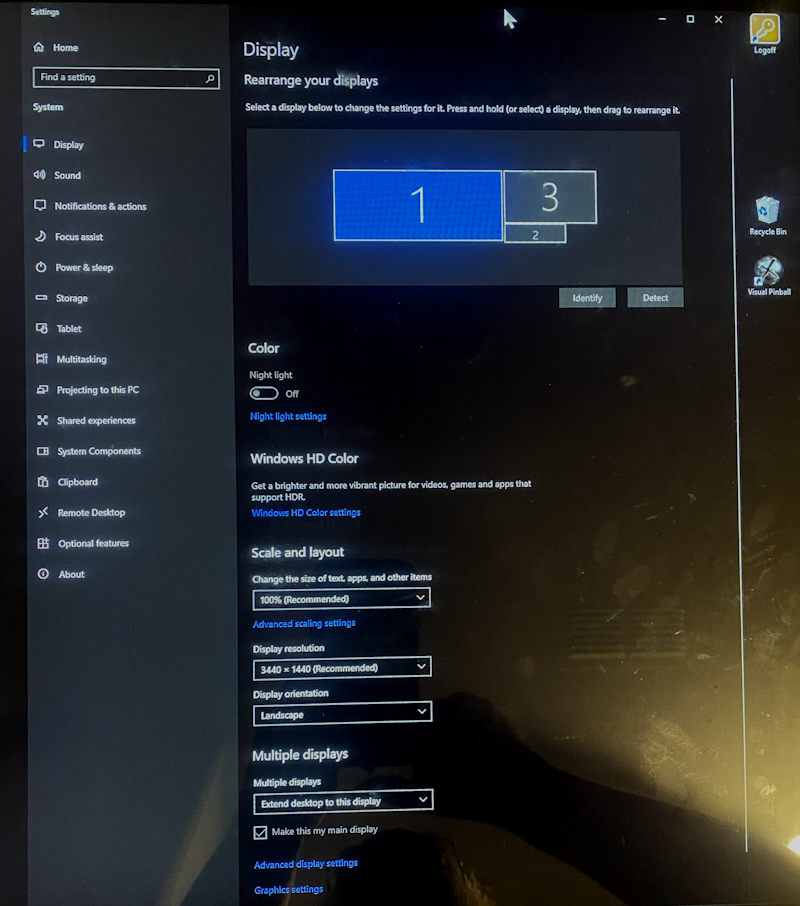
Edited by BoltBait, 01 February 2026 - 07:51 PM.



 Top
Top



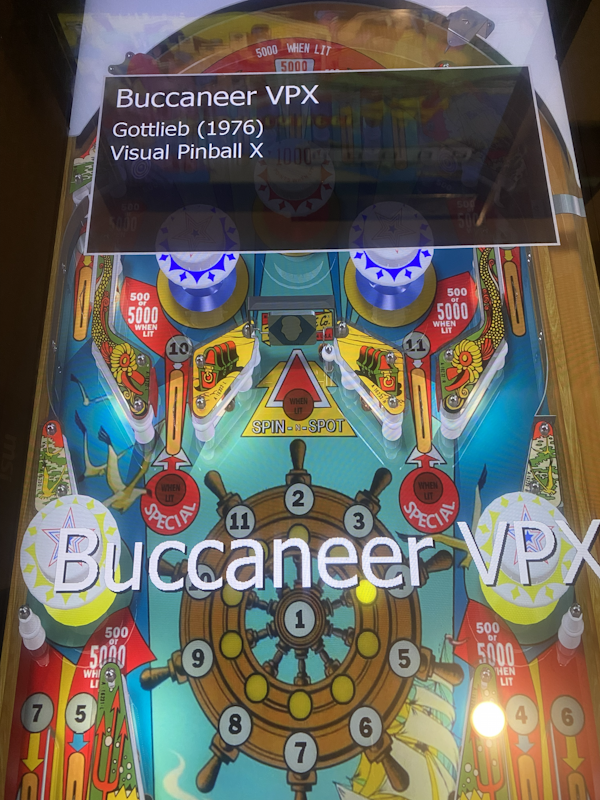
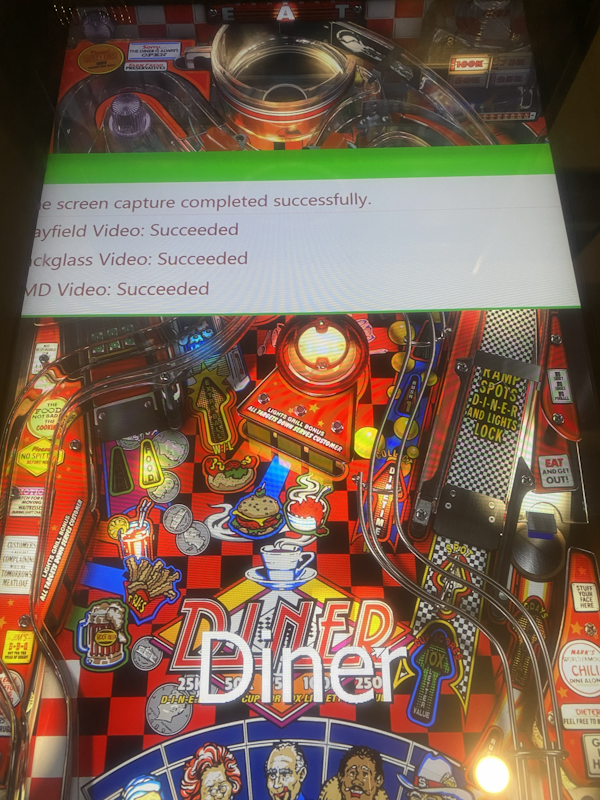





 are all trademarks of VPFORUMS.