- View New Content
-
Getting Started
-
Tutorials
Tutorial Categories
Tutorials Main Page Installation and Setup Downloadable TutorialsROM Adjustments
Number of Balls Adjustments Volume Adjustments
-
Visual Pinball Tables
VP 8 Desktop Tables
All VPM Recreations VP Recreations VP/VPM MODs VP Originals ROMsVP 9 Desktop Tables
All VPM Recreations VP Recreations VP/VPM MODs VP Originals ROMsVP9 Cabinet Tables
All Full Screen Cabinet Full Screen B2S Cabinet Spanned Cabinet Tables Media Packs ROMsVPX Tables
All VPinMAME Recreations VPX- - /VPinMAME - MOD Tables VPX Recreations VPX Originals Media Packs ROMs VR
-
Frontend Media & Backglass
Media Packs
Complete Media Packs Wheel Logos VideosBackglasses
dB2S Animated Backglasses UVP Animated Backglasses Topper Images
- Future Pinball Tables
-
Design Resources
Main Resources
Table Templates Playfield Images Image Library Sound Library Key CodesVP Guides
VP8 Guide - English VP8 Guide - Deutsch VP9 Guide - English VP9.1.x Guide - English VP Object Guide VPM DocumentationFuture Pinball Resources
Playfield Images 3D Model LibraryFuture Pinball Guides
FP Script Guide Big Draco Script Guide FP Table Design Guide FP DMD Guide
- Other Features
- Bug Tracker
- Image Gallery
- Blogs
-
More
90's Workshop: Buildin' The Table
Started By
Noah Fentz
, Apr 15 2009 01:01 AM
369 replies to this topic
#142
Posted 16 June 2009 - 10:48 AM
I can hardly wait! The ramps baffle me brains!
Best Regards,
Todd.
Best Regards,
Todd.
[proud owner of a Williams Solar Fire]
- It's called "The American Dream" because you have to be asleep to believe it.
George Carlin
- Truly great madness cannot be achieved without significant intelligence.
Henrik Tikkanen
- "Reality check, Michelle, Talk about composure, Total lack of. He's a man-- About-- 12 Feet Tall--"
Carrie Kelly
- It's called "The American Dream" because you have to be asleep to believe it.
George Carlin
- Truly great madness cannot be achieved without significant intelligence.
Henrik Tikkanen
- "Reality check, Michelle, Talk about composure, Total lack of. He's a man-- About-- 12 Feet Tall--"
Carrie Kelly
#143
Posted 16 June 2009 - 01:31 PM
QUOTE (wtiger @ Jun 16 2009, 02:51 AM) <{POST_SNAPBACK}>
I didn't get a chance to do much work on the ramps this past weekend. I will hopefully post some ramp building towards the end of this week.
ok, thanks wtiger.
#144
Posted 17 June 2009 - 01:58 AM
QUOTE (kruge99 @ Jun 16 2009, 03:48 AM) <{POST_SNAPBACK}>
I can hardly wait! The ramps baffle me brains!
Best Regards,
Todd.
Best Regards,
Todd.
Me too, that's kind of why I'm dragging my feet a little bit...
#145
Posted 18 June 2009 - 05:56 PM
well let's see, I got let go from my job two days ago, made plans to see my folks, so now can finally start to learn the 13 tutorials I d/loaded concerning the ID pin! in there somewhere is a wip one that wtiger built, but I will read from page one and build my own so I too can learn, and at the same time, incorporate what I learn into making the two Zizzle tables VP9 compatible. While it's nice to learn the ID table it's not my type, and I want to be able to adapt my tables into vp9 learning and updating their graphix, with my learning of this ID table.
I do have one question though, you constantly refer to GIMP, I use Photobie which also uses layering. Must I learn Gimp, or can I use Photobie? I have Gimp installed but there is no pdf manual I can find anywhere for it and it looks really daunting. I will start all this later today, printing out all 13 tutorials so I can read it and use vp. My comp is too old to let me have vp running and a file open to read at same time
so, if I pound thru it hopefully in a 3-4 days I should be caught up, as most of it's just basic building right now and that I already know from vp8.
so, if all goes well, the next time I post in this 90's table forum, I should be all caught up...
I do have one question though, you constantly refer to GIMP, I use Photobie which also uses layering. Must I learn Gimp, or can I use Photobie? I have Gimp installed but there is no pdf manual I can find anywhere for it and it looks really daunting. I will start all this later today, printing out all 13 tutorials so I can read it and use vp. My comp is too old to let me have vp running and a file open to read at same time
so, if all goes well, the next time I post in this 90's table forum, I should be all caught up...
"Don’t let the noise of others’ opinions drown out your own inner voice.
And most important, have the courage to follow your heart and intuition.”
----Steve Jobs
And most important, have the courage to follow your heart and intuition.”
----Steve Jobs
#146
Posted 19 June 2009 - 03:51 AM
faralos,
Sorry to hear about your job loss!
As for using Photobie instead of The Gimp, if it will do layers (which you state it does) then it shouldn't matter. Graphic programs all some the same basic functions (for the most part) so you would still do the same task in your program instead of using The Gimp.
Sorry to hear about your job loss!
As for using Photobie instead of The Gimp, if it will do layers (which you state it does) then it shouldn't matter. Graphic programs all some the same basic functions (for the most part) so you would still do the same task in your program instead of using The Gimp.
#147
Posted 19 June 2009 - 10:04 AM
Sorry to hear of your job loss faralos, I sincerely hope you land another job soon!!
Best Regards,
Todd.
Best Regards,
Todd.
[proud owner of a Williams Solar Fire]
- It's called "The American Dream" because you have to be asleep to believe it.
George Carlin
- Truly great madness cannot be achieved without significant intelligence.
Henrik Tikkanen
- "Reality check, Michelle, Talk about composure, Total lack of. He's a man-- About-- 12 Feet Tall--"
Carrie Kelly
- It's called "The American Dream" because you have to be asleep to believe it.
George Carlin
- Truly great madness cannot be achieved without significant intelligence.
Henrik Tikkanen
- "Reality check, Michelle, Talk about composure, Total lack of. He's a man-- About-- 12 Feet Tall--"
Carrie Kelly
#148
Posted 21 June 2009 - 02:43 AM
I picked up 2 more freelance modeling and rendering jobs this week since my "day job" cut me back to 4 days a week. I'll still be watching the progress here closely as I am intensely interested in learning the ins and outs of proper table building and scripting but it has to take a back burner to getting the bills paid
I'll still be cooking up some rigs and catching up bit by bit when I get the chance I just wanted to let you know where I was at.
Thanks
Neo
Thanks
Neo
A Pinball a day takes the boredom away
#149
Posted 21 June 2009 - 01:22 PM
Well am having a problem with rendering speed on my computer...
I'd put all the posts in already and when I start to makt the metal rail guides my computer bogs down. I click on an object, but it takes almost 20 seconds before it 'highlights' and I can move it. but when I go to move it my mouse moves but the object takes another 10-15 seconds before it clicks over to where I had wanted it to go. clicking on it again does the same thins. I must use two tables one with all the posts down, one without, (since this one renders faster), build the metal rail guide in the faster one (the empty table) copy it, then go into the other table and paste it down, slowly clicking and moving it one click at a time. It took me 1 hour just to make and place the two rails on the shooter side of the table. If anyone has a table with the rails down already. please post it so I can download it. As you can see, I DO understand HOW to make them, but again with my computer, it'll take forever to actually do! I have the apron done and all the posts down, so all I'd need is the metal guides, please. My wip shows my progress so far...
Thanks if anyone can help me here...
wip_vp9_ID_table.bmp 2.25MB
9 downloads
I'd put all the posts in already and when I start to makt the metal rail guides my computer bogs down. I click on an object, but it takes almost 20 seconds before it 'highlights' and I can move it. but when I go to move it my mouse moves but the object takes another 10-15 seconds before it clicks over to where I had wanted it to go. clicking on it again does the same thins. I must use two tables one with all the posts down, one without, (since this one renders faster), build the metal rail guide in the faster one (the empty table) copy it, then go into the other table and paste it down, slowly clicking and moving it one click at a time. It took me 1 hour just to make and place the two rails on the shooter side of the table. If anyone has a table with the rails down already. please post it so I can download it. As you can see, I DO understand HOW to make them, but again with my computer, it'll take forever to actually do! I have the apron done and all the posts down, so all I'd need is the metal guides, please. My wip shows my progress so far...
Thanks if anyone can help me here...
wip_vp9_ID_table.bmp 2.25MB
9 downloads
Edited by faralos, 21 June 2009 - 01:22 PM.
"Don’t let the noise of others’ opinions drown out your own inner voice.
And most important, have the courage to follow your heart and intuition.”
----Steve Jobs
And most important, have the courage to follow your heart and intuition.”
----Steve Jobs
#150
Posted 21 June 2009 - 02:48 PM
ok I have one more problem! When I was working on the table I noticed the flippers were not visible, so I checked 'hardware rendering' saved and reopened. This is what it looks like now no matter what I do. i can't get the table pic to show at all and with rendering unchecked, my flippers don't show up. I thought this bug was fixed!
So now what! I even tried to import the table pic but that doesn't show up either. I will not make any more metal guides until this problem is fixed, in case It's not fixable, I don't want to waste all that time making metal rails if I can't use the pin at all.
Attached Files
"Don’t let the noise of others’ opinions drown out your own inner voice.
And most important, have the courage to follow your heart and intuition.”
----Steve Jobs
And most important, have the courage to follow your heart and intuition.”
----Steve Jobs
#151
Posted 21 June 2009 - 03:11 PM
ok here is the latest shots of what is happening. With the id colors pic selected all I get is a blue screen, with the actual pin tqable image it fades out near the bottom AND STILL NO FLIPPERS
Attached Files
"Don’t let the noise of others’ opinions drown out your own inner voice.
And most important, have the courage to follow your heart and intuition.”
----Steve Jobs
And most important, have the courage to follow your heart and intuition.”
----Steve Jobs
#152
Posted 21 June 2009 - 03:14 PM
Hi Faralos, try unchecking the hardware rendering, save the table, then close VP9 completely. When you re-open the table it should be fine. I had similar issues on my PC with an ATI card in it and my notebook with Intel integrated graphics. Another suggestion is to make sure all of your graphics are resized to be no bigger than 1024x1024. For example, if the table surface graphic is 1050x2000, save it as a new file with something like -0001.bmp on the file name with a resolution of 1024x1024. It will look "warped" in your graphics program (The GIMP/Photoshop/whaterver proggie you are using) but VP will 'stretch' the 1024x1024 table image to fit the 1050x2000 table size. I think you will only need to do this for the playfield graphic as all the other images we are using are smaller than 1024x1024.
Best Regards,
Todd.
Best Regards,
Todd.
[proud owner of a Williams Solar Fire]
- It's called "The American Dream" because you have to be asleep to believe it.
George Carlin
- Truly great madness cannot be achieved without significant intelligence.
Henrik Tikkanen
- "Reality check, Michelle, Talk about composure, Total lack of. He's a man-- About-- 12 Feet Tall--"
Carrie Kelly
- It's called "The American Dream" because you have to be asleep to believe it.
George Carlin
- Truly great madness cannot be achieved without significant intelligence.
Henrik Tikkanen
- "Reality check, Michelle, Talk about composure, Total lack of. He's a man-- About-- 12 Feet Tall--"
Carrie Kelly
#153
Posted 21 June 2009 - 04:42 PM
ok the pic shows up but still have no flippers. this is with rendering Unchecked and saved and reloaded. so either I have flippers and no table pic or a picture but no flippers. How do I get both?
Attached Files
"Don’t let the noise of others’ opinions drown out your own inner voice.
And most important, have the courage to follow your heart and intuition.”
----Steve Jobs
And most important, have the courage to follow your heart and intuition.”
----Steve Jobs
#154
Posted 21 June 2009 - 05:08 PM
well it's fixed (kind of) It seems every OTHER time i open vp9 everything shows up as it should, but on the odd times I open it (every other time) the flippers don't show up at all. I opened and closed it ten times and sure enough 5 of those I could see the flippers, and 5 of them I couldn't! so if they don't show, I know to just reopen it and they will. (what the heck kind of bug would do that?) so now everything is ok and I will go back and (slowly) create the rest of the metal guides, so I can catch up to you guys. sorry for all the posts, but with me you should be used to it by now (especially when it comes to pin creating!)
oh and thanks! I did redo the table image down to 1024x1024 and it looks so much brighter and fits too
Attached Files
"Don’t let the noise of others’ opinions drown out your own inner voice.
And most important, have the courage to follow your heart and intuition.”
----Steve Jobs
And most important, have the courage to follow your heart and intuition.”
----Steve Jobs
#155
Posted 21 June 2009 - 10:30 PM
Time for the ramps. This particular table has three ramps and cross over each other. This will make things a little tricky because we need to make sure that the ball always has plenty of clearance when traveling on a particular ramp so that it won’t get hung up by a ramp above it. Also, some ramps will need to be built with multiple sections to make sure that the ramps will clear possible plastic pieces or metal guides that fall below.
We are going to start with the ramp that is at the lowest level of the three. This happens to be the ramp that is kind of in the center. Since this ramp is the lowest of the three, we really only need to make sure that it is high enough to clear any objects it goes over on the playfield and is high enough for the ball to be able to roll under it wherever that may take place.
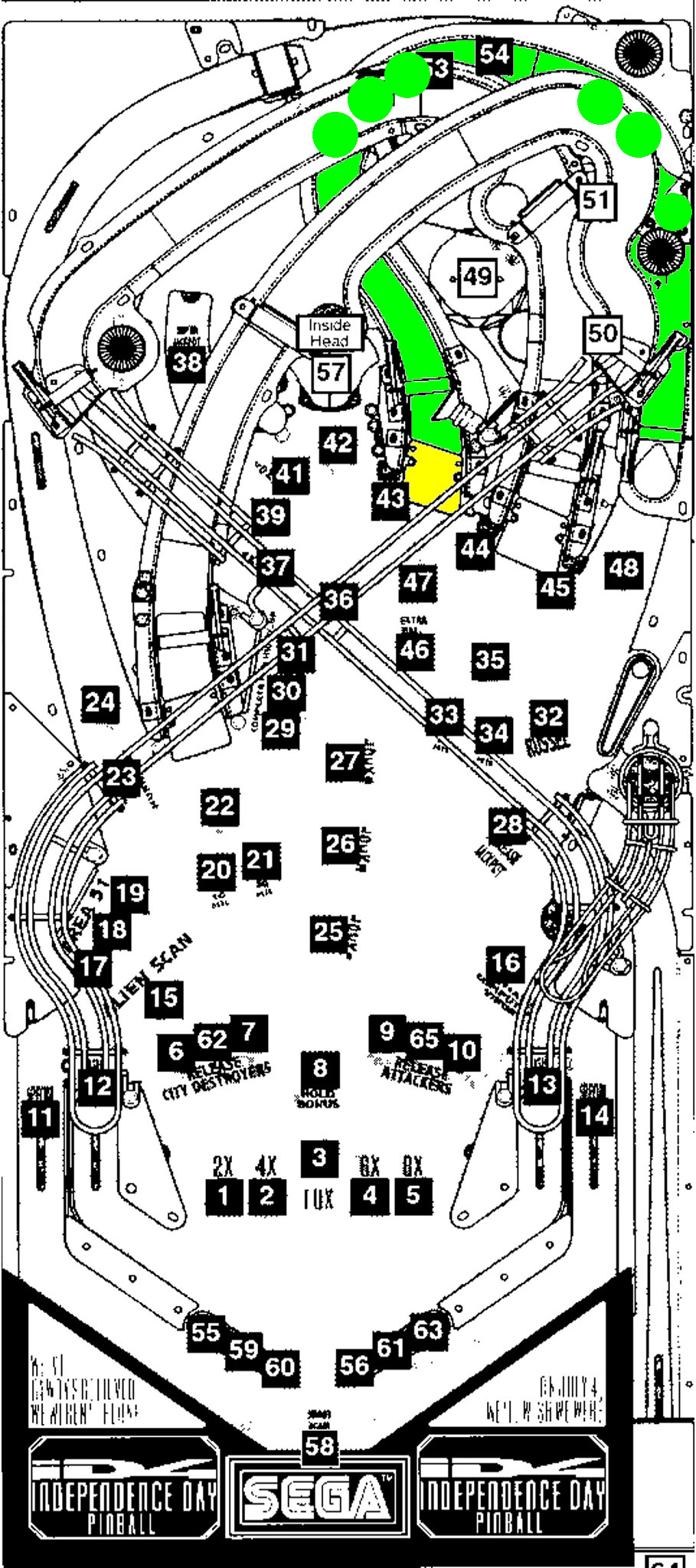
To make things easier, I’ve taken our ID-Plastic guide image and colored in green the shape of the ramp. Also note, in front of the ramp is a ramp flap (colored in yellow). We will re-create this in VP as well to add a little more realism. Download the following image:

To make things a little easier to build the ramp, we will build it in a new blank table and then copy and paste the ramp objects into our working table.
Start up VP and load in your working ID table. Create a new table and switch over to it. Delete the outer wall object. Under Physics, change the table height to 2300 (the width should already be set to 1000) to match the dimensions of our working table. Import the Ramp1-guide image into your table and set the table image to it (make sure Display in editor is checked and turn off Show Grid):

Zoom in once around the ramp area (use the magnify tool and click once on your table).

We are going to make the ramp in two sections. The reason is that we need to clear the large plastic piece that this ramp goes over. If we just made one ramp object and had the bottom height set to 0 and the top set to 60 our ramp won’t clear objects already on the table and also wouldn’t be high enough in places for the ball to roll underneath (see the areas in the red circles in the following image where the ramp isn’t tall enough to go over the plastic objects):

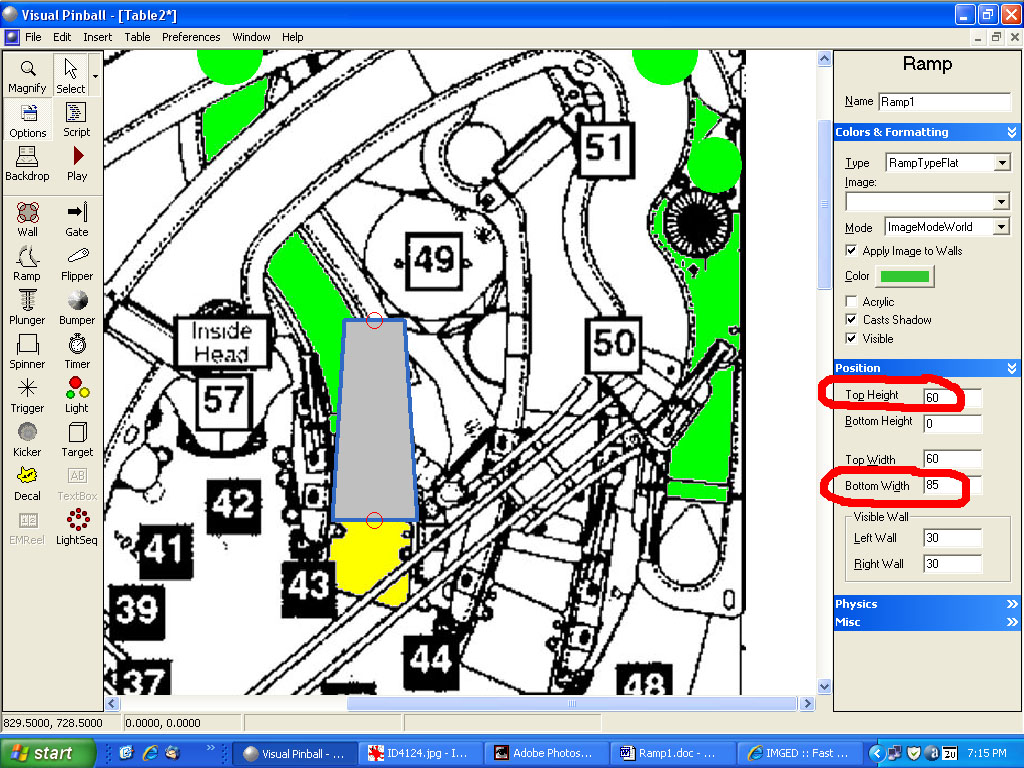
Let’s start building. Add a ramp object to the table near the area the ramp goes. Set the top height to 60 and the bottom width to 85:

Add points to shape it to match the green area. When you are done it should look like this:

Now we need to add the next section. Add another ramp near the end of the section you just built. Set the bottom and top height to 60 and the bottom and top width to 60:
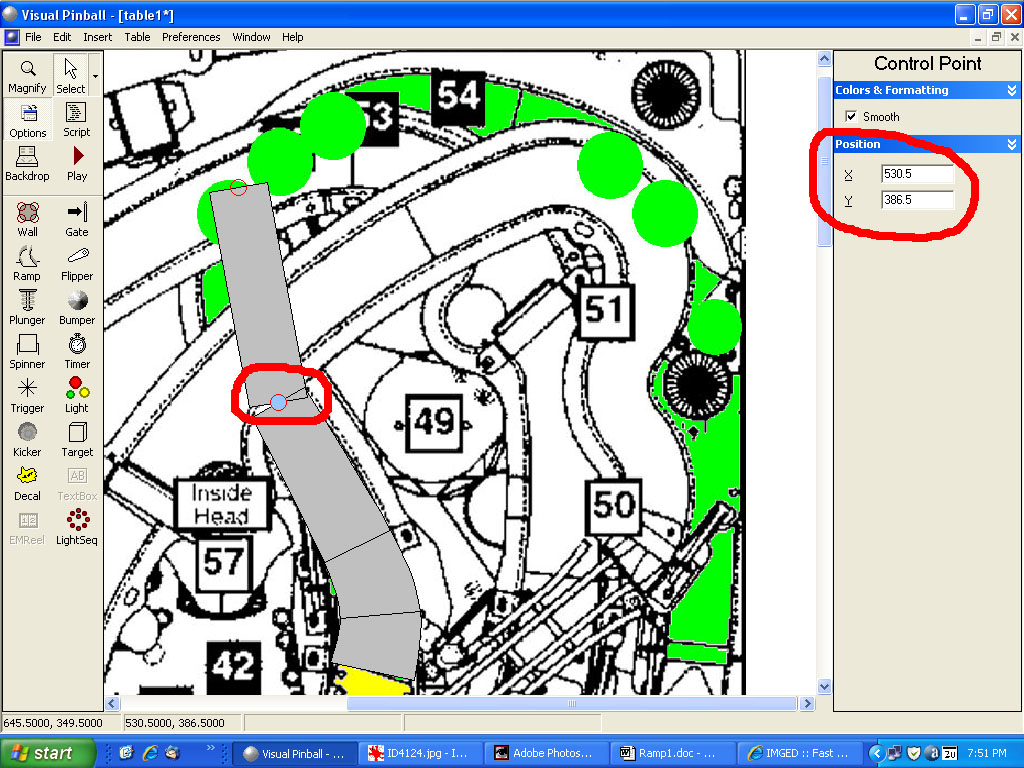
Now click on the ramp section you first added to select it. Click on the very end point and write down the X and Y position:
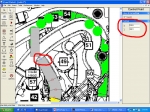
Now click on the second ramp object and click on the very bottom control point. Manually set the X and Y position to match the end point values you just wrote down. This will align the end of the first ramp object with the beginning of the second one:

Now it’s a matter of adding more points and moving them to match the shape we want:

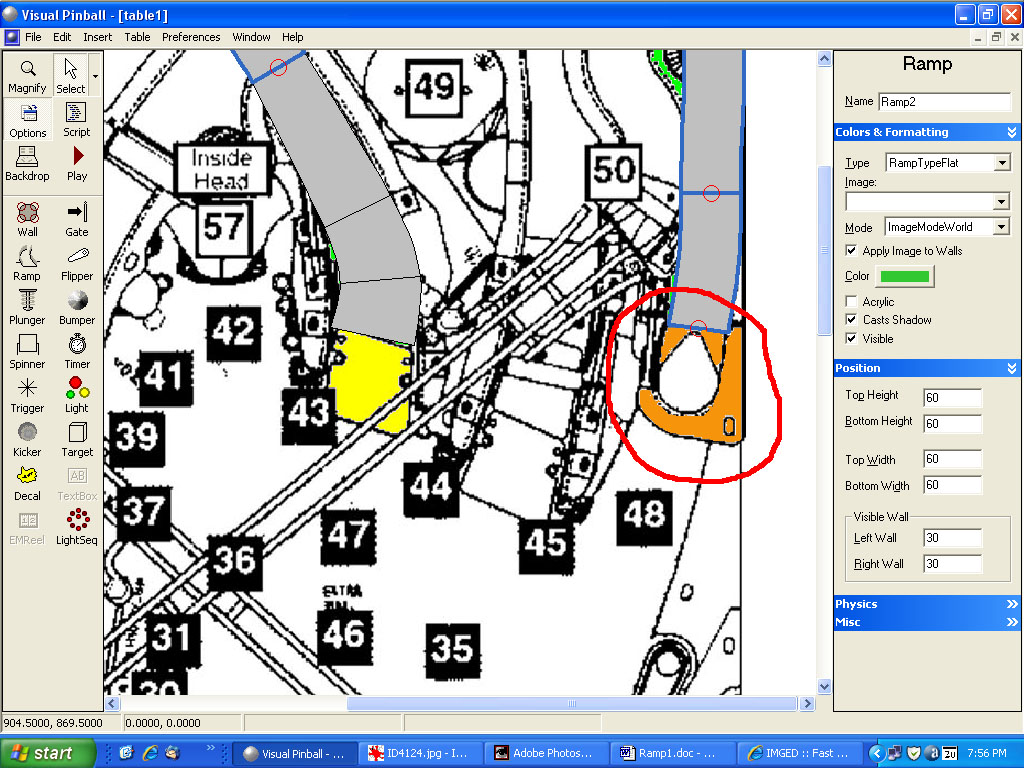
To build the very end of the ramp, we will make a wall for the area that has a hole cut out and then we will use a ramp object in a U shape. First we’ll build a wall in the shape of the orange area:
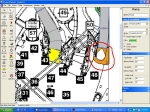
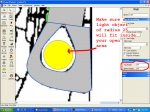
Add a wall object in that area. Set the top height to 60 and the bottom height to 58. Shape it to match the orange. Here’s how it should look when you are done. Note – make sure a light object of radius 25 will fit inside the “hole” otherwise your ball won’t fall through:
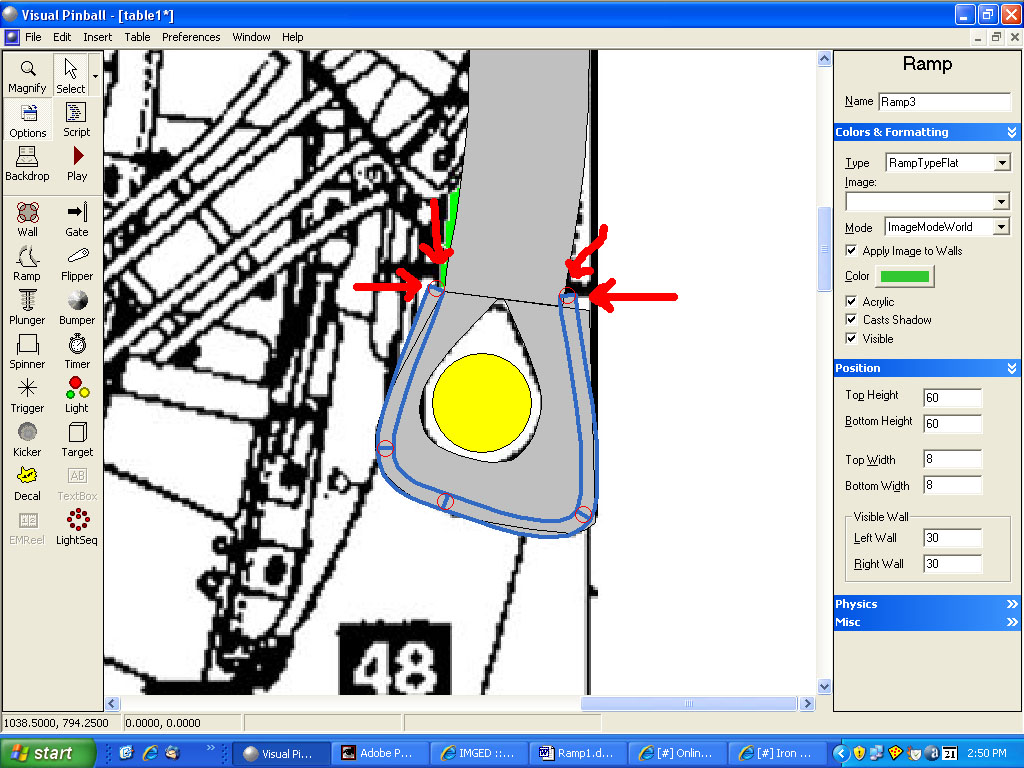
We need to now add something to contain the ball so it won’t roll off the end of the ramp. We will accomplish this by using a ramp object. Add a ramp object next to the wall you just created. Change the top and bottom heights to 60 and set the top and bottom width to 8:

Add points and shape it so it roughly follows the outer edge of our wall object. Make sure the two ends overlap a little bit on our actual ramp (make sure that the ends are on the outside edges of the ramp object otherwise they could interfere with the ball):

For the ramp flap, we’ll start out by adding two wall objects in the shape of a circle sized to about the size of a 6 unit radius circle. Set the top and side color to a dark gray. Set the top height to .7 and the bottom height to .6:

For the rest of the flap create a wall object and shape it to match the yellow shape. Set the top and side color to black. The top height should be set to .5 and the bottom to 0:
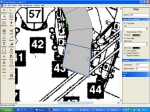
If you want, you can save this table as Ramp1. Select all the objects (use the selection tool and make a rectangle around everything) and copy them (CTRL-C or Edit Copy). Switch over to your ID table and paste them in. Now looking at things in the editor I see two areas of the first ramp section that overlap some of our plastic pieces:

We need to adjust the ramp slightly otherwise the plastic objects will protrude up into our ramp and block the ball.
After adjusting a couple points on the ramp as well as the top of the ramp flap, I no longer have any overlapping areas. I also had to re-match the beginning control point of the next ramp segment to the end of the first ramp:

To make the ramps transparent import the following image named transluscent-gray1.bmp:

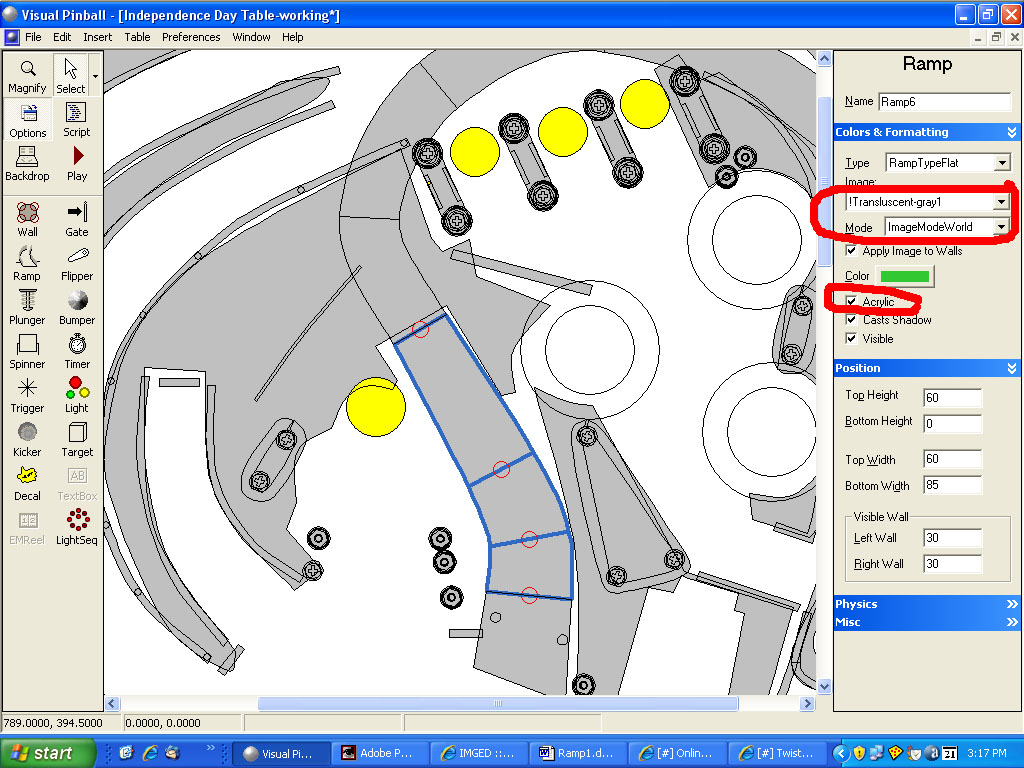
Now select the first ramp segment and select this as the image. Make sure Mode is set to ImageModeWorld and Acrylic is checked:

Repeat this for the second ramp segment as well as the U shaped ramp object at the end of our ramp. Select the wall object we made with the hole in it and set the image to the transluscent-gray1.bmp image. Change the top and side colors to dark gray.
Save your table and click on play. Your table should look like this:


We are going to start with the ramp that is at the lowest level of the three. This happens to be the ramp that is kind of in the center. Since this ramp is the lowest of the three, we really only need to make sure that it is high enough to clear any objects it goes over on the playfield and is high enough for the ball to be able to roll under it wherever that may take place.
To make things easier, I’ve taken our ID-Plastic guide image and colored in green the shape of the ramp. Also note, in front of the ramp is a ramp flap (colored in yellow). We will re-create this in VP as well to add a little more realism. Download the following image:

To make things a little easier to build the ramp, we will build it in a new blank table and then copy and paste the ramp objects into our working table.
Start up VP and load in your working ID table. Create a new table and switch over to it. Delete the outer wall object. Under Physics, change the table height to 2300 (the width should already be set to 1000) to match the dimensions of our working table. Import the Ramp1-guide image into your table and set the table image to it (make sure Display in editor is checked and turn off Show Grid):

Zoom in once around the ramp area (use the magnify tool and click once on your table).

We are going to make the ramp in two sections. The reason is that we need to clear the large plastic piece that this ramp goes over. If we just made one ramp object and had the bottom height set to 0 and the top set to 60 our ramp won’t clear objects already on the table and also wouldn’t be high enough in places for the ball to roll underneath (see the areas in the red circles in the following image where the ramp isn’t tall enough to go over the plastic objects):

Let’s start building. Add a ramp object to the table near the area the ramp goes. Set the top height to 60 and the bottom width to 85:

Add points to shape it to match the green area. When you are done it should look like this:

Now we need to add the next section. Add another ramp near the end of the section you just built. Set the bottom and top height to 60 and the bottom and top width to 60:

Now click on the ramp section you first added to select it. Click on the very end point and write down the X and Y position:

Now click on the second ramp object and click on the very bottom control point. Manually set the X and Y position to match the end point values you just wrote down. This will align the end of the first ramp object with the beginning of the second one:

Now it’s a matter of adding more points and moving them to match the shape we want:

To build the very end of the ramp, we will make a wall for the area that has a hole cut out and then we will use a ramp object in a U shape. First we’ll build a wall in the shape of the orange area:

Add a wall object in that area. Set the top height to 60 and the bottom height to 58. Shape it to match the orange. Here’s how it should look when you are done. Note – make sure a light object of radius 25 will fit inside the “hole” otherwise your ball won’t fall through:

We need to now add something to contain the ball so it won’t roll off the end of the ramp. We will accomplish this by using a ramp object. Add a ramp object next to the wall you just created. Change the top and bottom heights to 60 and set the top and bottom width to 8:

Add points and shape it so it roughly follows the outer edge of our wall object. Make sure the two ends overlap a little bit on our actual ramp (make sure that the ends are on the outside edges of the ramp object otherwise they could interfere with the ball):

For the ramp flap, we’ll start out by adding two wall objects in the shape of a circle sized to about the size of a 6 unit radius circle. Set the top and side color to a dark gray. Set the top height to .7 and the bottom height to .6:

For the rest of the flap create a wall object and shape it to match the yellow shape. Set the top and side color to black. The top height should be set to .5 and the bottom to 0:

If you want, you can save this table as Ramp1. Select all the objects (use the selection tool and make a rectangle around everything) and copy them (CTRL-C or Edit Copy). Switch over to your ID table and paste them in. Now looking at things in the editor I see two areas of the first ramp section that overlap some of our plastic pieces:

We need to adjust the ramp slightly otherwise the plastic objects will protrude up into our ramp and block the ball.
After adjusting a couple points on the ramp as well as the top of the ramp flap, I no longer have any overlapping areas. I also had to re-match the beginning control point of the next ramp segment to the end of the first ramp:

To make the ramps transparent import the following image named transluscent-gray1.bmp:

Now select the first ramp segment and select this as the image. Make sure Mode is set to ImageModeWorld and Acrylic is checked:

Repeat this for the second ramp segment as well as the U shaped ramp object at the end of our ramp. Select the wall object we made with the hole in it and set the image to the transluscent-gray1.bmp image. Change the top and side colors to dark gray.
Save your table and click on play. Your table should look like this:

#156
Posted 21 June 2009 - 11:15 PM
so THAT'S how you make them see-thru! Man I hunted all through vp9 for it! So I am catching up slowly but surely. The biggest bug I have is each time I add stuff to the table i must save it with hardware rend. checked close vp9 then reopen it and continue to put stuff into the table. otherwise the table either goes white with no flippers or that blue screen again.
I must use a master table and make stuff with that one and copy and paste it into my wip since, there being so many different objects my poor comp must render, it goes so slow with the table redraw each time I do anything to it. so I have two tables open, one with everything one with just walls and targets. I'm into making the rubbers for the table, then plastics, then I should be all caught up oh...now and ramps! woohoo translucent ramps!!! FINALLY
ok soon,...
I must use a master table and make stuff with that one and copy and paste it into my wip since, there being so many different objects my poor comp must render, it goes so slow with the table redraw each time I do anything to it. so I have two tables open, one with everything one with just walls and targets. I'm into making the rubbers for the table, then plastics, then I should be all caught up oh...now and ramps! woohoo translucent ramps!!! FINALLY
Attached Files
"Don’t let the noise of others’ opinions drown out your own inner voice.
And most important, have the courage to follow your heart and intuition.”
----Steve Jobs
And most important, have the courage to follow your heart and intuition.”
----Steve Jobs
#157
Posted 22 June 2009 - 03:23 PM
Great ramp tutorial wtiger!
Thank you!
Glad to see you catching up faralos!
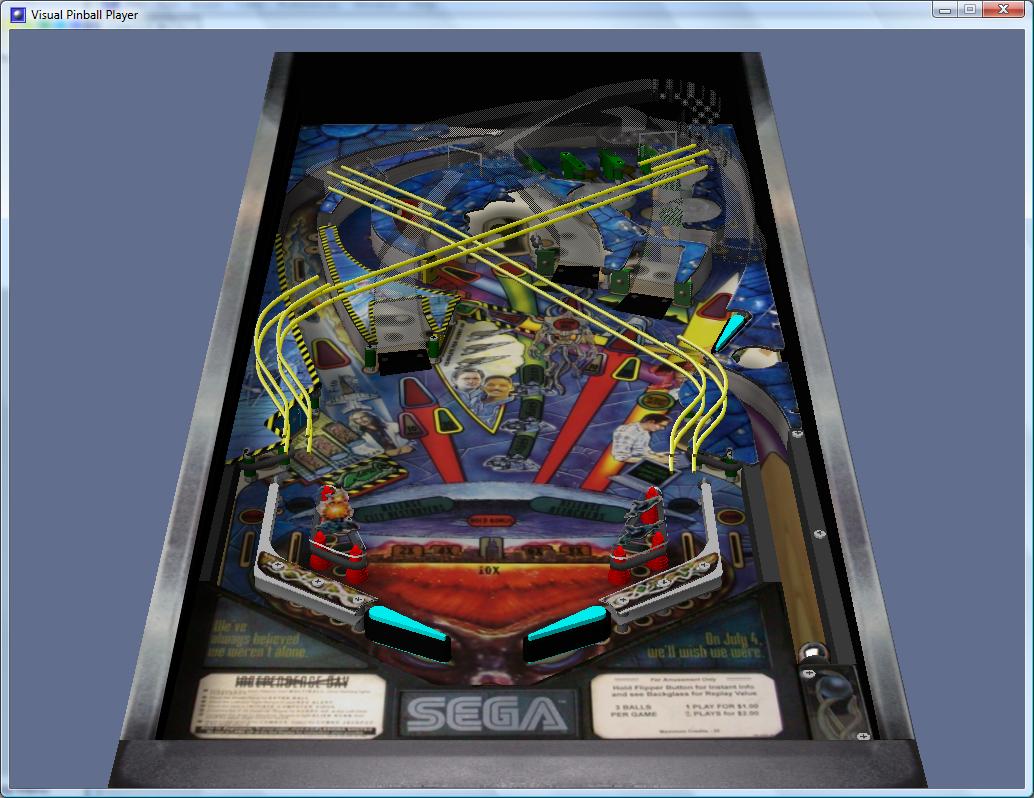
I've managed to layout the second and third ramp, I even made the holes for the ball to drop through and put in the gates where they appeared to be on the blueprint. I even managed to make the second and third ramps clear the plastics on the playfield. My only problem is figuring out the proper heights so that the ball won't collide with the ramps above and to figure out how to make the ramp incline not too steep to prevent the ball from rolling back onto the table. Any ideas wtiger or are you still working that out too? ;-) Thanks again wtiger!
Best Regards,
Todd.
p.s. During my lunch hour I fixed the second and third ramp heights so that the ball travels freely through the ramps but I still can't wait to see your tutorial for them wtiger because I know your expertise will be much better than my guessing!.
Here's a pic:

Somewhere along the way the "shape" of my table changed but I checked and the Inclination is 60 and the field of view is 20. Any ideas what happened? (the table is still 1000x2300 in size too)
Glad to see you catching up faralos!
I've managed to layout the second and third ramp, I even made the holes for the ball to drop through and put in the gates where they appeared to be on the blueprint. I even managed to make the second and third ramps clear the plastics on the playfield. My only problem is figuring out the proper heights so that the ball won't collide with the ramps above and to figure out how to make the ramp incline not too steep to prevent the ball from rolling back onto the table. Any ideas wtiger or are you still working that out too? ;-) Thanks again wtiger!
Best Regards,
Todd.
p.s. During my lunch hour I fixed the second and third ramp heights so that the ball travels freely through the ramps but I still can't wait to see your tutorial for them wtiger because I know your expertise will be much better than my guessing!.

Somewhere along the way the "shape" of my table changed but I checked and the Inclination is 60 and the field of view is 20. Any ideas what happened? (the table is still 1000x2300 in size too)
Edited by kruge99, 11 July 2009 - 01:08 PM.
[proud owner of a Williams Solar Fire]
- It's called "The American Dream" because you have to be asleep to believe it.
George Carlin
- Truly great madness cannot be achieved without significant intelligence.
Henrik Tikkanen
- "Reality check, Michelle, Talk about composure, Total lack of. He's a man-- About-- 12 Feet Tall--"
Carrie Kelly
- It's called "The American Dream" because you have to be asleep to believe it.
George Carlin
- Truly great madness cannot be achieved without significant intelligence.
Henrik Tikkanen
- "Reality check, Michelle, Talk about composure, Total lack of. He's a man-- About-- 12 Feet Tall--"
Carrie Kelly
#158
Posted 23 June 2009 - 04:07 AM
kruge99,
Way to go!!!!!!!
I'm guessing that your table changed shapes because one of your ramps has a height greater than about 225. To test this, delete your tallest ramp, then click the play button and see if it comes back to the normal shape. When you go back into the editor you do an edit undo (or CTRL-Z) to get the ramp back. You can also duplicate this table shape change by adding a wall off to the side of your table and set the top height to about 400 and then click play and see the results.
As for clearing the plastics, I was unsuccessful so far on the far left ramp so I ended up notching out the plastic object where the ramp overlaps it. I am still experimenting though.
Way to go!!!!!!!
I'm guessing that your table changed shapes because one of your ramps has a height greater than about 225. To test this, delete your tallest ramp, then click the play button and see if it comes back to the normal shape. When you go back into the editor you do an edit undo (or CTRL-Z) to get the ramp back. You can also duplicate this table shape change by adding a wall off to the side of your table and set the top height to about 400 and then click play and see the results.
As for clearing the plastics, I was unsuccessful so far on the far left ramp so I ended up notching out the plastic object where the ramp overlaps it. I am still experimenting though.
#159
Posted 23 June 2009 - 05:14 PM
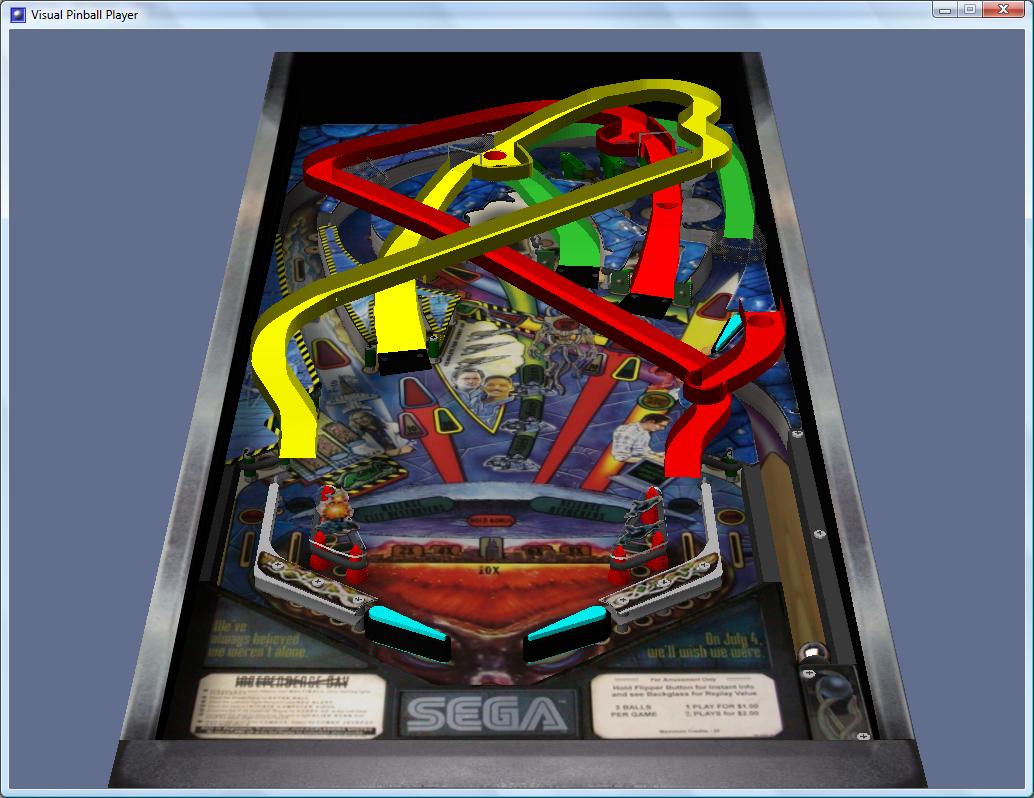
Thanks for the praise wtiger, I really appreciate it. I'm not sure if this tip will help others or not, but I found it easier to color code the ramps to be able to see where they were colliding:

This way I was able to raise and lower certain ramps at the intersections. Also, I cheated a bit, I put some kickers on the ramp surfaces in four places to help the ball get past the really steep inclines. I will have to tweak the kicker power however because currently the kickers move the ball past the drop holes and the ball never falls inside them.
Best Regards,
Todd.

This way I was able to raise and lower certain ramps at the intersections. Also, I cheated a bit, I put some kickers on the ramp surfaces in four places to help the ball get past the really steep inclines. I will have to tweak the kicker power however because currently the kickers move the ball past the drop holes and the ball never falls inside them.
Best Regards,
Todd.
Edited by kruge99, 11 July 2009 - 01:09 PM.
[proud owner of a Williams Solar Fire]
- It's called "The American Dream" because you have to be asleep to believe it.
George Carlin
- Truly great madness cannot be achieved without significant intelligence.
Henrik Tikkanen
- "Reality check, Michelle, Talk about composure, Total lack of. He's a man-- About-- 12 Feet Tall--"
Carrie Kelly
- It's called "The American Dream" because you have to be asleep to believe it.
George Carlin
- Truly great madness cannot be achieved without significant intelligence.
Henrik Tikkanen
- "Reality check, Michelle, Talk about composure, Total lack of. He's a man-- About-- 12 Feet Tall--"
Carrie Kelly
#160
Posted 24 June 2009 - 03:17 PM
trying to catch up by doing the plastics! The trouble I have is I can make the plastics no prob, but when i save the table and reopen it the plastics don't show up at all on the table. I can't figure it out, everything is checked where it should be. but they just dont show up. I am including two pics, one, of the two plastics i have created and the other one is the saved and reloaded table. As you can see the plastics just dont show up. so what am I missing?
Attached Files
"Don’t let the noise of others’ opinions drown out your own inner voice.
And most important, have the courage to follow your heart and intuition.”
----Steve Jobs
And most important, have the courage to follow your heart and intuition.”
----Steve Jobs


Contributor
Top


are all trademarks of VPFORUMS.