This is the text version of the video tutorial that was posted a few days ago. This tutorial goes over the steps to go from your plastic image in The Gimp to creating the plastic objects in
VP.
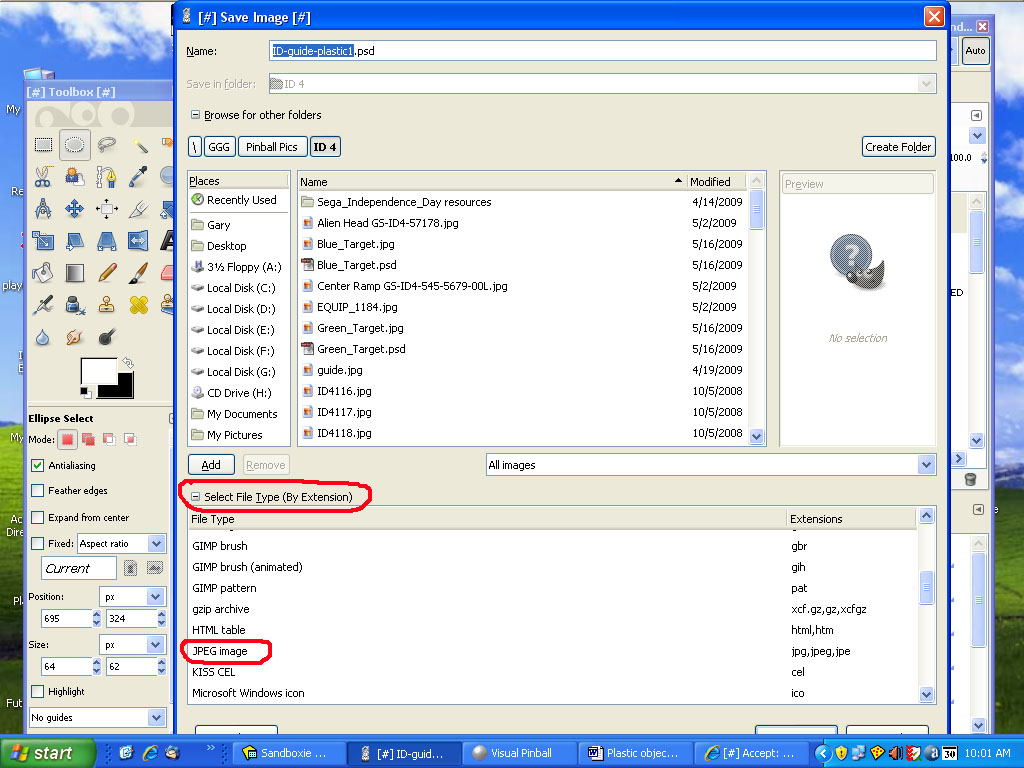
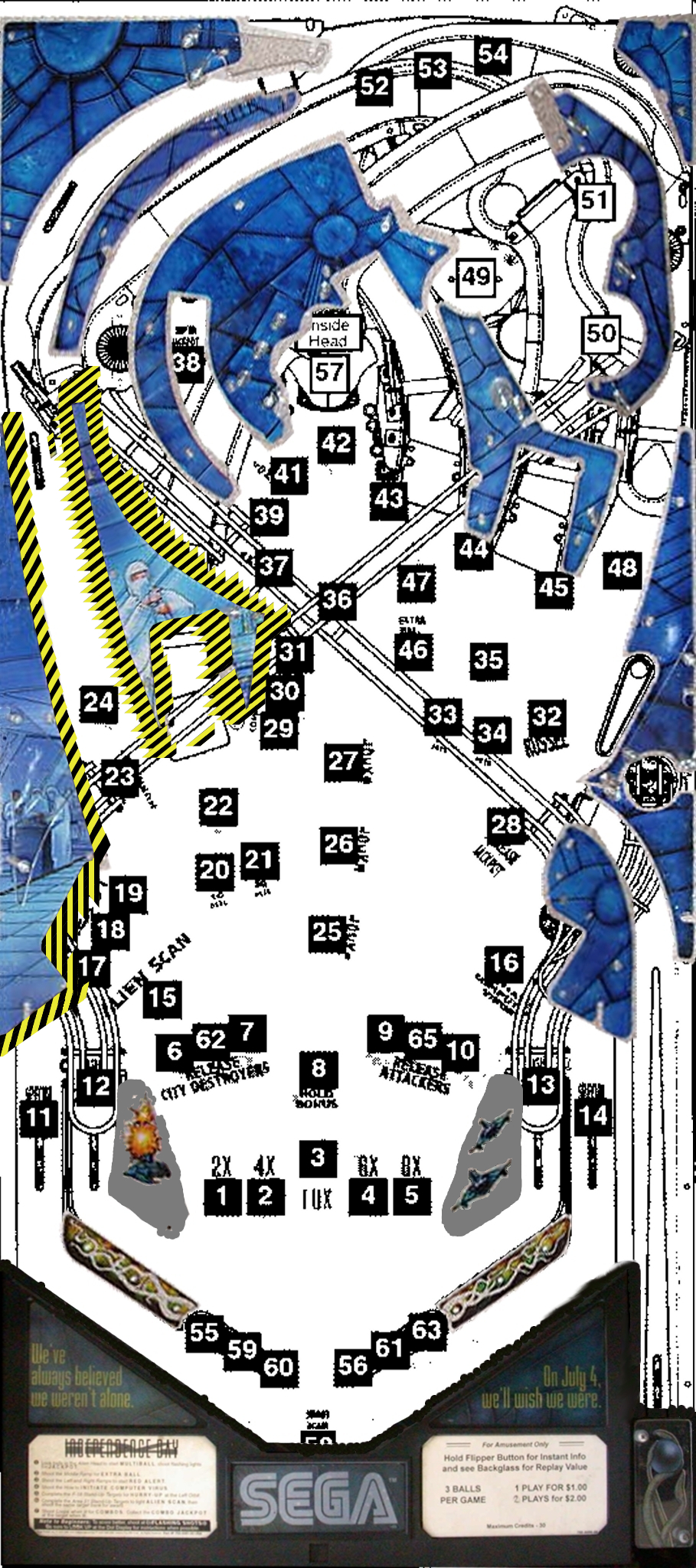
The first thing we need to do is take our plastic image with all the different layers for each plastic piece and save it as a .jpg image. To do this from within The Gimp you go to the File menu, Save As. In the dialog box that comes up click on the little square in front of Select File Type and then select JPEG:

You can name the file ID-Plastic1 and it will automatically append the .jpg to the end. In case anyone needs either the plastic image file with all the layers or the .jpg image so they don’t have to save it themselves, you can get them right below:
PSD file:
http://www.mediafire...de_plastic1.zipJPG image:

Now what we want to do is start up
VP and load in your working ID table. Import the plastic .jpg image in (Table, Image Manager, Import). Set the table image to this image. Your table should look like this in the editor:

We will create the one indicated by the red arrow.
I often find it easier to build the plastic pieces on a clean table without any other objects, then simply copy and paste them into my working table. To set this up, create a new table within
VP (File, New). Delete all the objects on this new table and turn off Show Grid. Import the plastics image just like you did before and set the table image under Colors and Formatting to this image. We need to set the table width and height to match our working table. The width should already be 1000 but we need to change the height to 2300 (this is under the table physics section).
Add a wall image on top of the plastic piece and set the wall’s top image to the plastic image. Turn on display image in editor:

Now turn off the plastic image for the table:

Now move the two bottom control points so you can see where the bottom of the plastic piece is:
Start moving the points into position and add new points where needed:

Continue until you are done. Some points may need to be set to smooth (right click on the point and left click on smooth):

When you are all done, your object should look like this:

To get the piece into our table, simple select it by clicking on it, copy it (CTRL-C or Edit Menu Copy) then go to the Window Menu and select your working table to switch over to it:

Now simply hit paste (CTRL-V or Edit Paste):

The object pastes in exactly in the same position. Change the wall top height to 55, bottom height to 50. You can now turn off the display in editor for the object and switch the table image over to the actual playfield image:

Here’s how it looks when you hit play:

Complete the same process for the rest of the plastic pieces.
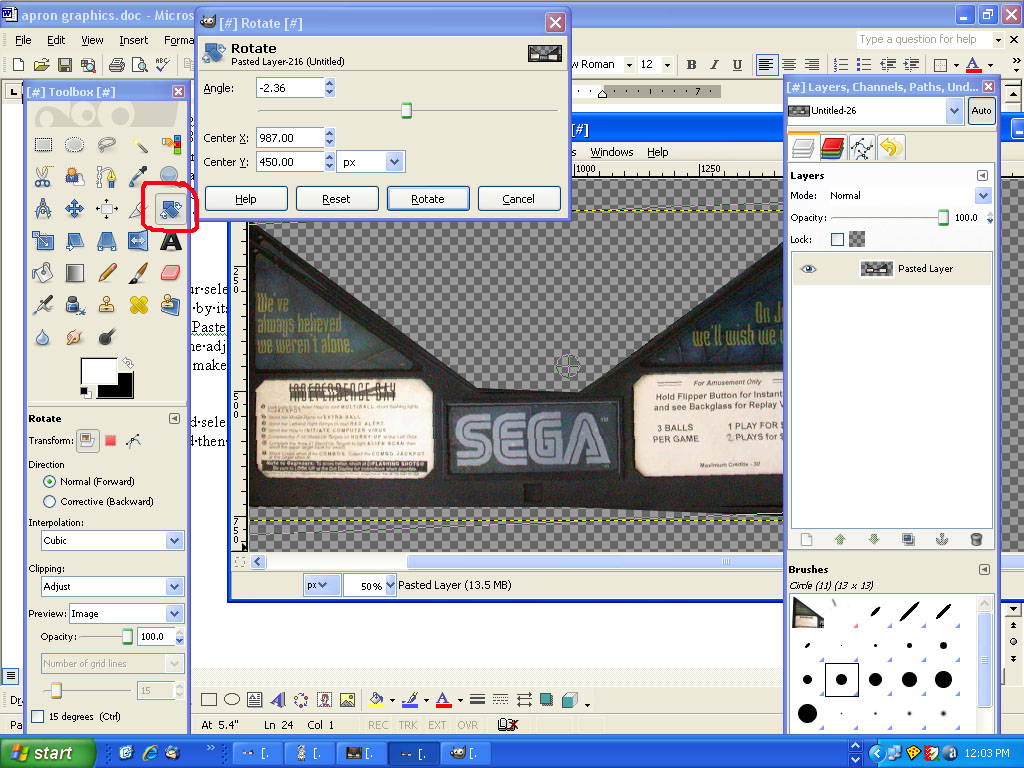
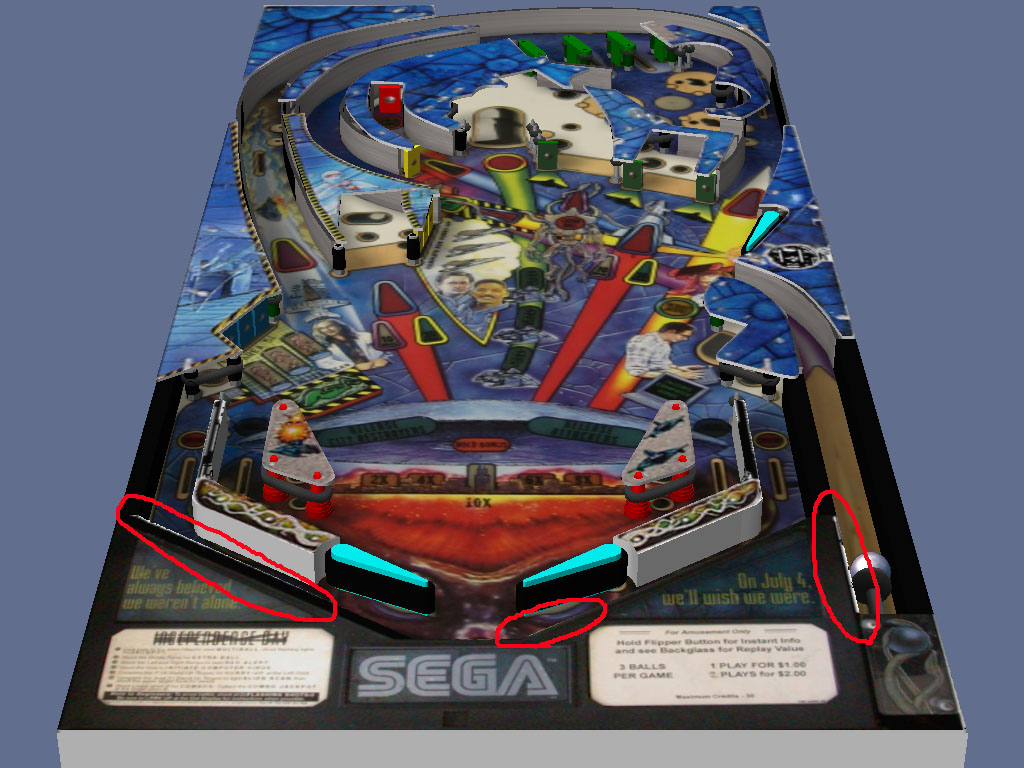
Note: You may notice that as you build the plastic pieces they may not line up with the metal guides that were already built on the table. You can go ahead and re-shape the plastic objects to match. This may cause the edges to not have the edge of the plastic image. You may need to go back into The Gimp and extend some of the edges for individual plastic pieces by making that particular layer wider (scale it a little bigger). You will just need to experiment.







 Top
Top



 Contributor











 are all trademarks of VPFORUMS.