- View New Content
-
Getting Started
-
Tutorials
Tutorial Categories
Tutorials Main Page Installation and Setup Downloadable TutorialsROM Adjustments
Number of Balls Adjustments Volume Adjustments
-
Visual Pinball Tables
VP 8 Desktop Tables
All VPM Recreations VP Recreations VP/VPM MODs VP Originals ROMsVP 9 Desktop Tables
All VPM Recreations VP Recreations VP/VPM MODs VP Originals ROMsVP9 Cabinet Tables
All Full Screen Cabinet Full Screen B2S Cabinet Spanned Cabinet Tables Media Packs ROMsVPX Tables
All VPinMAME Recreations VPX- - /VPinMAME - MOD Tables VPX Recreations VPX Originals Media Packs ROMs VR
-
Frontend Media & Backglass
Media Packs
Complete Media Packs Wheel Logos VideosBackglasses
dB2S Animated Backglasses UVP Animated Backglasses Topper Images
- Future Pinball Tables
-
Design Resources
Main Resources
Table Templates Playfield Images Image Library Sound Library Key CodesVP Guides
VP8 Guide - English VP8 Guide - Deutsch VP9 Guide - English VP9.1.x Guide - English VP Object Guide VPM DocumentationFuture Pinball Resources
Playfield Images 3D Model LibraryFuture Pinball Guides
FP Script Guide Big Draco Script Guide FP Table Design Guide FP DMD Guide
- Other Features
- Bug Tracker
- Image Gallery
- Blogs
-
More
Star wars Trilogy WIP
Started By
subzero1970
, Nov 11 2009 10:17 AM
104 replies to this topic
#24
Posted 14 March 2010 - 04:12 AM
subzero1970,
Here's my updated script modification to switch the XWing over from an EMreel to drop walls.
Add XWalls to the Dim statement (around line 63) for it reads like this:
Dim bsTrough,bsTopVUK,bsBotVUK,bsLauncher,bsXWingCannon,dtDrop,XWing,KickDir,XWalls
Put the following right after the Switches (sw) section which is around line 112:
'Drop all XWing walls except for the first one which is "0"
Sub ResetXW()
Dim i
For i=1 to 11
XWalls(i).Isdropped=1
Next
End Sub
Add the following line right before the Sub UpdateXWing section (this defines the array called XWalls to consist of all of our XWing drop walls which we have a total of 12 since our XWing Mech Handler has 12 steps):
XWalls = Array(X0, X1, X2, X3, X4, X5, X6, X7, X8, X9, X10, X11)
Change the Sub UpdateXWing section to the following:
Sub UpdateXWing(aNewPos,aSpeed,aLastPos)
KickDir = aNewPos * 3.5
XWalls(aLastPos).IsDropped = true
XWalls(aNewPos).IsDropped = false
End Sub
Remove or comment out (as I've done) the very last subroutine at the end of the script:
'Sub ImageTimer_Timer()
'XWalls(aLastPos).IsDropped = true
'XWalls(aNewPos).IsDropped = false
'XWingReel.SetValue Frame
'End Sub
That it. As for the table itself, you need to make 12 "frames" of the XWing starting at it's home position and each step rotating 15 degrees for each step. Save each frame as a separate jpg file (turn off your playfield image in Photoshop as you only need the XWing in its proper location) and import them into the table. Create a drop wall for each frame in the outline of the XWing starting with the name X0 for the first one and ending at X11. Make sure you check Flipbook Animation and can drop. Set the top height for each wall to 125 and the bottom to 120 (I think those are good numbers).
I'd be happy to create the playfield frame images and table walls (and modify the script too). Just upload your new XWing reel or images somewhere (or to www.imged.org) and let me know.
Here's my updated script modification to switch the XWing over from an EMreel to drop walls.
Add XWalls to the Dim statement (around line 63) for it reads like this:
Dim bsTrough,bsTopVUK,bsBotVUK,bsLauncher,bsXWingCannon,dtDrop,XWing,KickDir,XWalls
Put the following right after the Switches (sw) section which is around line 112:
'Drop all XWing walls except for the first one which is "0"
Sub ResetXW()
Dim i
For i=1 to 11
XWalls(i).Isdropped=1
Next
End Sub
Add the following line right before the Sub UpdateXWing section (this defines the array called XWalls to consist of all of our XWing drop walls which we have a total of 12 since our XWing Mech Handler has 12 steps):
XWalls = Array(X0, X1, X2, X3, X4, X5, X6, X7, X8, X9, X10, X11)
Change the Sub UpdateXWing section to the following:
Sub UpdateXWing(aNewPos,aSpeed,aLastPos)
KickDir = aNewPos * 3.5
XWalls(aLastPos).IsDropped = true
XWalls(aNewPos).IsDropped = false
End Sub
Remove or comment out (as I've done) the very last subroutine at the end of the script:
'Sub ImageTimer_Timer()
'XWalls(aLastPos).IsDropped = true
'XWalls(aNewPos).IsDropped = false
'XWingReel.SetValue Frame
'End Sub
That it. As for the table itself, you need to make 12 "frames" of the XWing starting at it's home position and each step rotating 15 degrees for each step. Save each frame as a separate jpg file (turn off your playfield image in Photoshop as you only need the XWing in its proper location) and import them into the table. Create a drop wall for each frame in the outline of the XWing starting with the name X0 for the first one and ending at X11. Make sure you check Flipbook Animation and can drop. Set the top height for each wall to 125 and the bottom to 120 (I think those are good numbers).
I'd be happy to create the playfield frame images and table walls (and modify the script too). Just upload your new XWing reel or images somewhere (or to www.imged.org) and let me know.
#28
Posted 14 March 2010 - 04:32 PM
QUOTE (njamont @ Mar 14 2010, 12:11 AM) <{POST_SNAPBACK}>
nice work wtiger, do you think FS is easy on this table?
I don't think it would be too difficult. There are a few decals on the backdrop that hopefully would be easy to convert to walls on the playfield (or can they be left as it). The hard part would be converting the turboreel to drop walls and using images that are more appropriate for an FS view.
QUOTE (TAB @ Mar 14 2010, 02:58 AM) <{POST_SNAPBACK}>
Trying again take some pics of the machine.
But it will have all plastics and so on on. Do then my best to get the best
But it will takes time. Post here then the pics.
But it will have all plastics and so on on. Do then my best to get the best
But it will takes time. Post here then the pics.
TAB, that would be great. If you could take several overhead shots of the playfield and plastics (in different sections) including flippers up, I might be able to reconstruct a playfield with a little better clarity than the current one.
#30
Posted 15 March 2010 - 01:38 PM
Sadly, due to a nasty virus I lost all images last month, however I think I still have links to the images given to me in my PM inbox - i'll get back to you...
http://scottish-claymores.co.uk <--- VISIT THE SCOTTISH CLAYMORES ARCHIVE!!!
Tables I've worked on since 2002: Hot Wheels(W/Destruk), Hook(W/Joep, El Condor, Destruk, Apocalypse, DataDragon, Pingod), Maverick(W/Magnox), Star Wars Trilogy(W/Magnox), Robocop(W/Destruk,cyBORG), Batman(W/Pinball Ken,Steve Ellenoff)-and most recently - Gottliebs Victory (W/Destruk) Made some VP Tables too!!!
#31
Posted 19 March 2010 - 11:50 PM
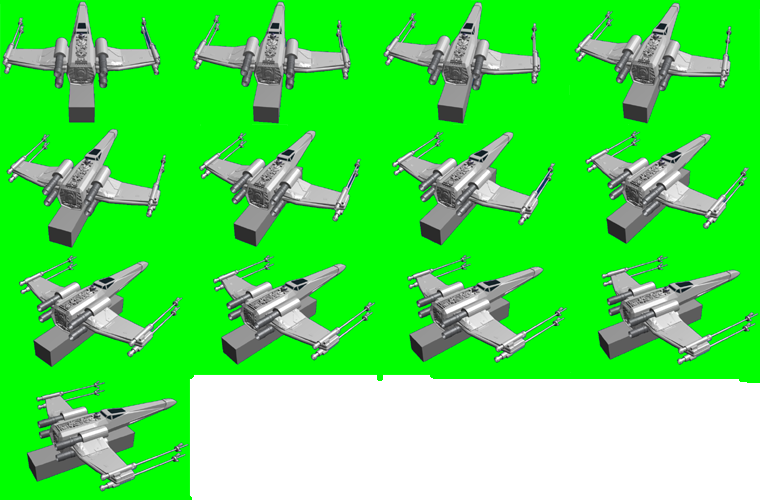
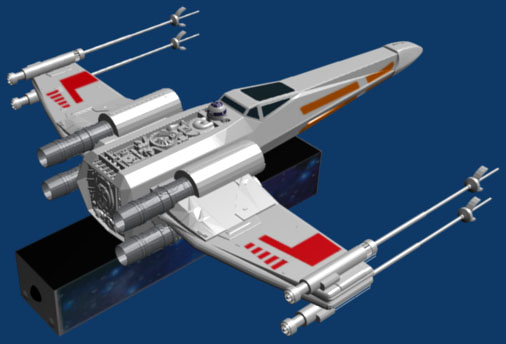
The new XWing reel image I received from Subzero1970 has half the reel images at one angle and the other half at a different one. I'm not sure if I'd be able to make a smooth animation with them without a lot of work. I decided to explore another route. I did some playing around today with Blender (I've never used it before). I found a free XWing .3ds model and loaded it into Blender and did some rendering as an experiment. The model is not textured yet. I think I have the angle somewhat good. If you want to see how it will look, download the following image:

Import it into your Star Wars Trilogy table and make sure you set the transparency color to green (Red=0, Green=255, Blue=0). Switch over to the Backdrop and click on the XWingReel object. Change the X position to 254, Y position to 229. Change the Reel Width to 190, and height to 125. Under Colors & Formatting make sure you select the new image you imported. NOTE: Don't worry about all the green around the edges. This is only a test. The final version will use drop walls that are traced around outside of each XWing in its various state of rotation. Let me know what you think.

Import it into your Star Wars Trilogy table and make sure you set the transparency color to green (Red=0, Green=255, Blue=0). Switch over to the Backdrop and click on the XWingReel object. Change the X position to 254, Y position to 229. Change the Reel Width to 190, and height to 125. Under Colors & Formatting make sure you select the new image you imported. NOTE: Don't worry about all the green around the edges. This is only a test. The final version will use drop walls that are traced around outside of each XWing in its various state of rotation. Let me know what you think.
#36
Posted 21 March 2010 - 02:40 AM
QUOTE (studmuff @ Mar 20 2010, 04:48 AM) <{POST_SNAPBACK}>
I can shot video of my x-wing if you need as I own the machine.
PM me with what you need.
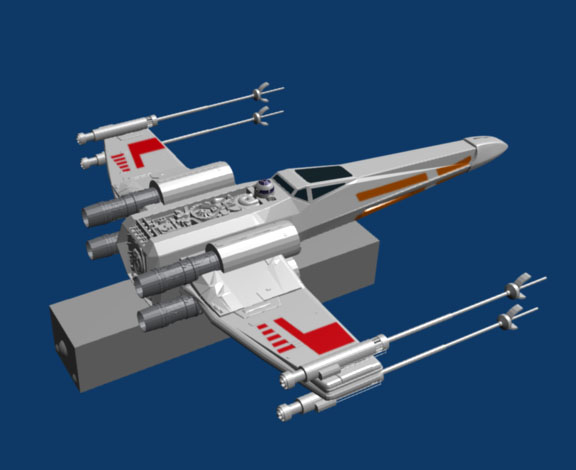
Thanks for the offer! At the moment I don't think it will be necessary. I think what Blender can do will work just fine. I'm having quite a bit of problems figuring out how to texture objects. I've been looking at various tutorials on the web and was able to figure some things out. I just had those tutorials that tell you "load in your image, apply it to your object and render the scene". What good is that when they don't tell you HOW to apply the image. Here's what I have so far regarding the texturing:

Took me most of the afternoon figuring out all this UV mapping stuff and then all the trial and error. I still can't figure out how to texture the bottom "rectangle" so that my image doesn't show up on ALL sides and also be stretched. I'm making some progress, but I'm not quite there yet.
#37
Posted 21 March 2010 - 04:26 AM
Ok,
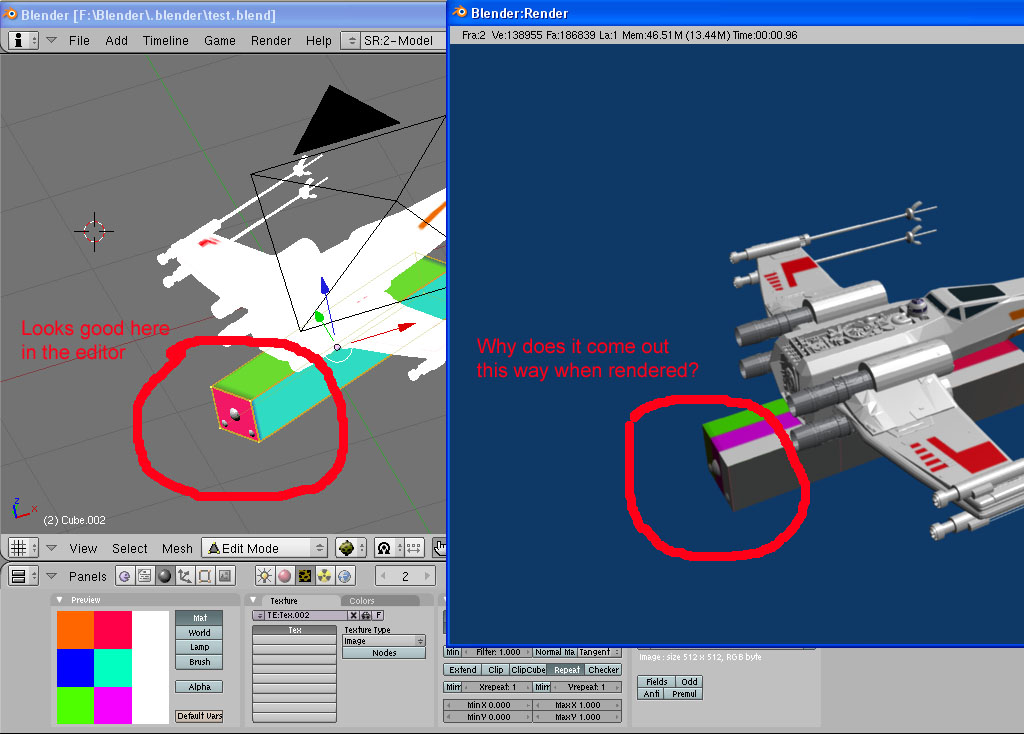
I found a descent tutorial on Youtube and I discovered that I was not setting seams prior to making the UV map. Now my object unwraps properly, I can paint the individual faces on my bitmap and everything looks good in the editor. When I attempt to render the scene, the textures don't come out the same way they look in the editor. Here's what I mean:

This is soooooooooo frustrating. I guess I'll call it a night and possibly re-visit it tomorrow.
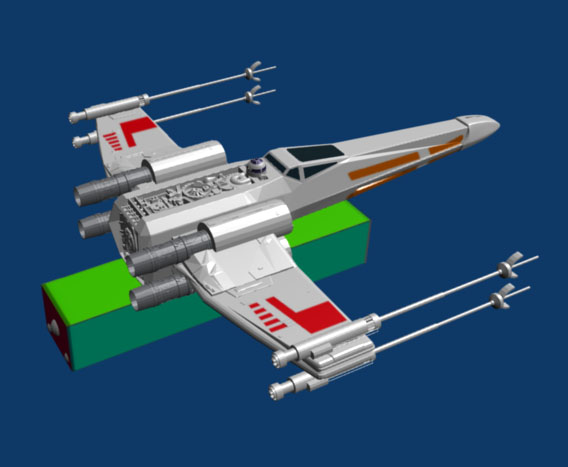
EDIT: I just found another tutorial on Youtube and it mentioned that you need to click on Map Input and select UV. Now it's working:

I found a descent tutorial on Youtube and I discovered that I was not setting seams prior to making the UV map. Now my object unwraps properly, I can paint the individual faces on my bitmap and everything looks good in the editor. When I attempt to render the scene, the textures don't come out the same way they look in the editor. Here's what I mean:

This is soooooooooo frustrating. I guess I'll call it a night and possibly re-visit it tomorrow.
EDIT: I just found another tutorial on Youtube and it mentioned that you need to click on Map Input and select UV. Now it's working:


Top


Contributor


are all trademarks of VPFORUMS.