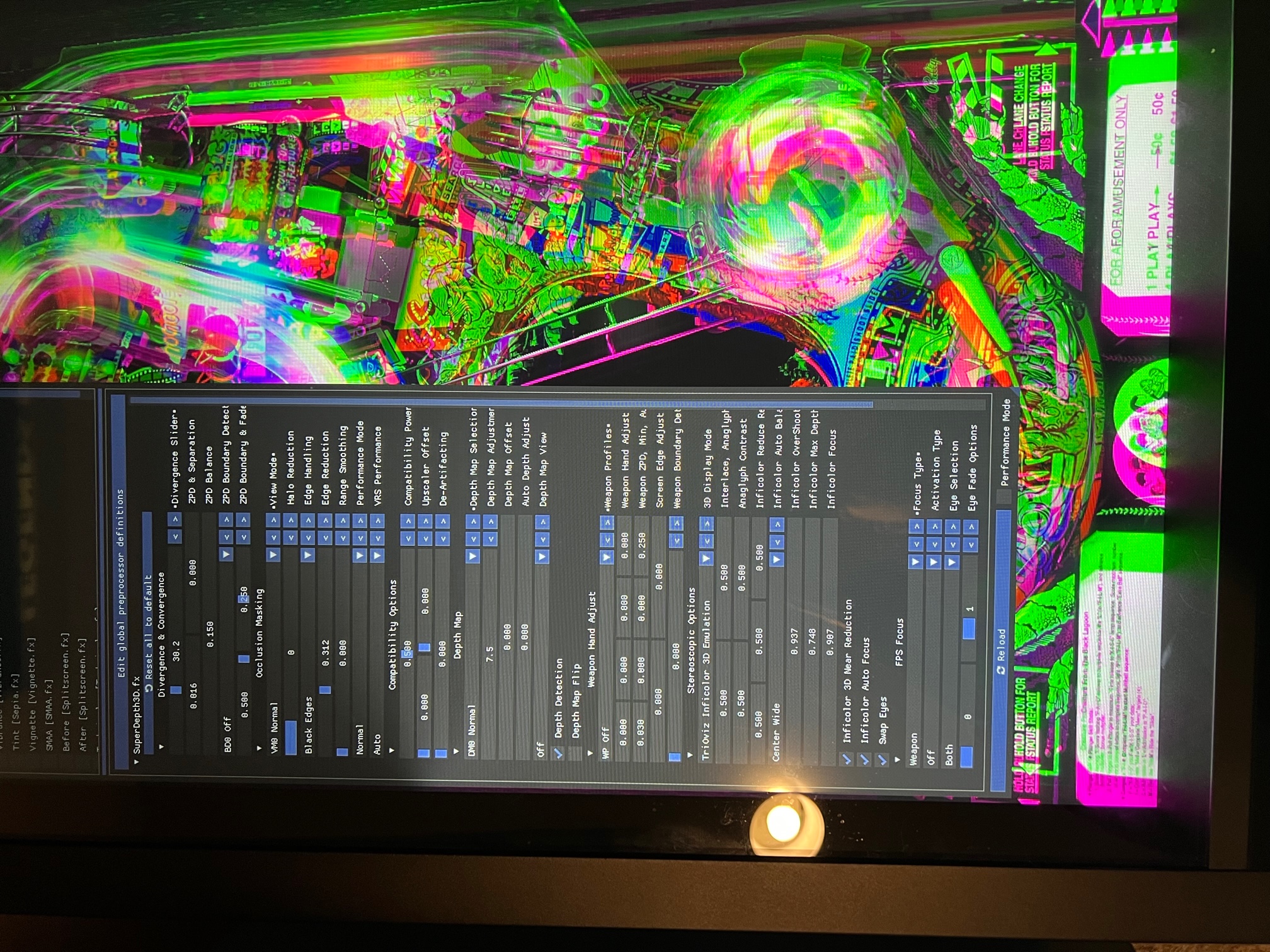
Since discovering this forum thread and implementing Reshade on my pincab a little over 3 months ago, its become the only way I play my cabinet. The 3D effect just adds so much more to the overall experience. That said, my biggest frustration has been that (ideally to me) most tables need their own SuperDepth3D settings tweaks to get them dialed in the best, and didn't know a good way to do that. I've since been able to make some simple changes to my system to permit me to do exactly that and figured I'd share.
Disclaimer: I always have Reshade set to run, so if your system isn't setup that way this might not be a good fit for you. Also, my changes are specific to PinUp Popper, so if you're not using that frontend, you'll have to adjust according to you frontends capabilities.
For a while now I've been cycling between 3-4 Reshade presets -- one of them having no 3D effect at all called "noeffect.ini". This worked fine for the most part, but I still felt it would be better if I could tweak the settings for a specific table, assuming I could ensure those setting were loaded when that specific table was launched again in the future. I now only have two presets in my VPX folder, 3d.ini and noeffects.ini, allowing me to just turn 3D effects on/off. With some changes to my frontend's launch and close scripts, I copy a [table specific].ini file in as 3d.ini when the table launches. If no table specific file exists, I copy in the default.ini. Then, in the close script I copy the 3d.ini file out as a [table specific].ini to a save folder. This way I can make adjustments to the table and they get saved for later use.
These are the steps I took:
- Create a new folder in your VPX folder called "reshade-presets". (in my case, c:\vPinball\VisualPinball\reshade-presets). This is where all the custom presets for each individual table will get stored.
- Copy an existing Reshade preset into that folder and name it "default.ini". This is required, so if you don't have a saved Reshade preset created, go create one first.
- Since I use PinUp Popper as my frontend, I went and made the following changes to my VPX start and stop scripts (which can be found in PinUp Popper Setup app -> Popper Setup tab -> Emulators -> Visual Pinball X -> Launch Setup tab). If you don't use Popper, hopefully whatever frontend you're using has launch and close scripts that can be modified. The script modifications below use variables specific to Popper, so adjust accordingly.
Add this to the Launch Script somewhere before the line that launches the table:
if exist "[DIREMU]\reshade-presets\[GAMENAME].ini" (
  copy "[DIREMU]\reshade-presets\[GAMENAME].ini" "[DIREMU]\3d.ini"
) else (
  if exist "[DIREMU]\reshade-presets\default.ini" (
    copy "[DIREMU]\reshade-presets\default.ini" "[DIREMU]\3d.ini"
  )
)
All this code does is copy the table specific .ini from the reshade-presets folder to 3d.ini in your VPX folder. If no table specific .ini exists, it uses the default.ini. So this is what my full launch script now looks like
@echo off
START "" "[STARTDIR]Launch\VPXSTARTER.exe" 30 10 60 "Visual Pinball Player" 2
cd /d "[DIREMU]"

rem Change the following to EnableTrueFullScreen to default FullScreen Exclusive!
rem SET FSMODE=DisableTrueFullScreen
SET FSMODE=EnableTrueFullScreen

SET VPXEXE=vpinballx.exe

if "[RECMODE]"=="1" (SET FSMODE=DisableTrueFullScreen )
if /I "[CUSTOM1]"=="NOFSX" (SET FSMODE=DisableTrueFullScreen )
if NOT "[ALTEXE]"=="" (SET VPXEXE=[ALTEXE] )

if exist "[DIREMU]\reshade-presets\[GAMENAME].ini" (
  copy "[DIREMU]\reshade-presets\[GAMENAME].ini" "[DIREMU]\3d.ini"
) else (
  if exist "[DIREMU]\reshade-presets\default.ini" (
    copy "[DIREMU]\reshade-presets\default.ini" "[DIREMU]\3d.ini"
  )
)

START /min "" %VPXEXE% "[DIREMU]" -%FSMODE% -minimized -play "[GAMEFULLNAME]"

if %FSMODE%==DisableTrueFullScreen (START "" "[STARTDIR]Launch\PopperKeepFocus.exe" "Visual Pinball Player" 10)
Add this to the end of the Close Script:
if exist "[DIREMU]\3d.ini" (
  if exist "[DIREMU]\reshade-presets" (
    copy "[DIREMU]\3d.ini" "[DIREMU]\reshade-presets\[GAMENAME].ini"
  )
)
This just copies the 3d.ini file to the reshade-presets folder as a table-specific.ini file. So over time all your tables will get table specific .ini files created. Or you can choose to copy in a preset or a different table .ini and rename it according to the table its intended for.
Thats it. Now when I launch a table I essentially have the ability to turn on / off 3D, and any changes I make on that table will get saved off to the reshade-presets folder and get used the next time its launched.
Here is a screenshot of my reshade-presets folder with some table specific .ini files saved.
 Screenshot (17).png 50.49KB
7 downloads
Screenshot (17).png 50.49KB
7 downloads
Edited by elmera, 11 January 2023 - 02:32 AM.





 Top
Top







 are all trademarks of VPFORUMS.