







 Contributor
Now we will start building the vertical wire that goes from the playfield up through the back ring we built. Copy one of the perfect circle objects from your ID table or build a new one. Add it near the VUK where we build the round ring (you’ll probably want to zoom in a few times to the objects won’t bee too small). Add a light object to your table and change the radius to 4. Scale your circle object so that it is the same size as the light of radius 4

Now make sure the bottom height is 0 and the top height is 125 (125 being the same height as our lower narrow wire ramps with image Metal_wire). Set the side image to Metal_wire and uncheck collidable. Now put two copies straight above where the inner two narrow wire ramps end but placed on the round ring object:

Now add two more copies of these circle objects approximately where shown in the image below. Change the top height of each to 166 (this matches the height of our upper wire ramps):

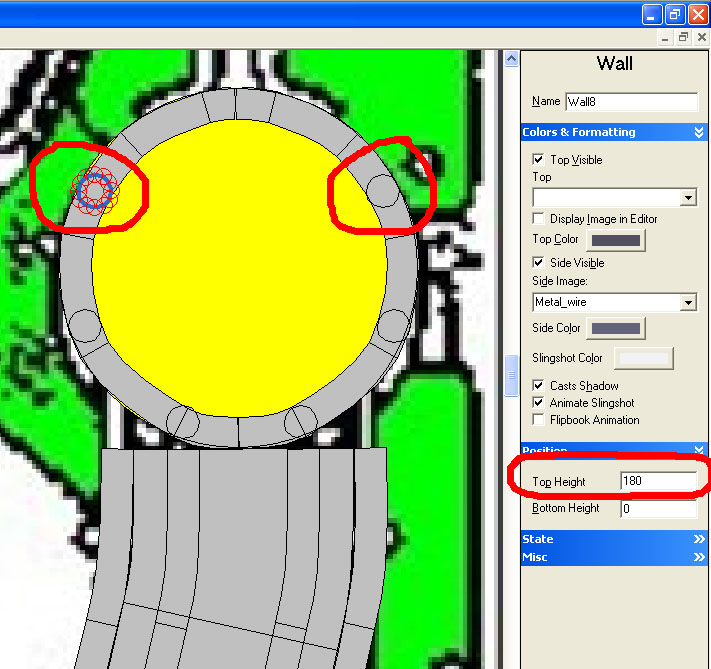
Now add two more copies approximately where shown in the image below. Change the top height of each to 180 (this number is 55 higher than our wire of height 125. Since the ball is approximately 50 units high, we’ll add 55 just for some extra padding. We will be making a couple more wire ramps for the top most part of our VUK in just a little bit):
Now add one more circle object at the top center. Change the height to 201. I’m not sure how I came up with this number yesterday, but it’s a little less than half the height of a ball:
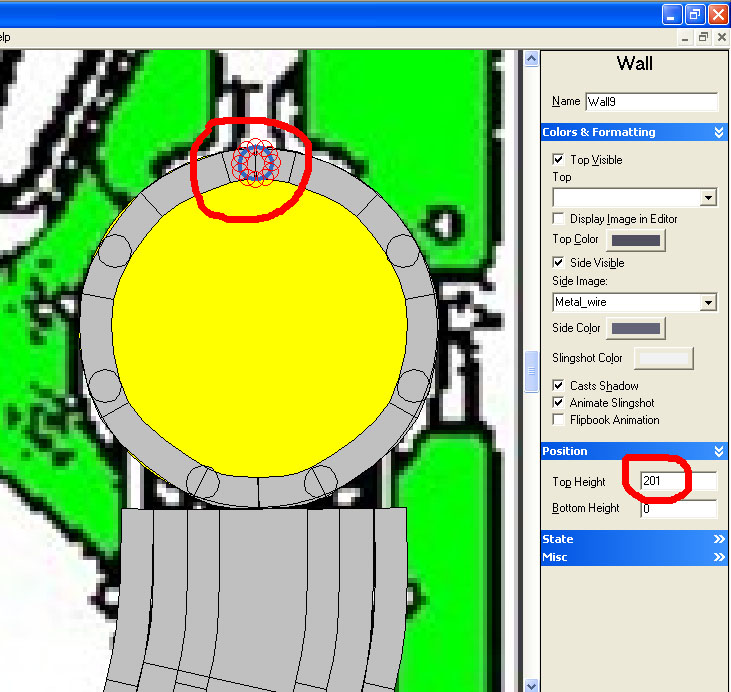
It’s starting to take shape:

Now extend both of the inner narrow ramps up to the top portion of the circle objects shows in the image below:

Now right click on the far left narrow ramp and add a control point just a little below the end one:

Now grab the very end control point and move it up and to the left so that it ends half way through the circle object shown:

Now repeat for the right side. You may have to move the control point second from the end (the one we just added) to the right a bit otherwise then the table is rendered that wire might not look quite right. You will have to experiment a bit:

Now for all four of our narrow ramps we can add the black shadow. Do you remember what to do? Make a copy, lower the height by 6 units, change the visible walls to 6, select none for the image, and change the color to Red=45, Green=51, and Blue=51.
Right click on your invisible ramp and translate it about 200 units so that it is out of the way and we can see our reference image:

We will now add two full rings by using an image (just like we did previously with the half rings). Import in the following image:

Add a target object to your table and delete the upper left control point. Move the remaining upper control point to the center:


Now rotate it about 38 degrees and move it to the approximate location of the lower full ring. Select the full ring image for the Side Image and uncheck collidable and uncheck Top Visible.. Set the bottom height to 110 and the top height to 200. Make the left and right edge extend just a bit wider than the left and right narrow ramps:

Now make a copy of this object and move the copy up and into place. Adjust the left and right control points to that they are level:

Now add another narrow ramp with bottom and top height of 180. Start where indicated in the image below and follow the shape of the ramp below it and continue up and connect half way through the circle object as indicated. Make sure you have the left bend at the top of the ramp (this way it will look like it has a downward curve when the table is rendered). You might want to experiment a bit and see if you can make it look better. Once you come up with what looks good, go ahead and add the shadow ramp for it (I think you should know how to do this by now so I’m not going to give you all the numbers):

Now add a ramp to the right side like we just did (using the same parameters):

Now add one more ramp in the center. This one will have a bottom and top height of 200. Don’t forget to add the shadow ramp:

You can go ahead and move your invisible ramp back (translate it -200 to put it back into it’s proper position).
The only other thing to do is add an invisible wall like we did for the previous right ramp (I think I forgot to have you add it to the left ramp after we built it). You can just copy the object from the right ramp and paste it into your working VUK table, rotate it to the proper orientation and change the bottom height to 125 and the top to 175:

Your completed VUK should look like this:

Now all you need to do is copy all the objects that make up your VUK and paste them into your ID table.
 Top
Top





 are all trademarks of VPFORUMS.