







 Contributor
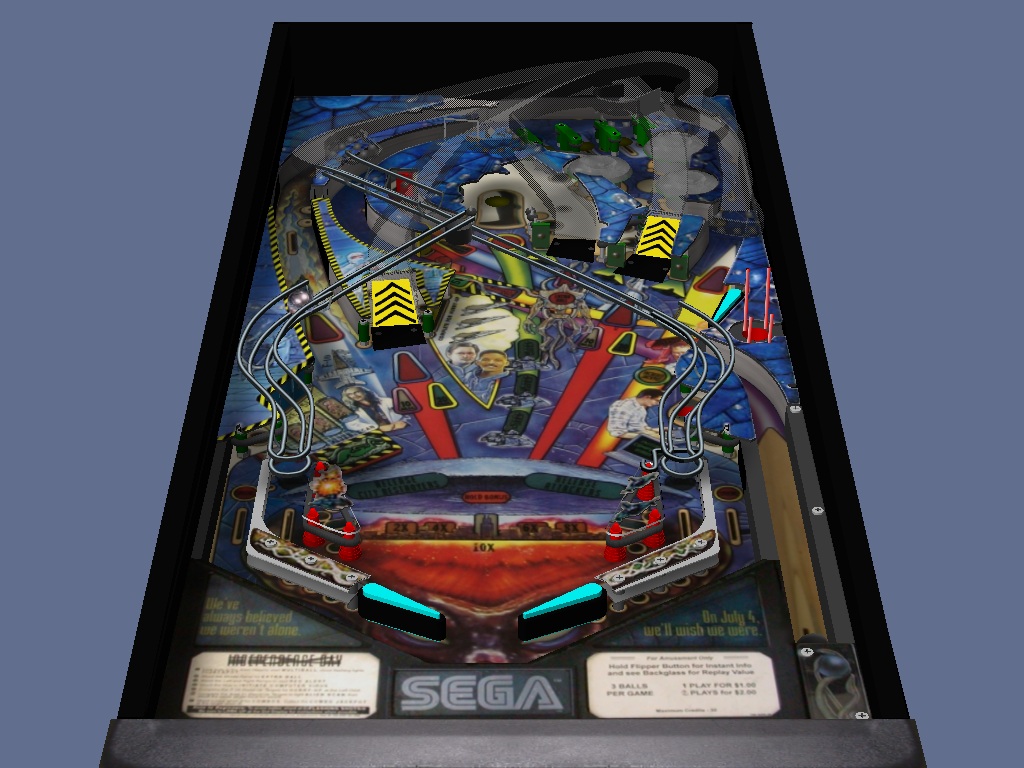
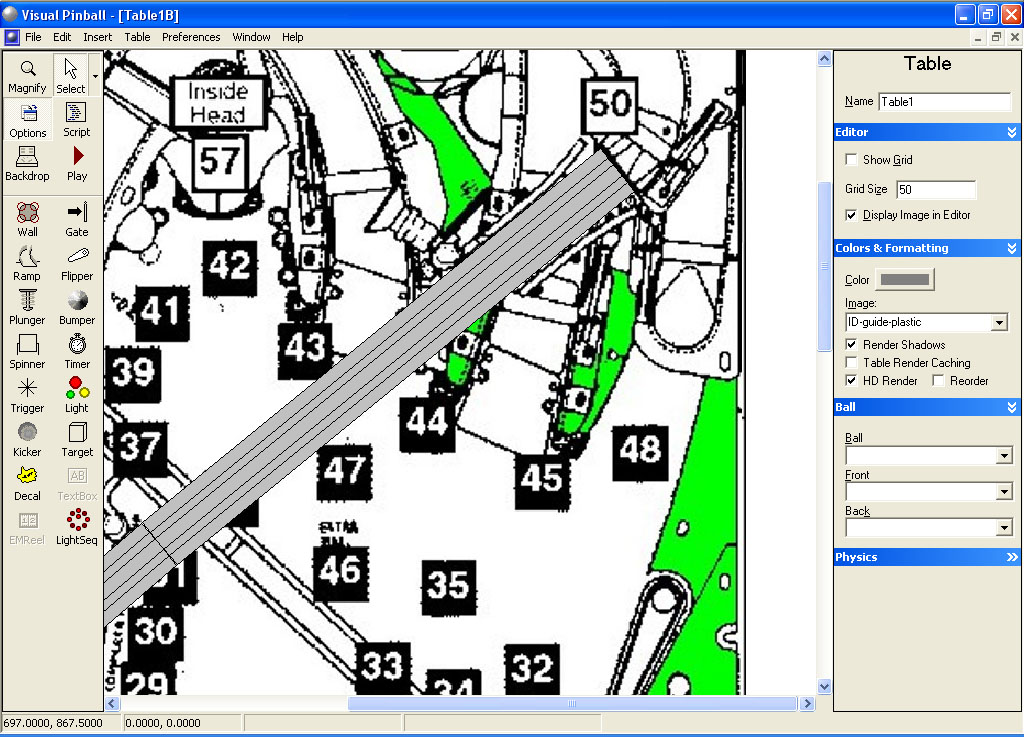
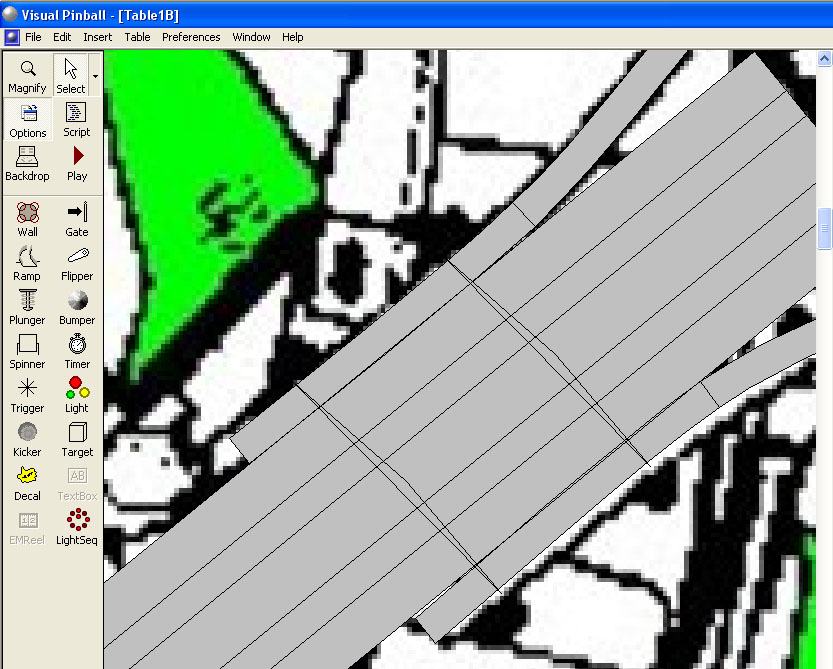
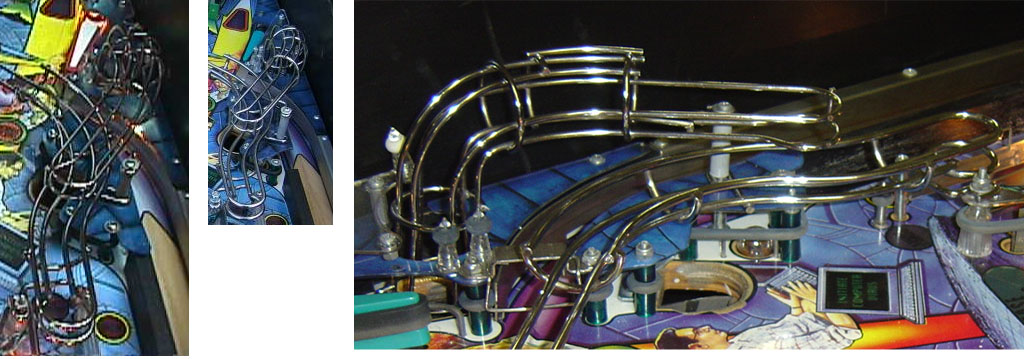
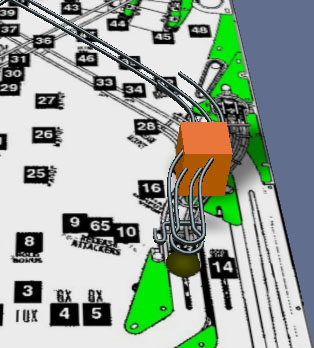
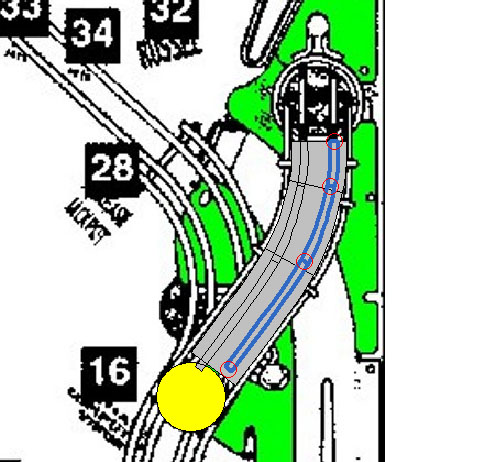
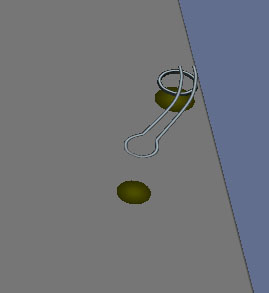
Take a look at the following picture:
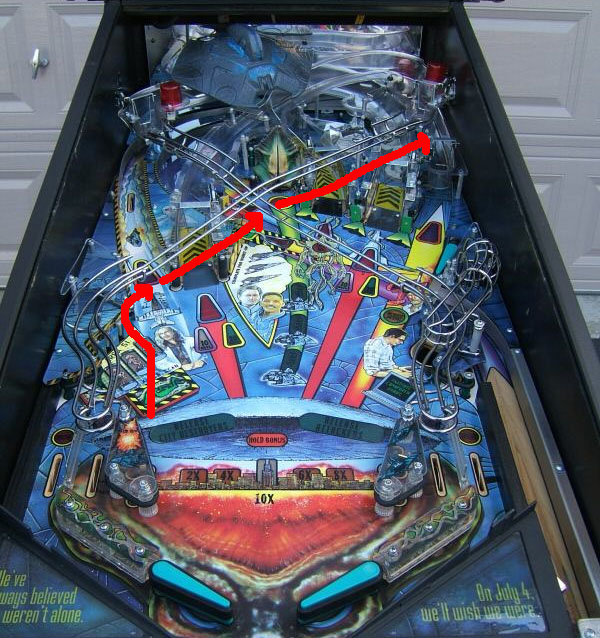
We will be building the ramp in three sections. Do like you did before for the first ramp (make a new table, import the ID guide plastic image and change the table height to 2300). If you did this for building the first wire ramp, you can actually use the same table file to build this new left ramp.
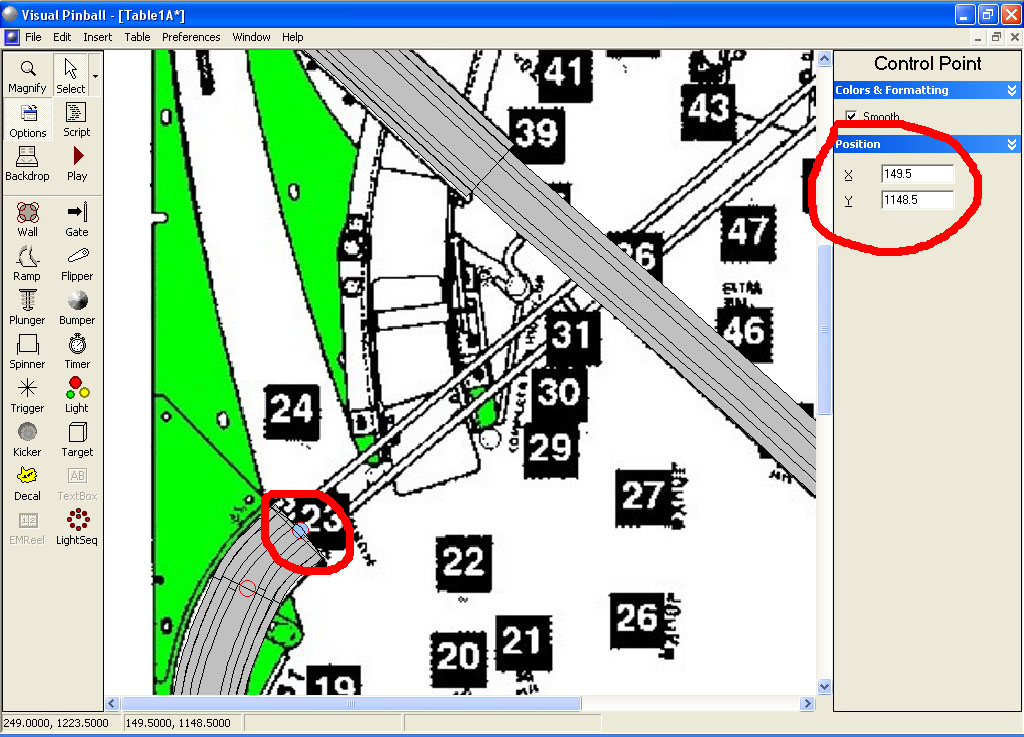
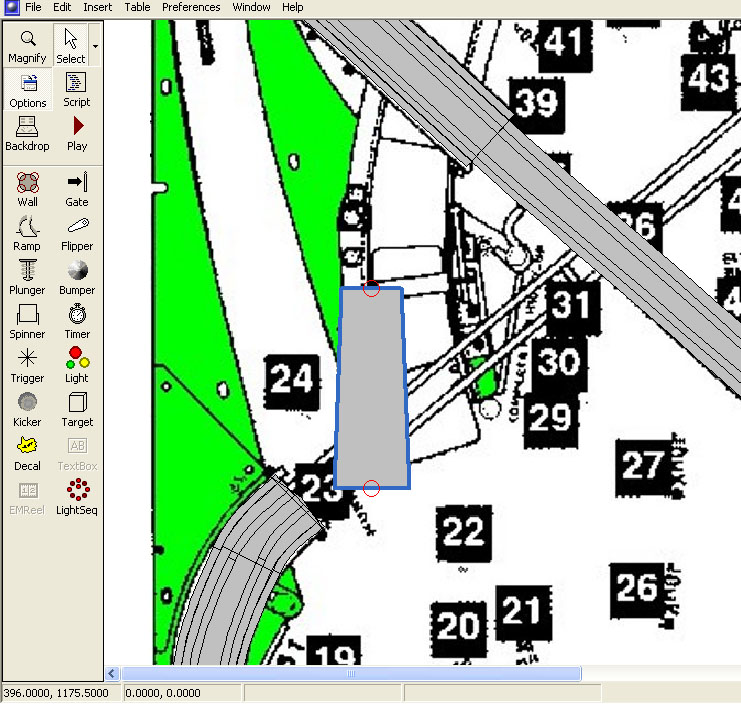
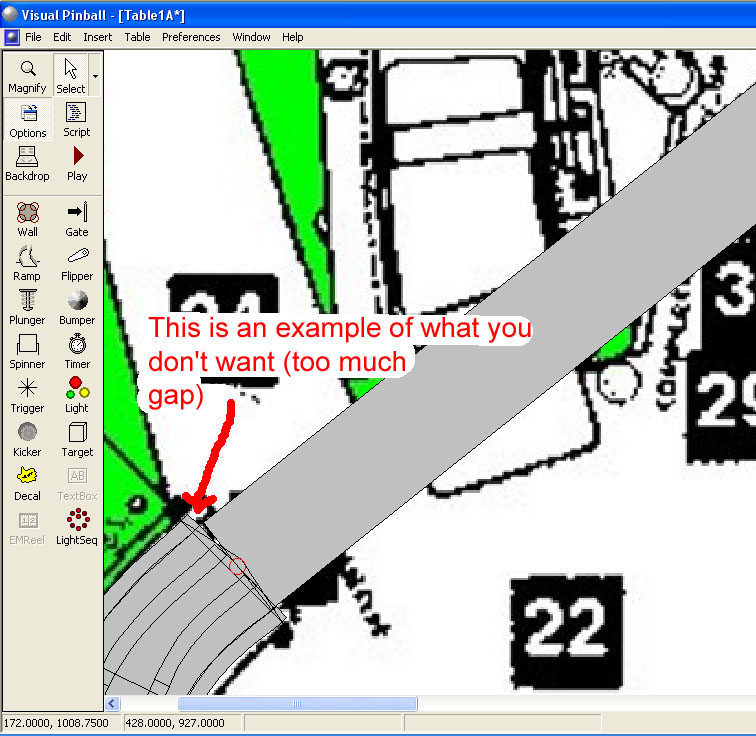
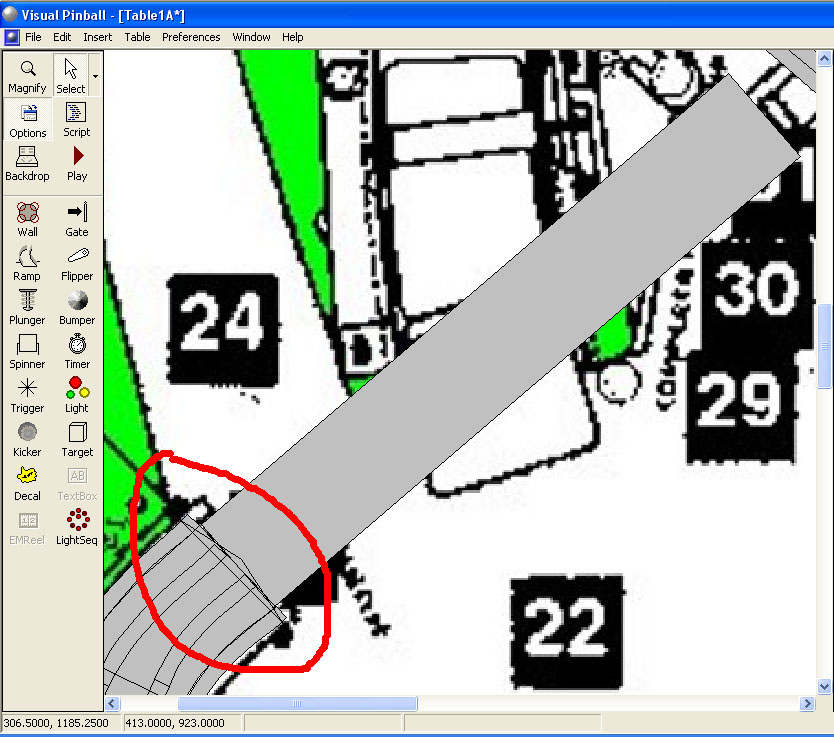
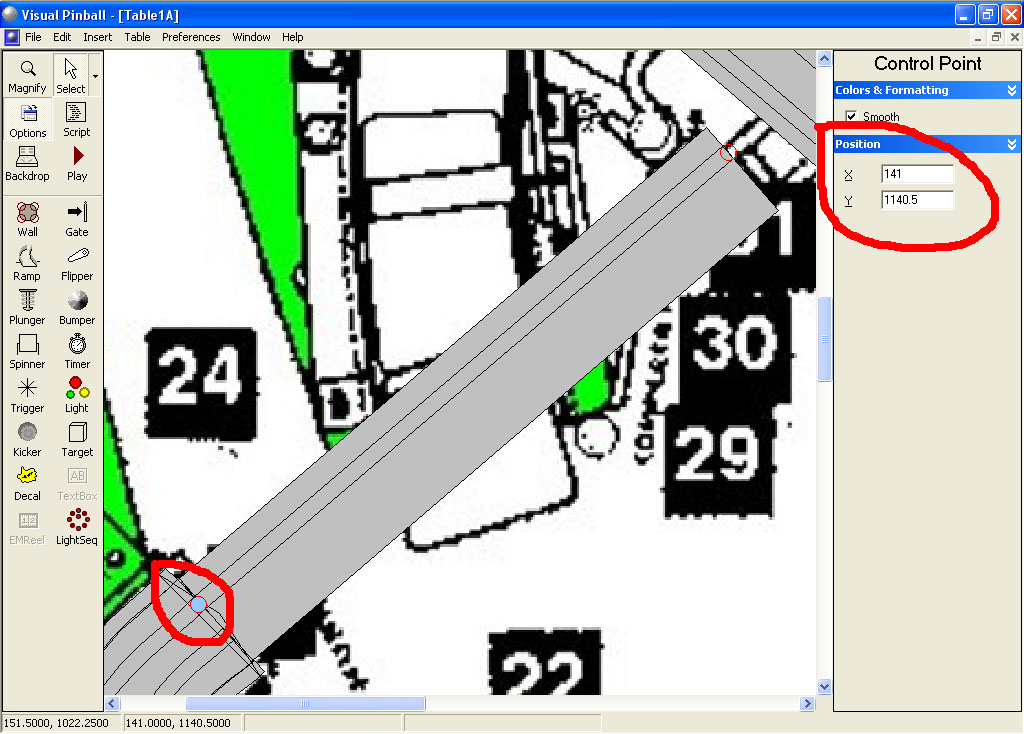
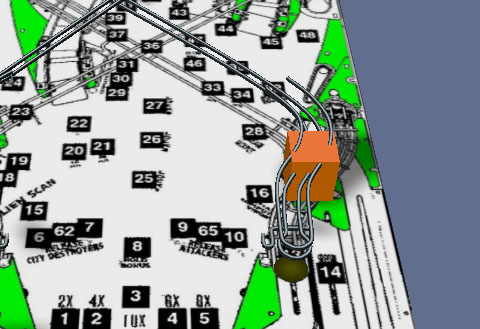
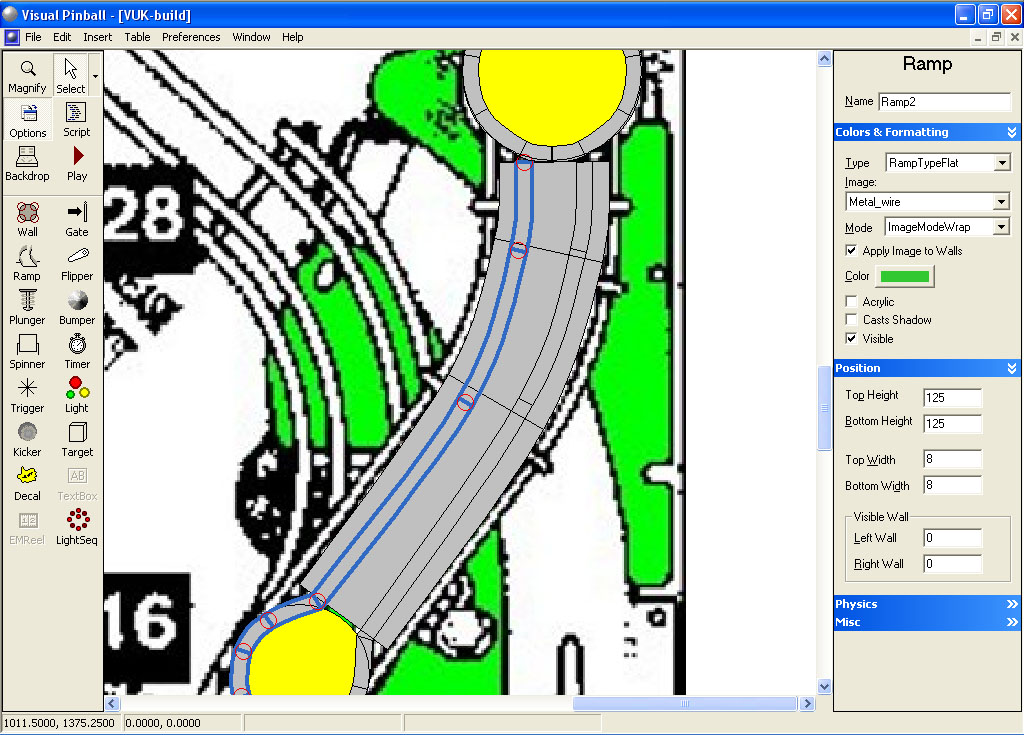
For the first section, make a ramp starting at the same level as the end of the slingshot plastic and end right at the “23” in the black square. Make sure the direction of the ramp matches the picture (the ramp bottom is at the bottom of the screen and the ramp top is at the top. The ramp will not work properly if the direction of the ramp is wrong). Add control points to the ramp (right click inside the ramp and left click on add point) as necessary to match the same shape from our guide image:
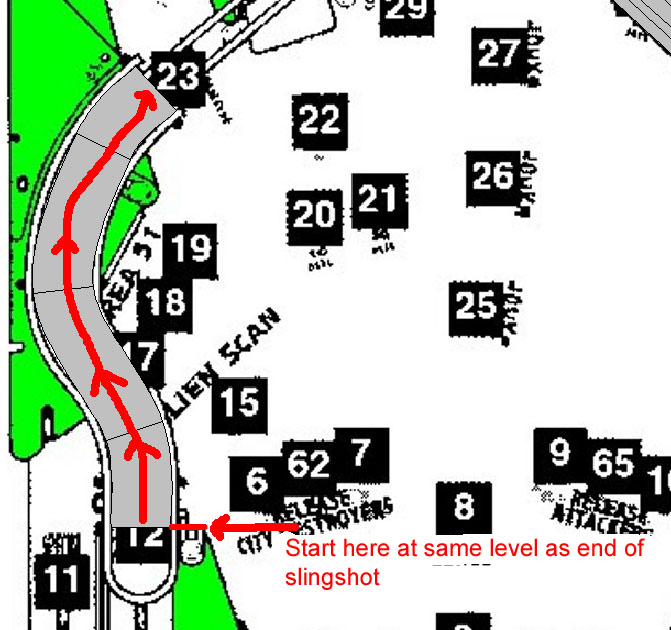
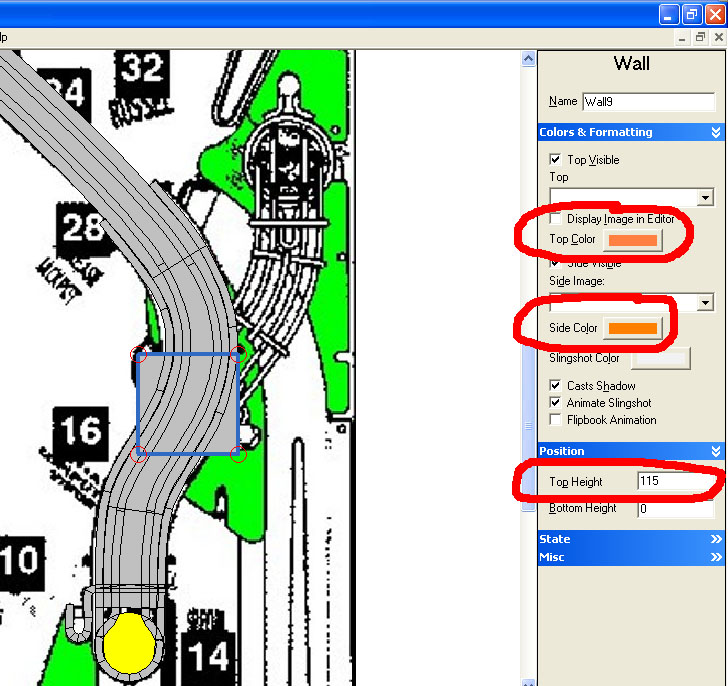
Set the ramp top and bottom width 55. Change the bottom height to 60 and top to 110. Unckeck both Cast Shadow and Visible.
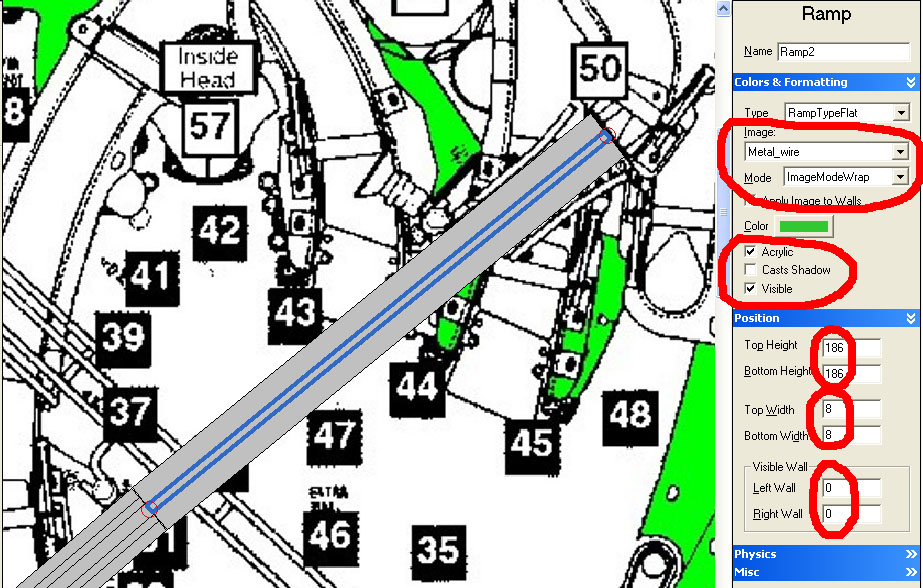
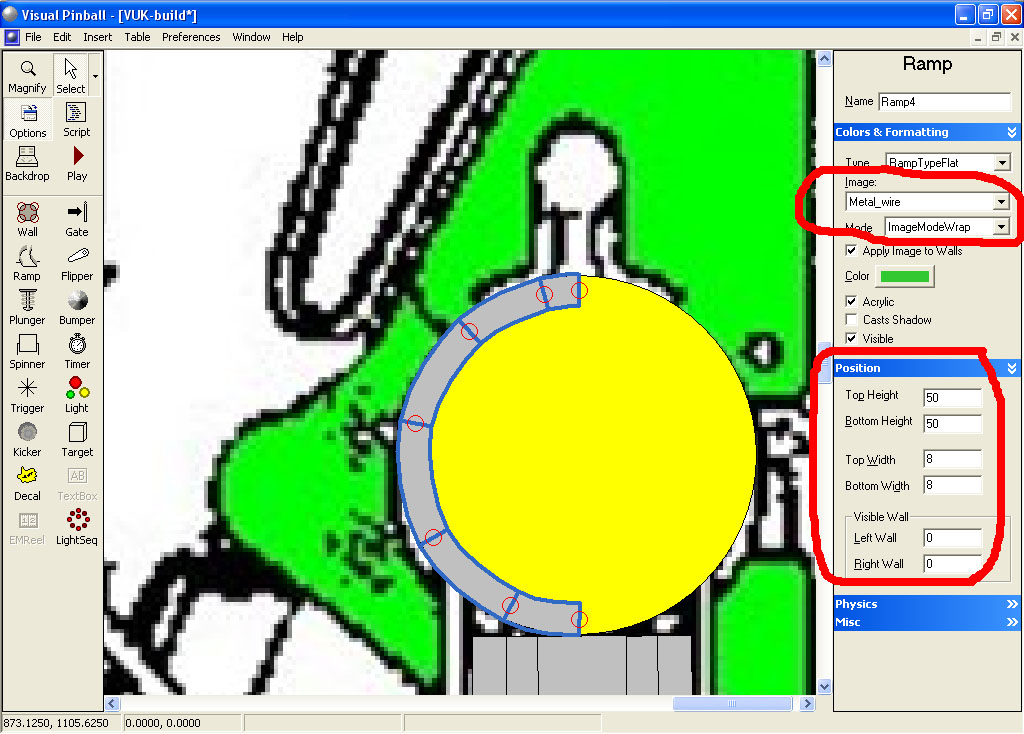
Now with the ramp highlighted, make a copy (hit CTRL-C or Edit Copy) then paste (CTRL-V or Edit Paste). Change this copied ramp top and bottom width to 8, Visible Wall left and right to 0, Bottom height to 71 (11 units higher than our ramp floor bottom height) and top height to 121 (11 units higher than our ramp floor top height). Click on Visible and Acrylic so it will show up. Select your Metal_wire as the ramp image and set the Mode to ImageModeWrap. Under physics, un-check Collidable (otherwise the ball won’t travel on the ramp)
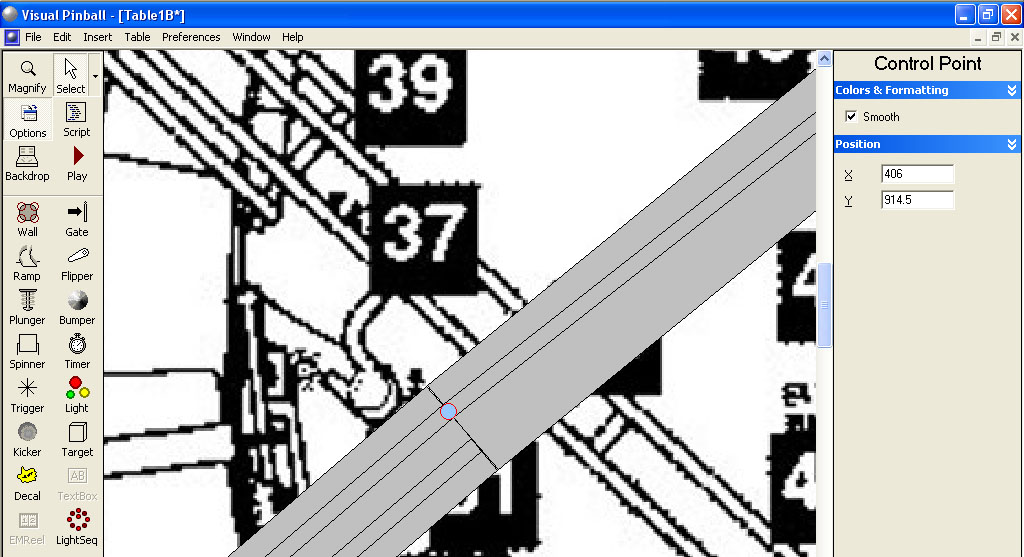
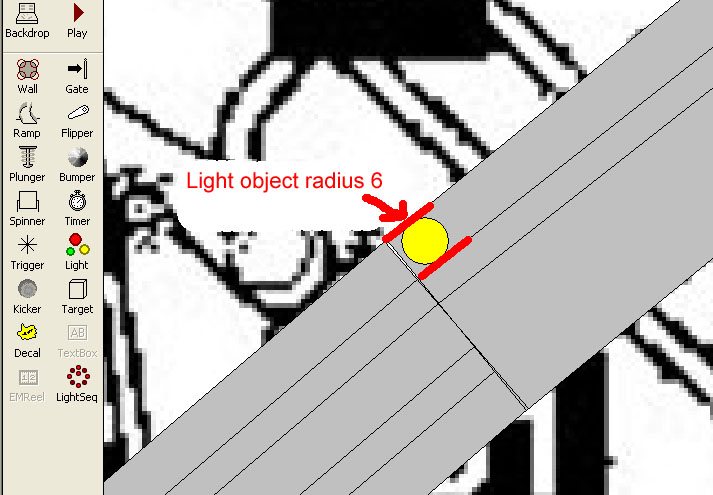
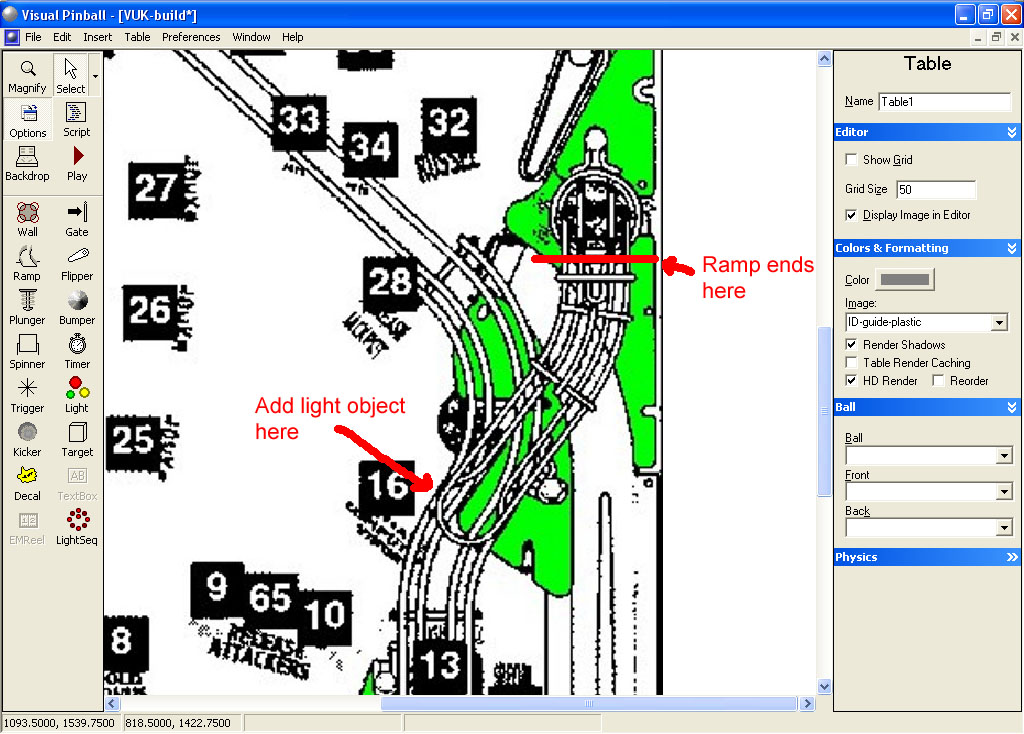
Now right click on this new ramp and translate it -15. If you add a light object of radius 4 to the left edge of the first wide ramp object, your new narrow ramp should line up on the right edge of that light object.
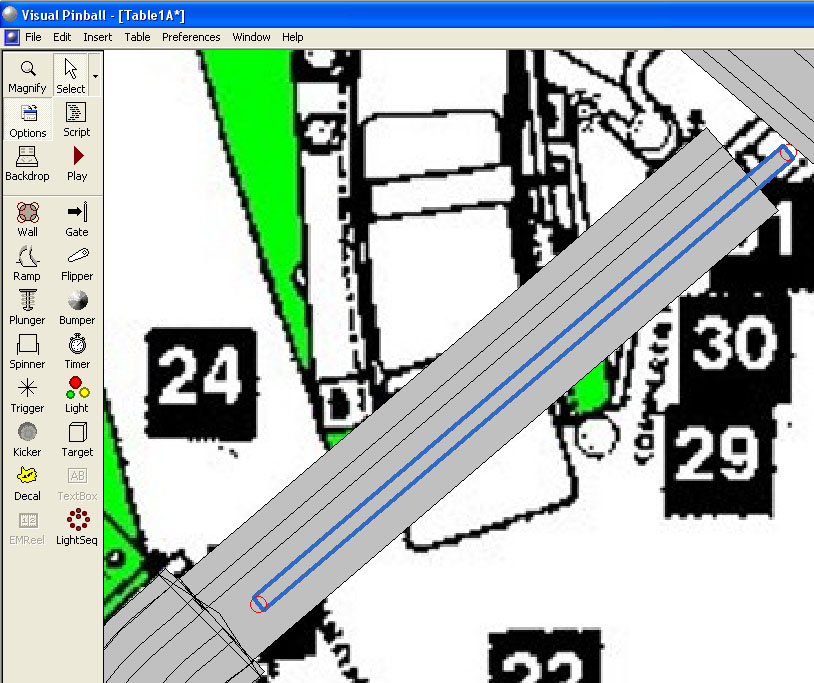
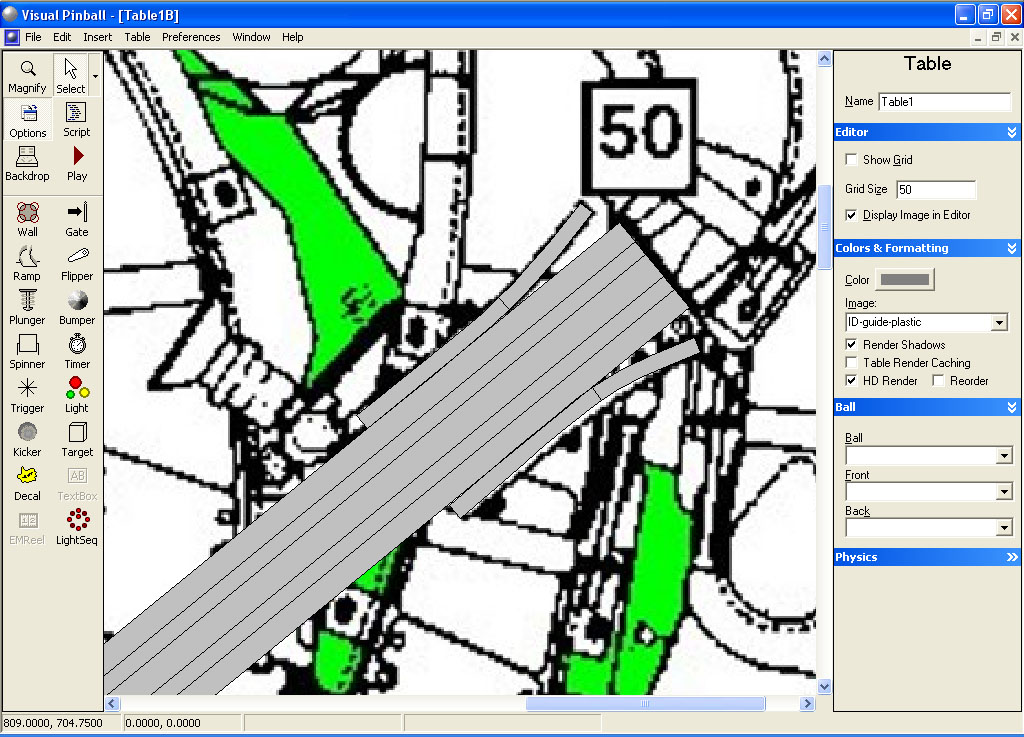
Make another copy of the thin ramp and translate it in the X direction by 30. Your ramp should now look like this:
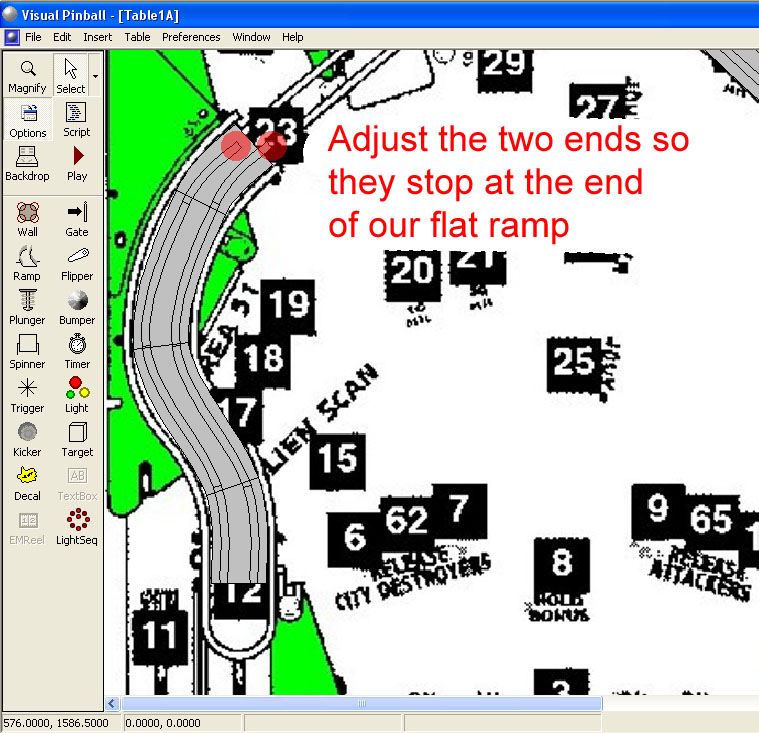
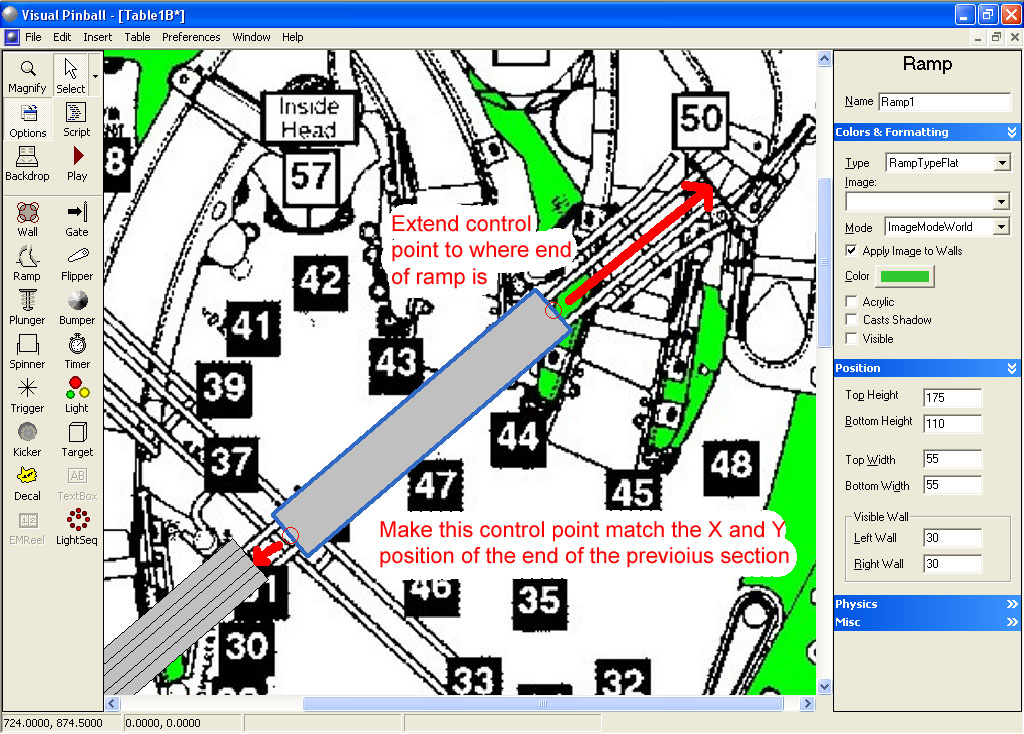
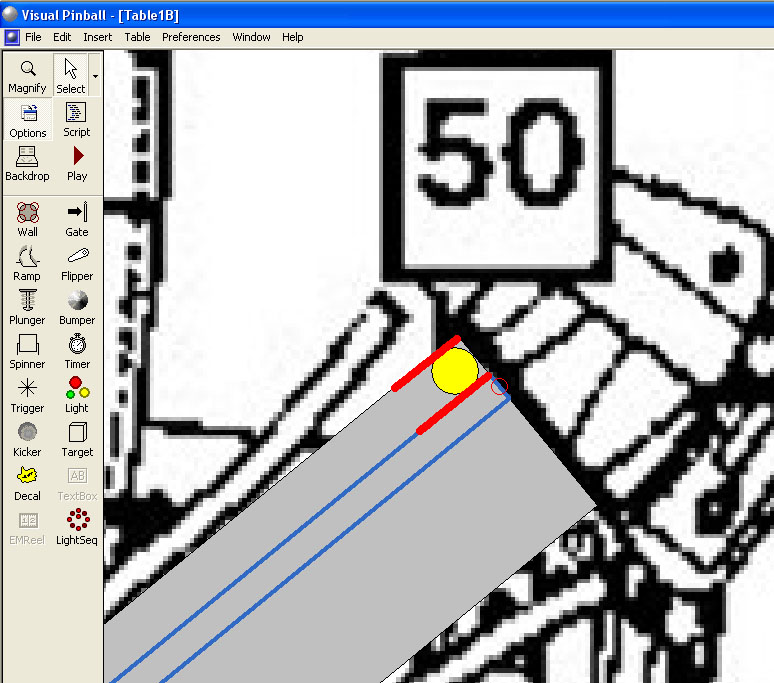
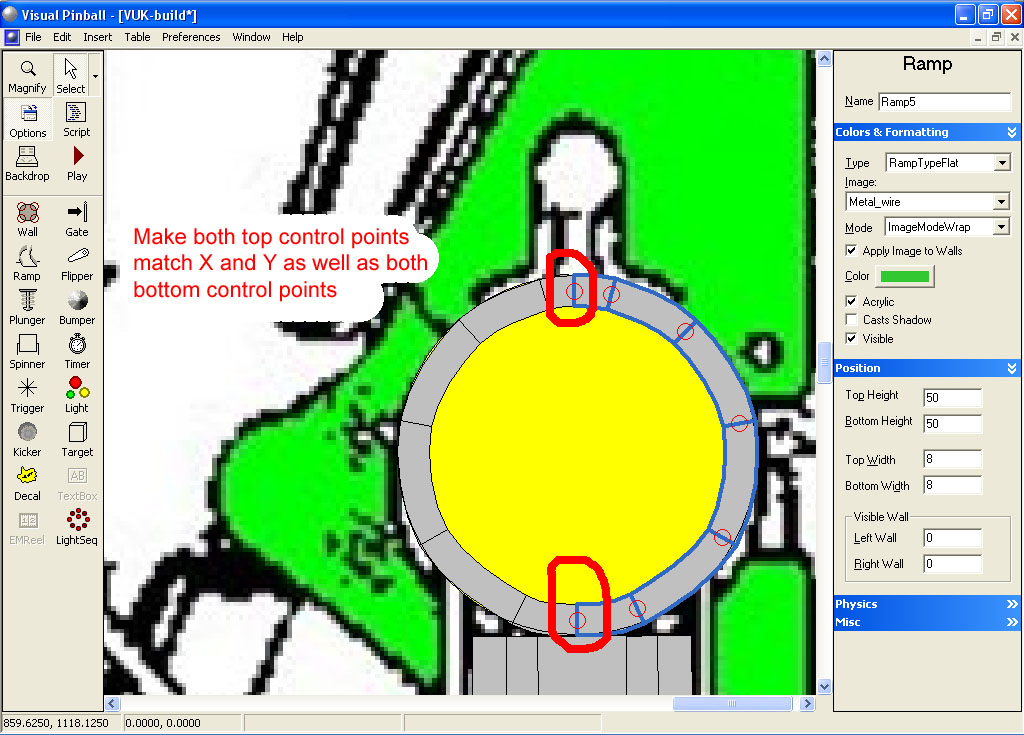
Adjust the top end control point of both small ramps to match the end of our ramp floor.
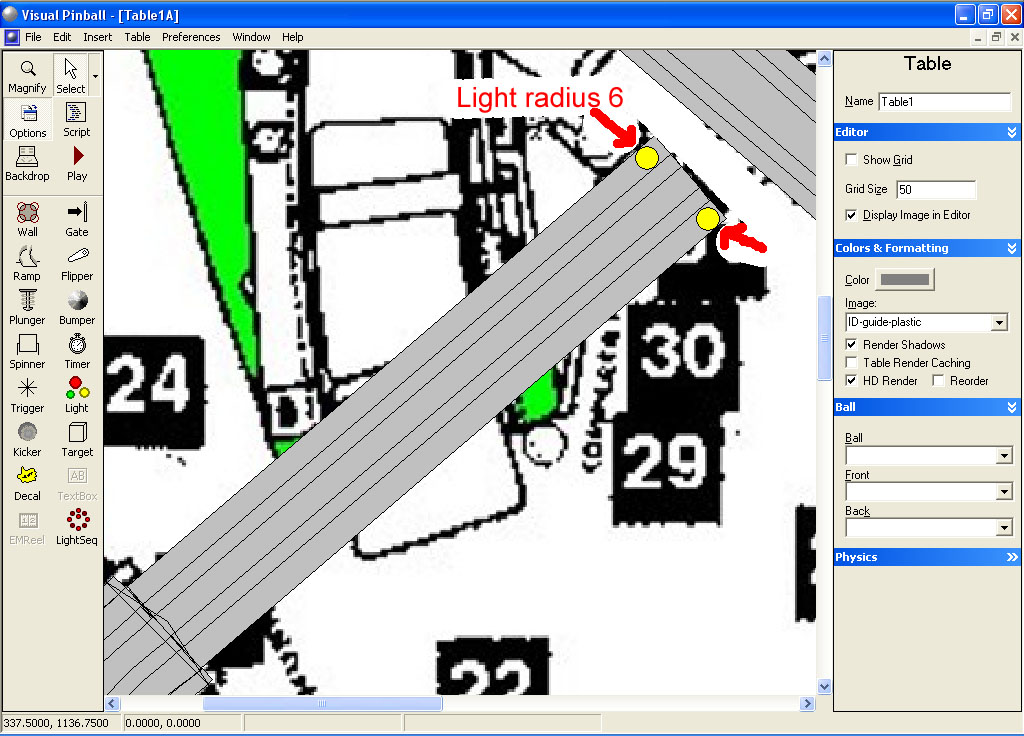
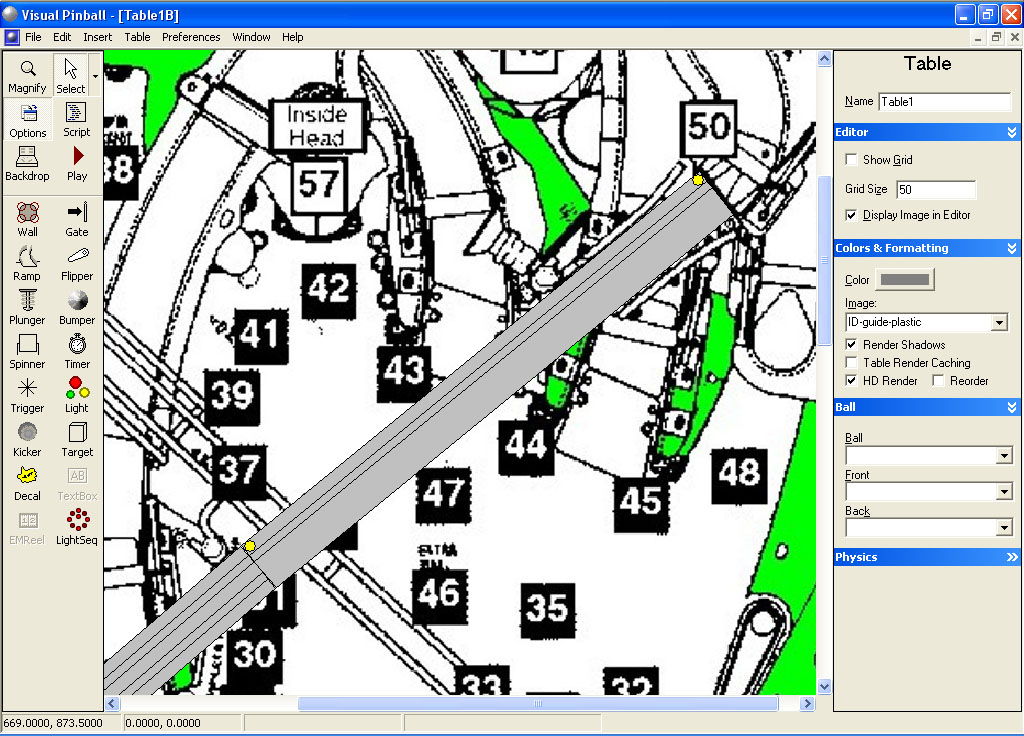
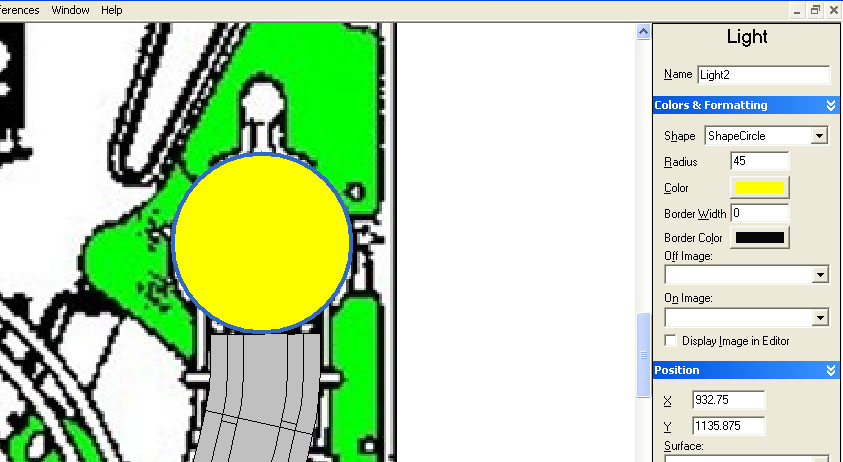
Now add a light object of radius 35 to the end of the ramp (this will be our guide for the ramp end).
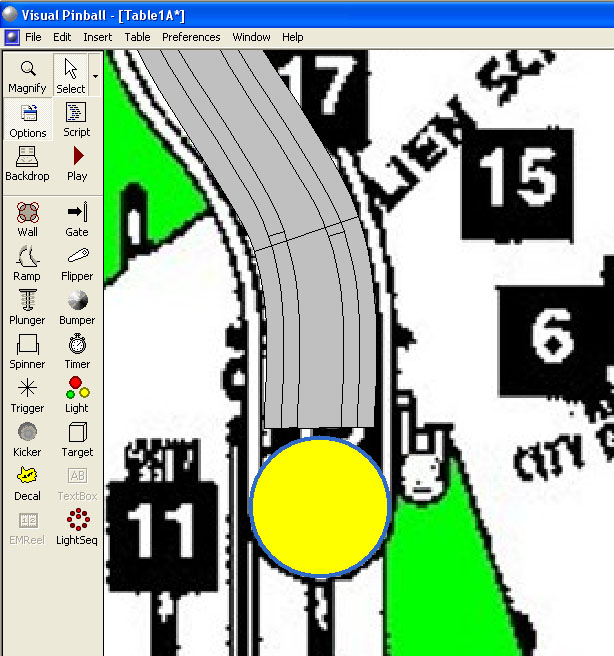
Now repeat the same process as we did before for the right ramp to form the left half of the loop then do as before to create the right half. When you are finished it should look like this:
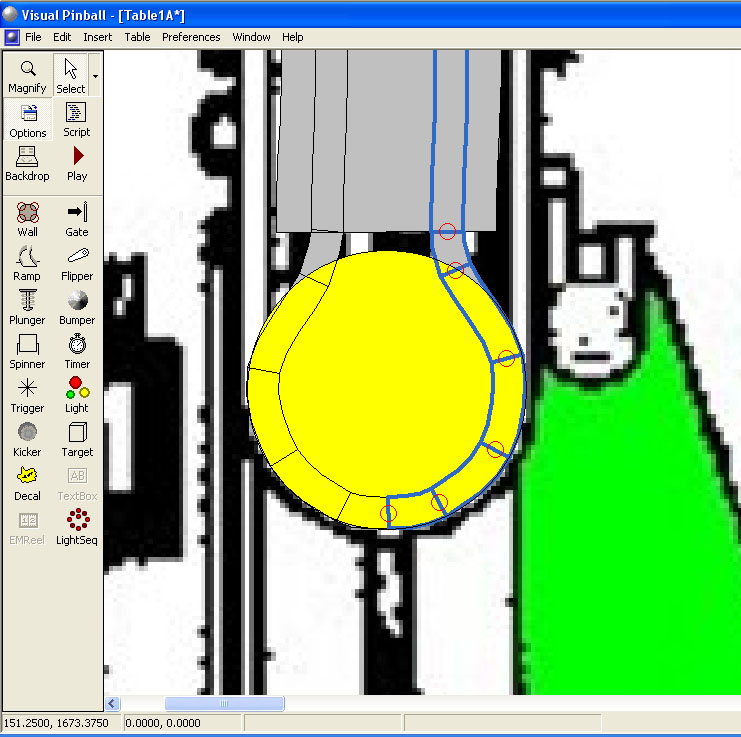
Now make a copy of the left narrow ramp. Change the Visible Wall to 6 for both left and right, change the bottom height to 65, top height to 115. Select None for the image and click on the color button and change the Red value to 45, Green to 51 and Blue to 51. Repeat for the right narrow ramp. This will give the bottom of the wire a black shadow.
Now that we’ve build the metal wire for the base of the ramp, we need to build the outer walls.
Start by making a copy of the left wire that has the metal image. Click on it to select it. If you are having trouble selecting it, you can move the flat ramp out of the way, then click on the left wire ramp to select it, then hit CTRL-Z (or Edit, Undo). This will move the flat ramp back into position and leave metal wire still highlighted.
With the new ramp still selected, translate it -16 in the X position:
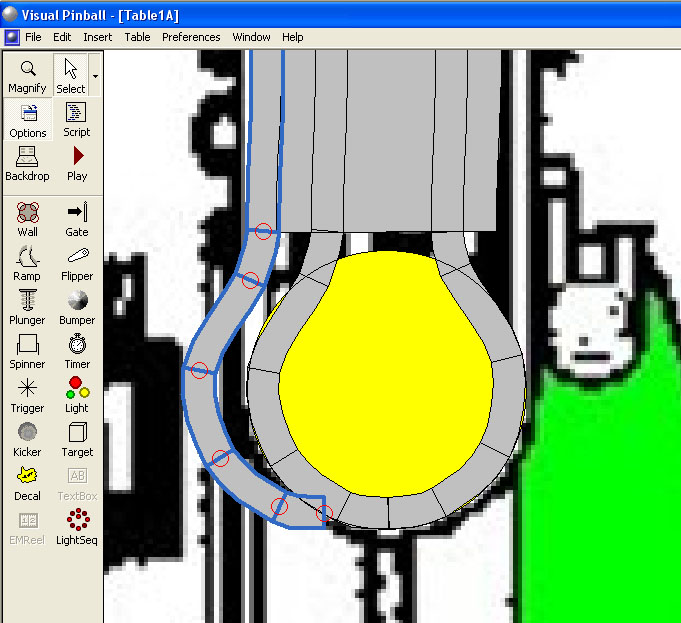
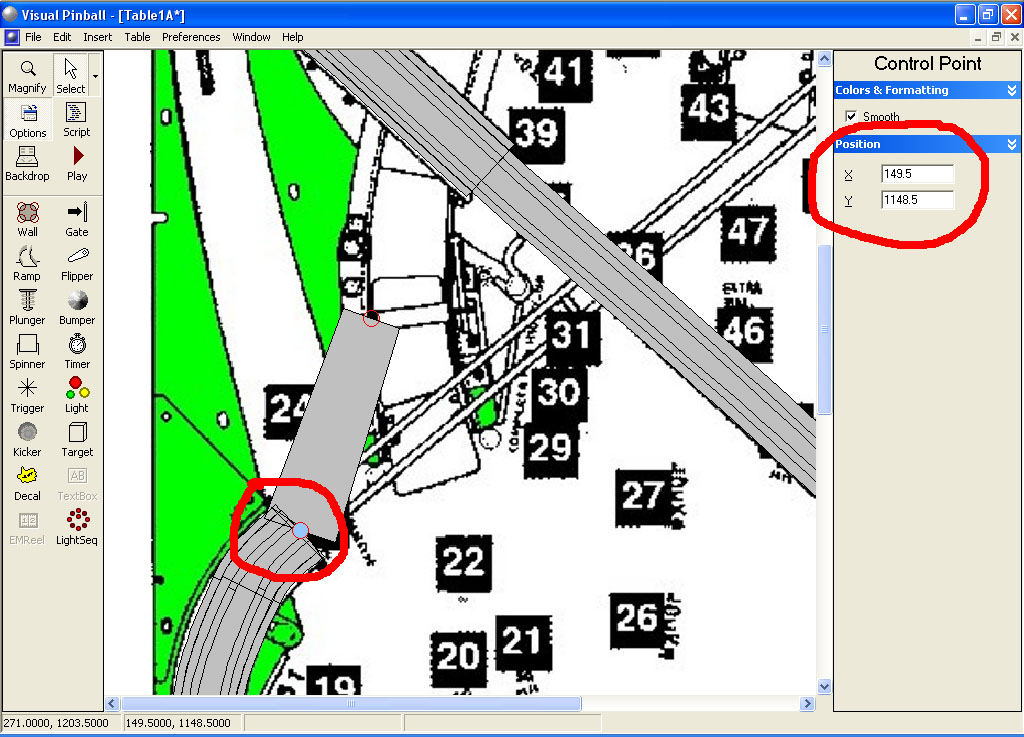
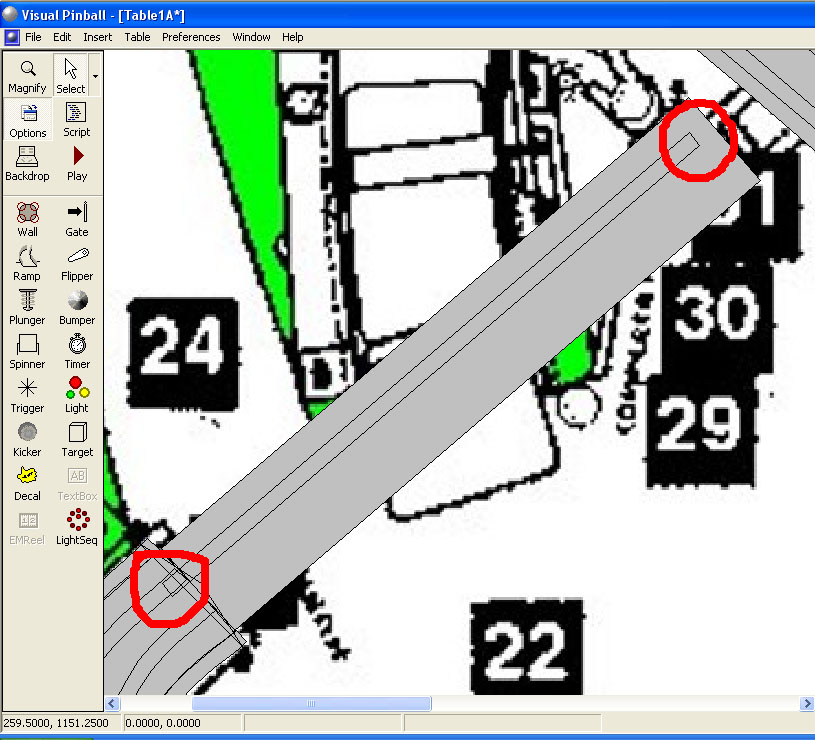
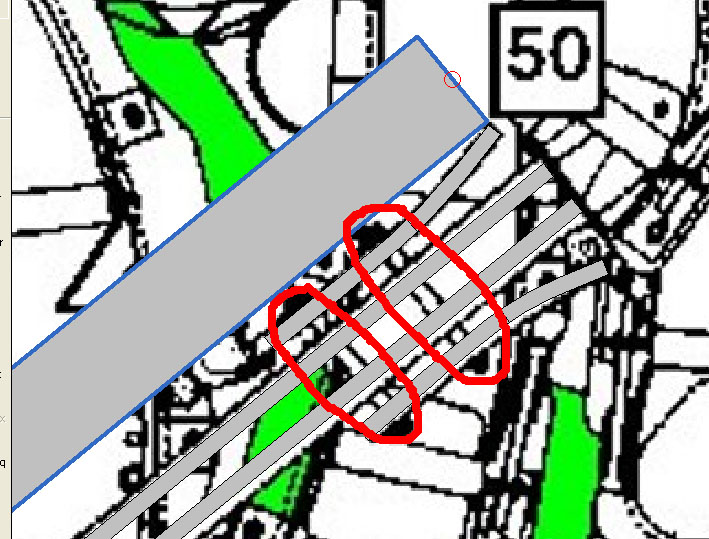
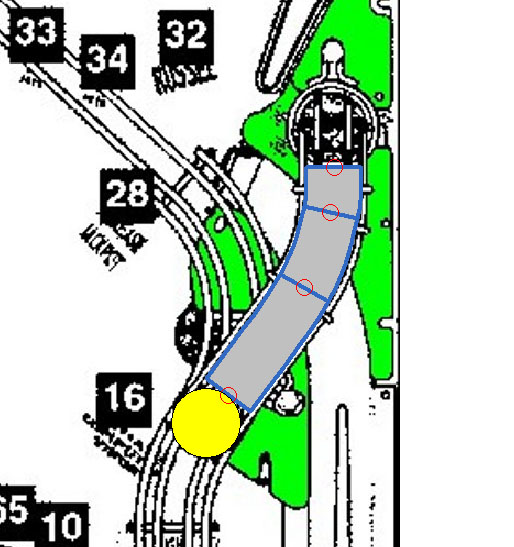
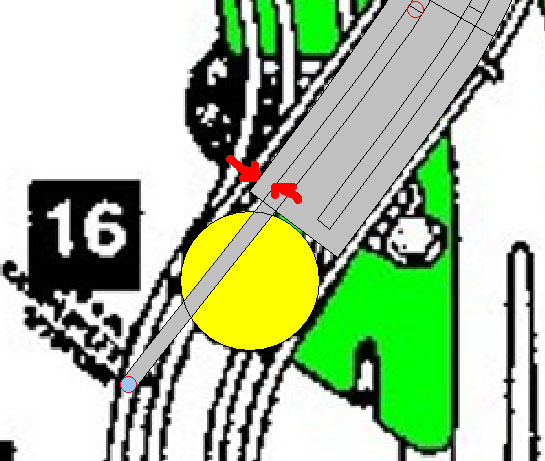
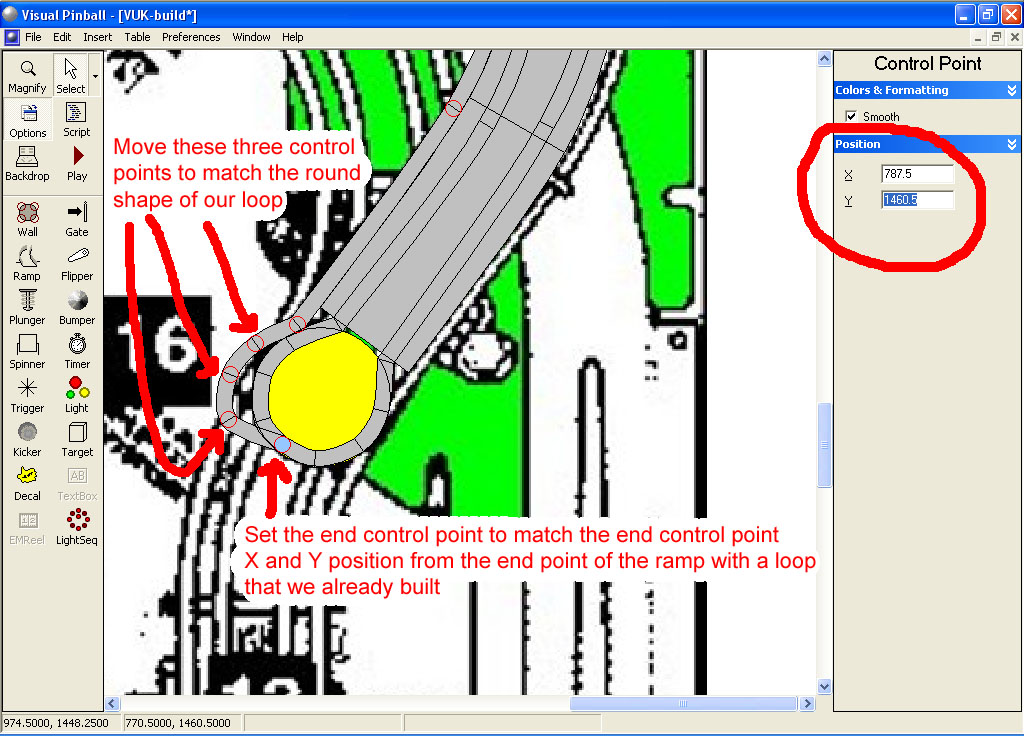
Now we need to re-shape the end. Refer to the image below:
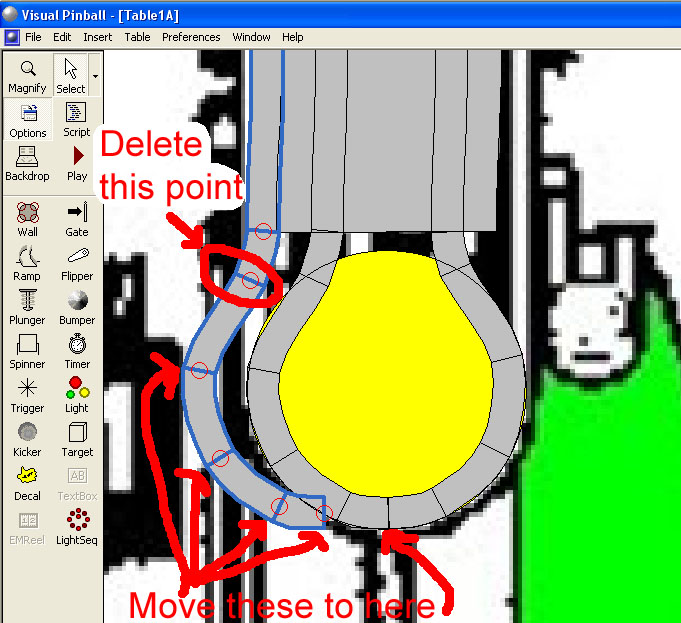
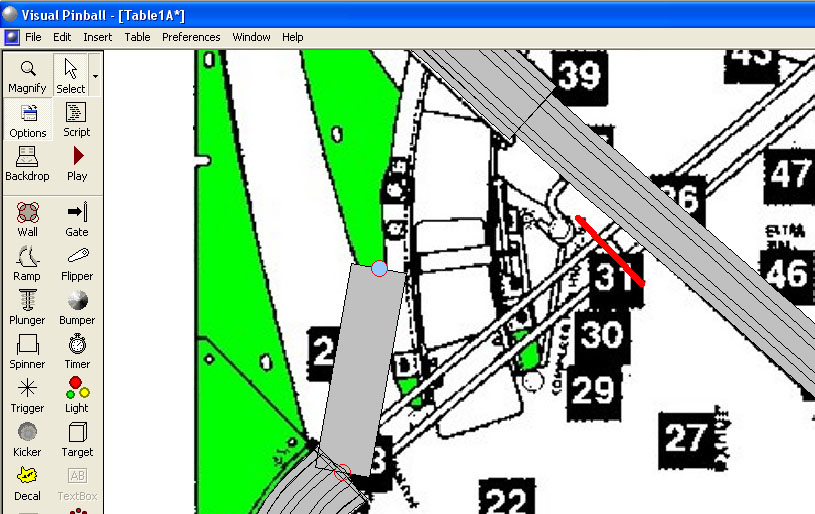
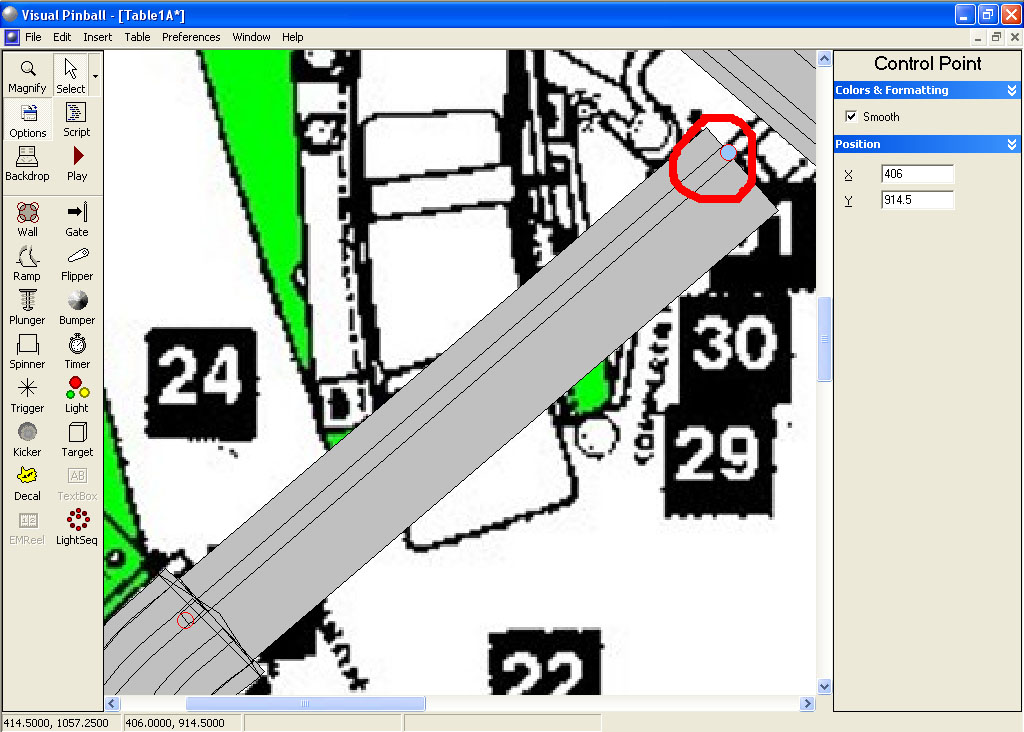
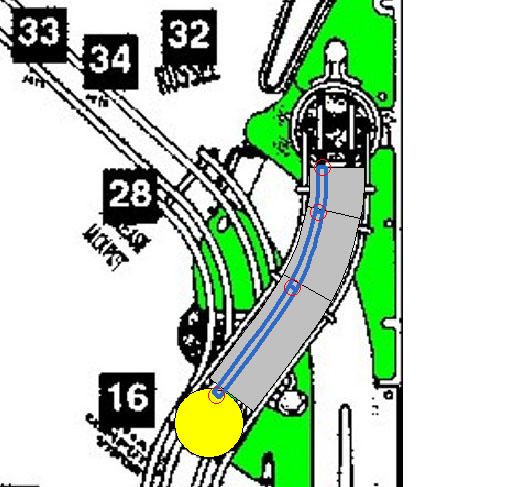
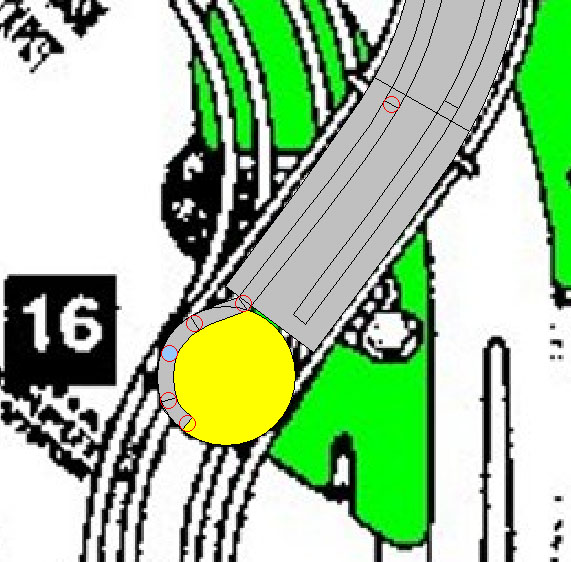
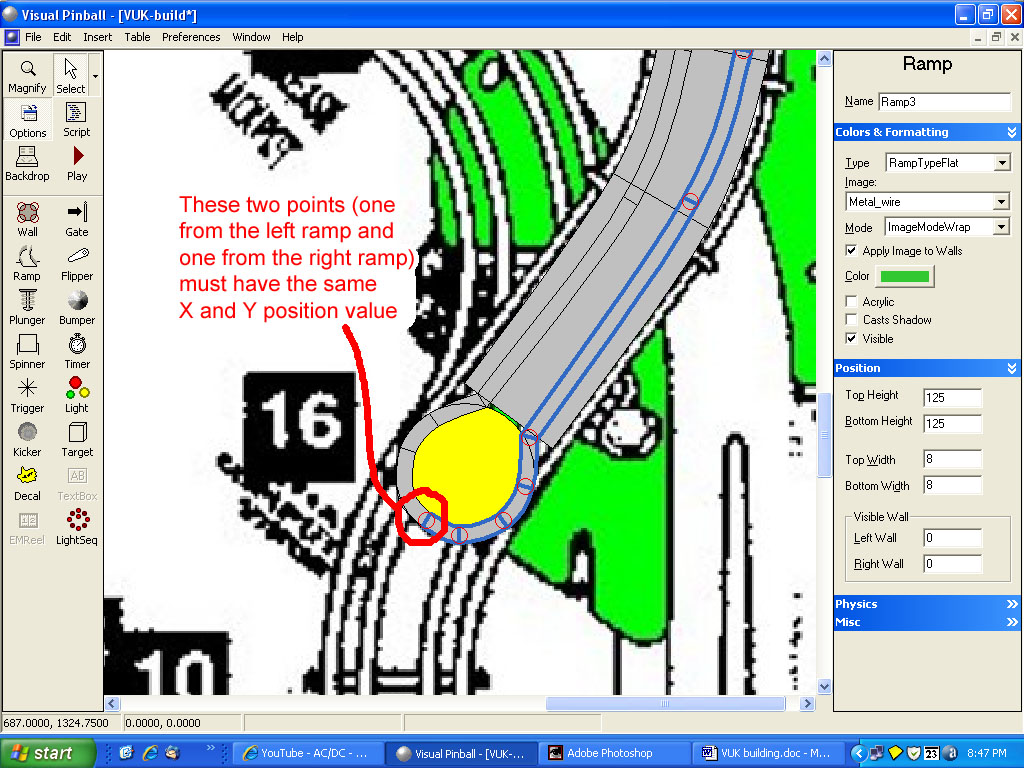
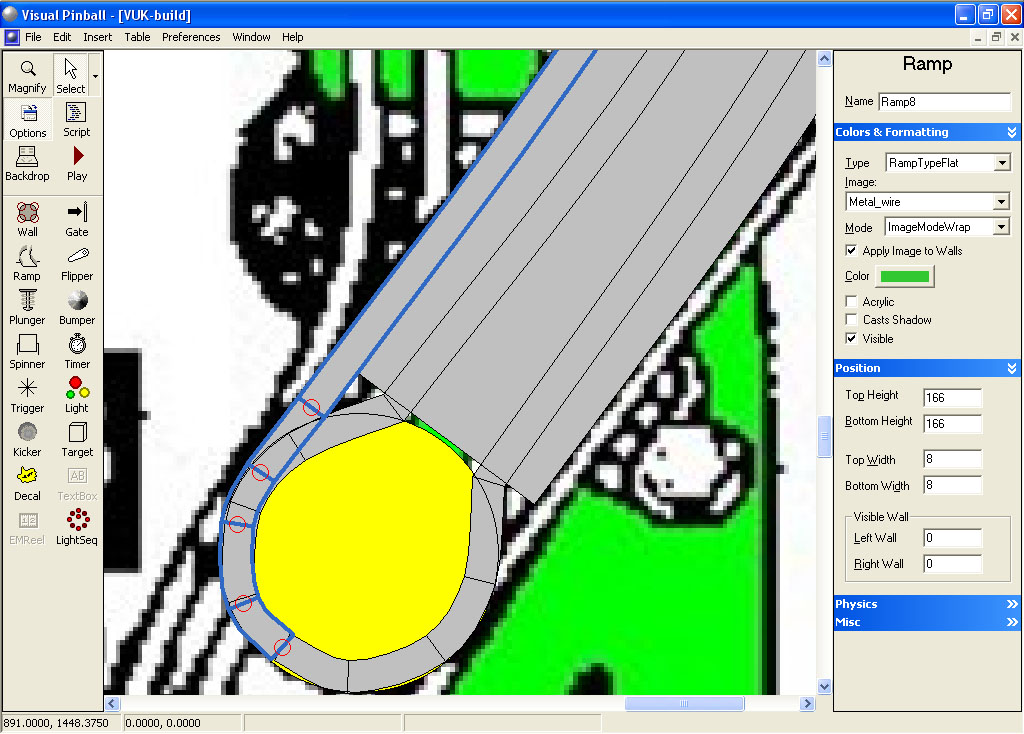
Delete the control point indicated. Then select the other control points indicated (click on one, hold the shift key, click on the next and so on) and move them to the right so that the end one is at the bottom center of our loop. The move can be accomplished by using the right arrow key on the keyboard to move all the selected control points together. Keep hitting the right arrow key until all is in the right place (should take about 32 hits of the key). When done it should look like this:
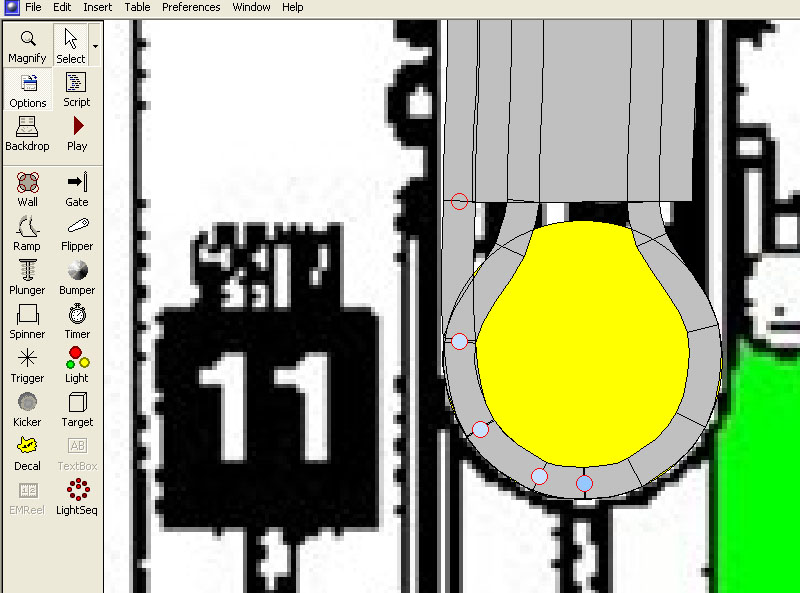
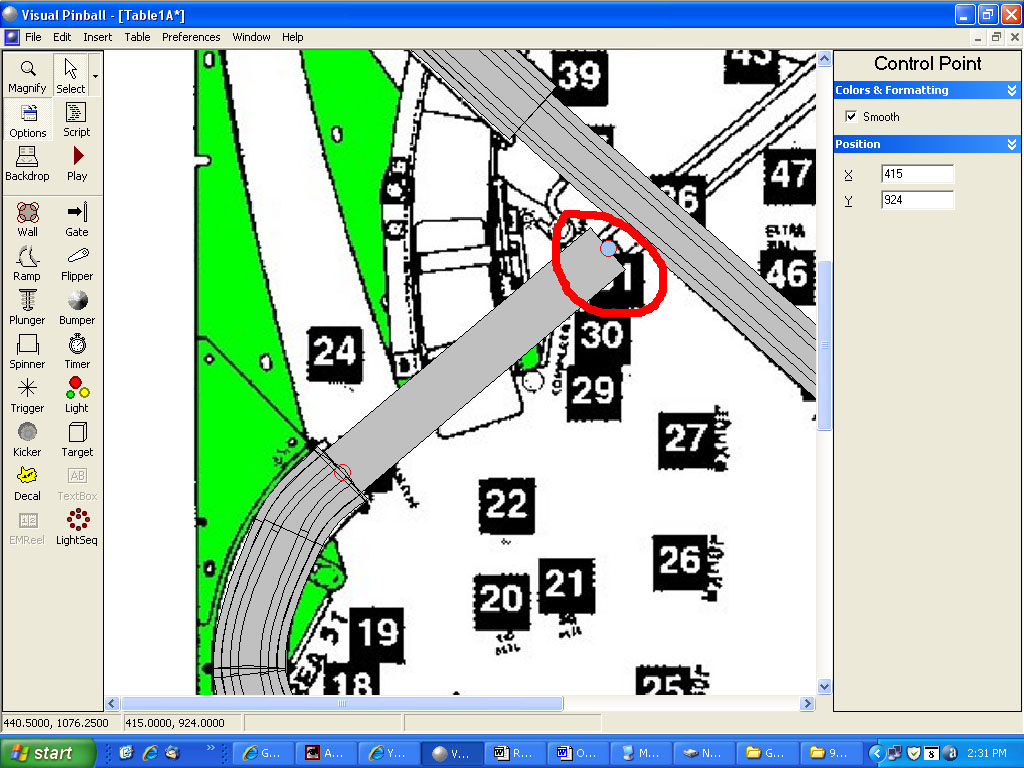
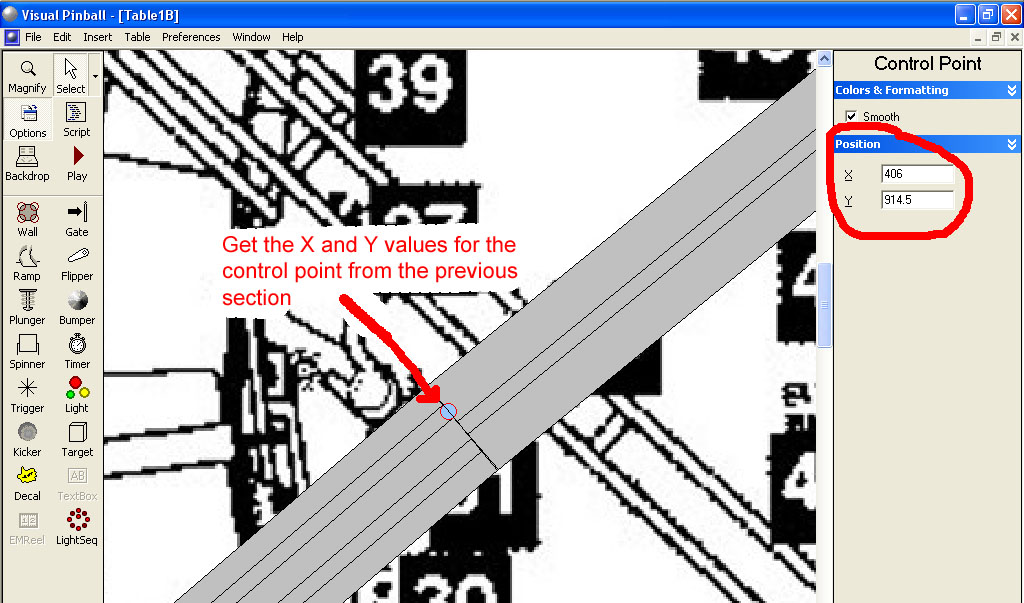
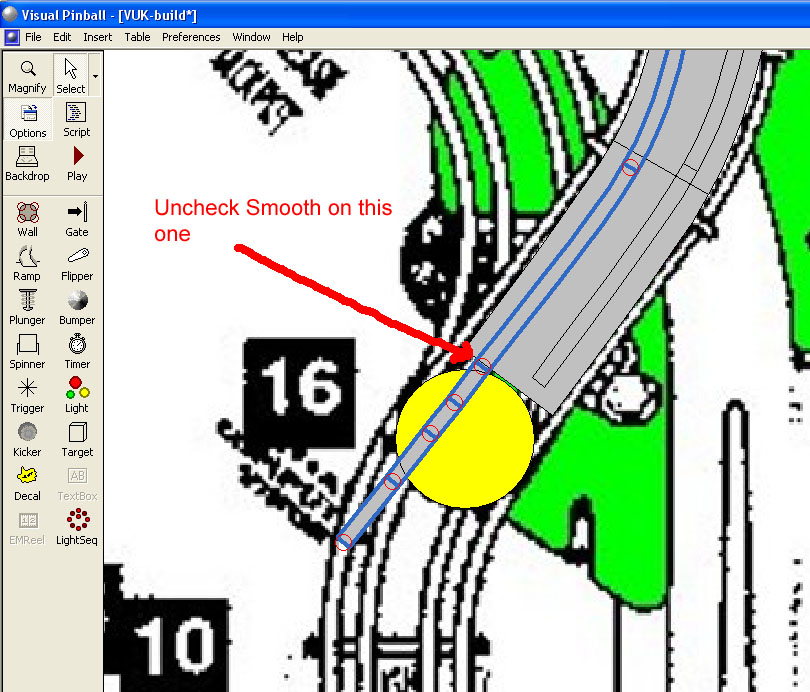
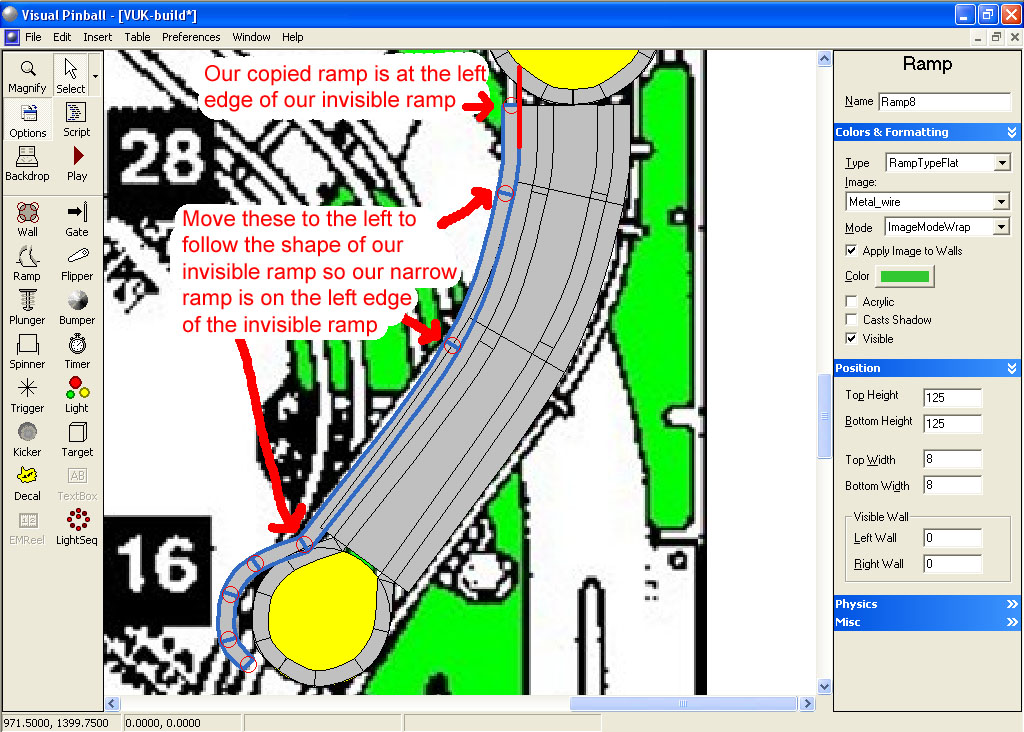
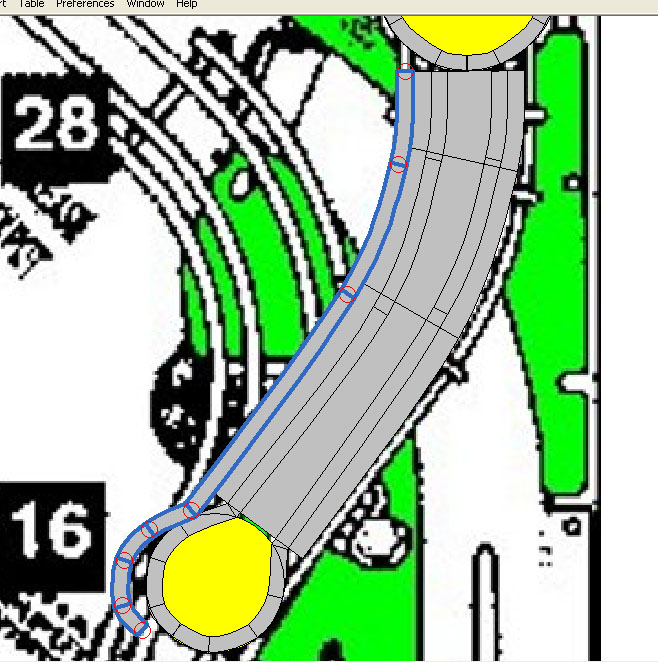
Now we start moving control points so that our new outer wire ramp aligns with the left edge of our invisible floor ramp. Start towards the bottom and work your way up the ramp until you are done:
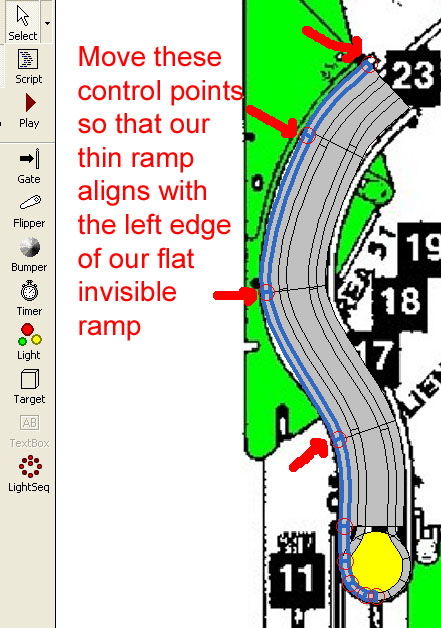
Now with our new ramp still selected change the bottom height to 101 and the top height to 151.
Make a copy of this ramp and paste it (CTRL-C and then CTRL-V). Change the Image to None, Color to R=45, G=51, and B=51, Top height to 145 (6 units below the same ramp with the metal wire texture), Bottom height to 95, and Left and Right wall to 6 for both.
Repeat this same process to build the right side.
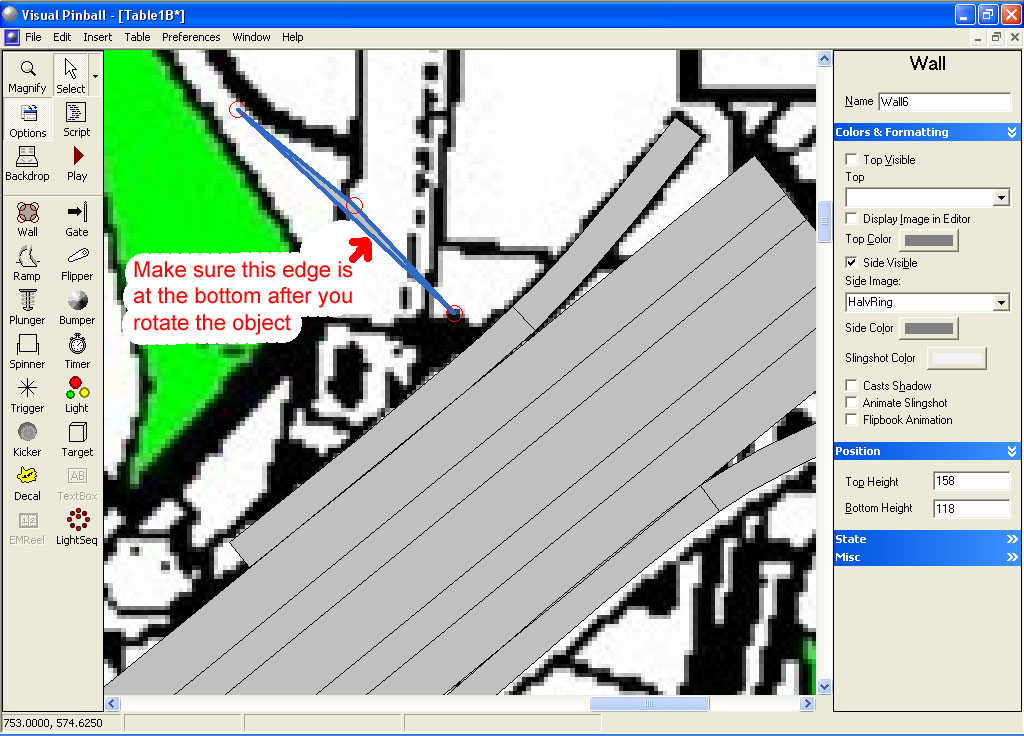
Add three ramp rings. The bottom one will have the same top and bottom height as in our right ramp that we already built (bottom=56, top=96), our middle ring should be bottom=90, top=130, and our top ring bottom=101, top=141.
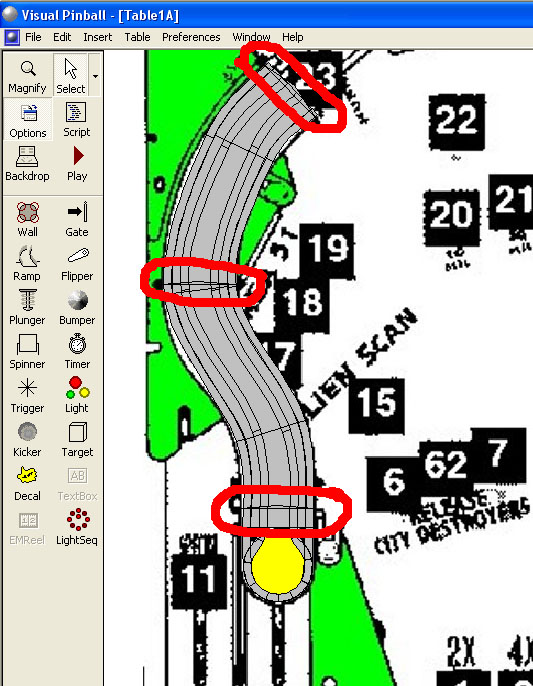
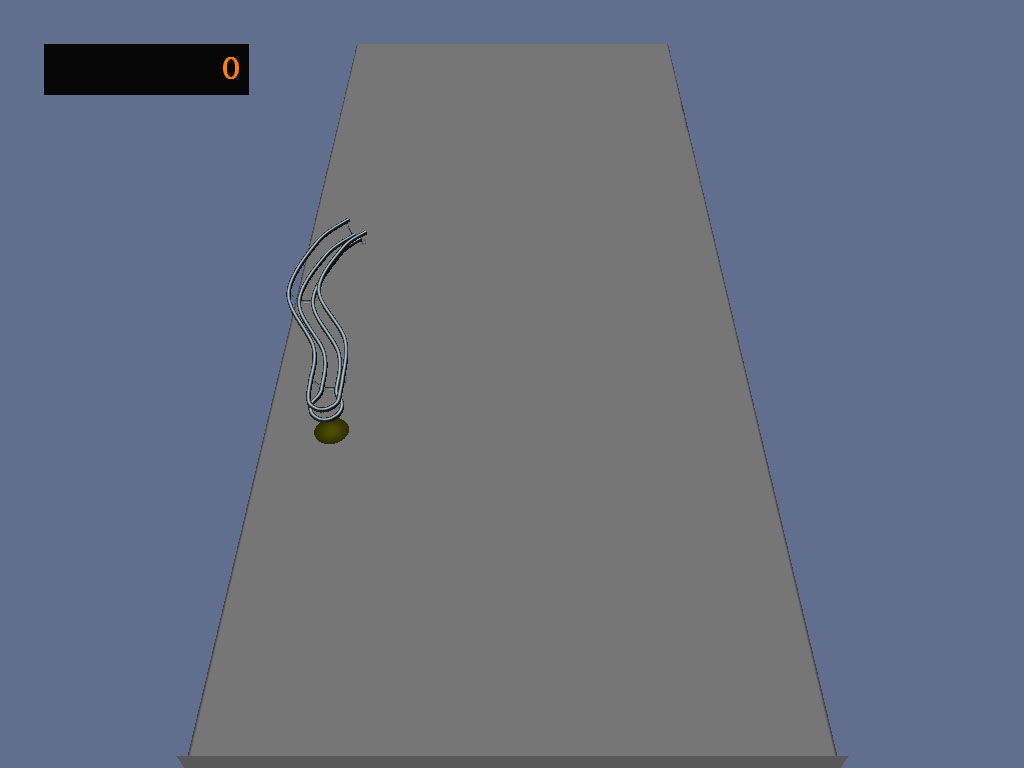
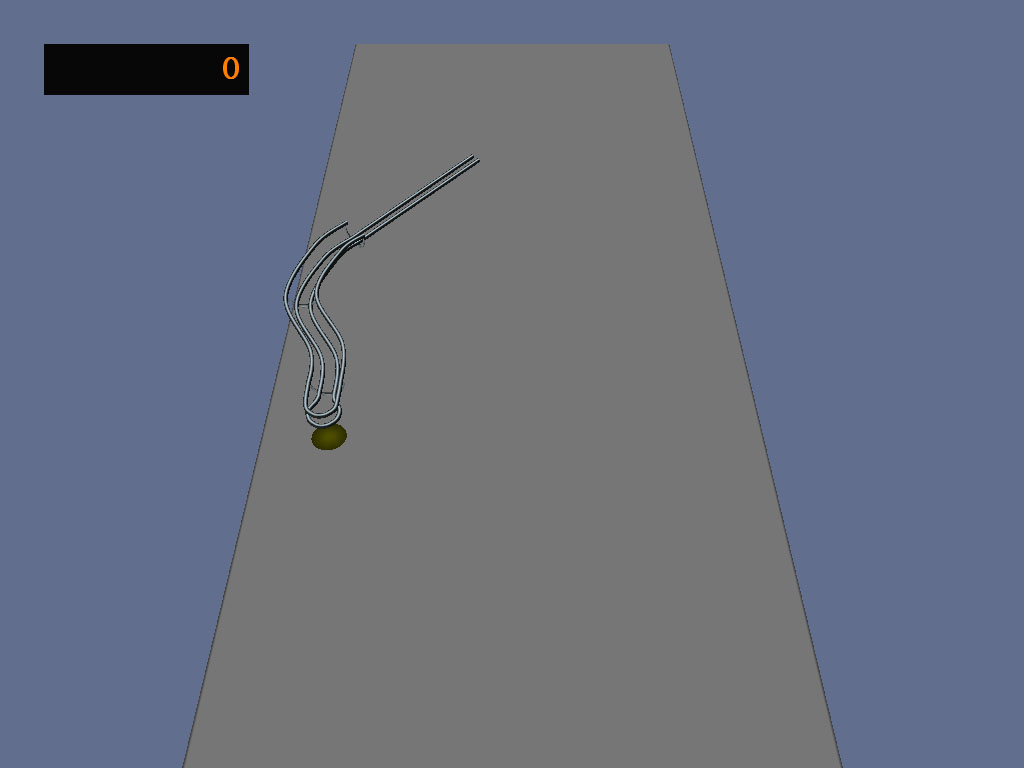
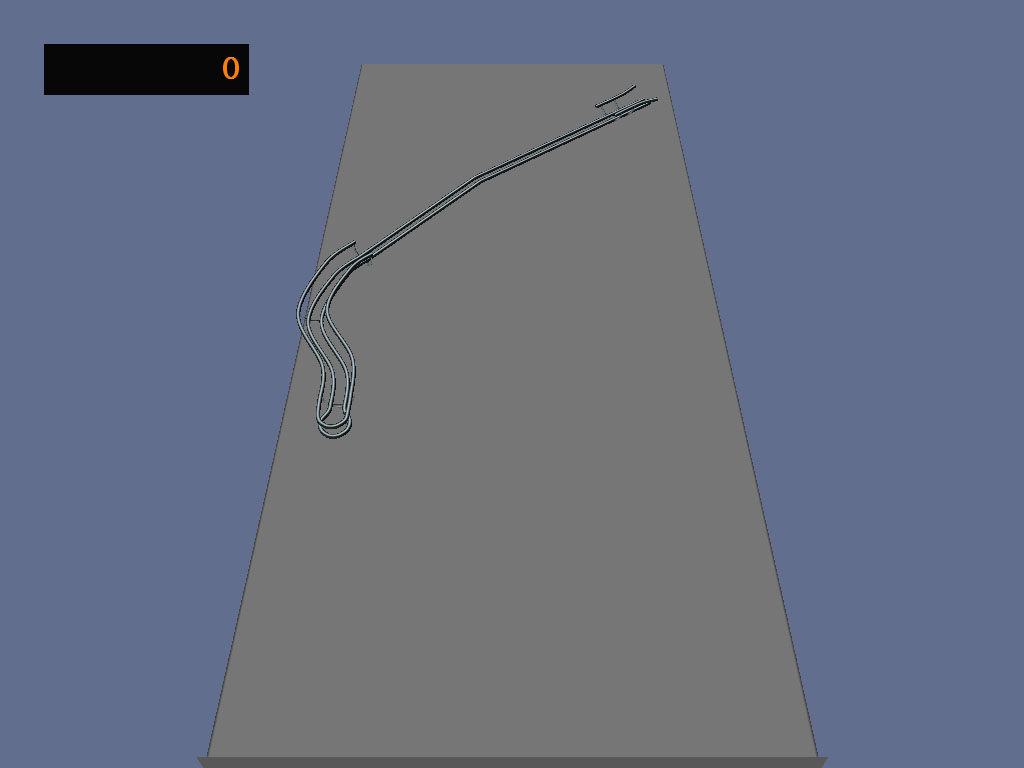
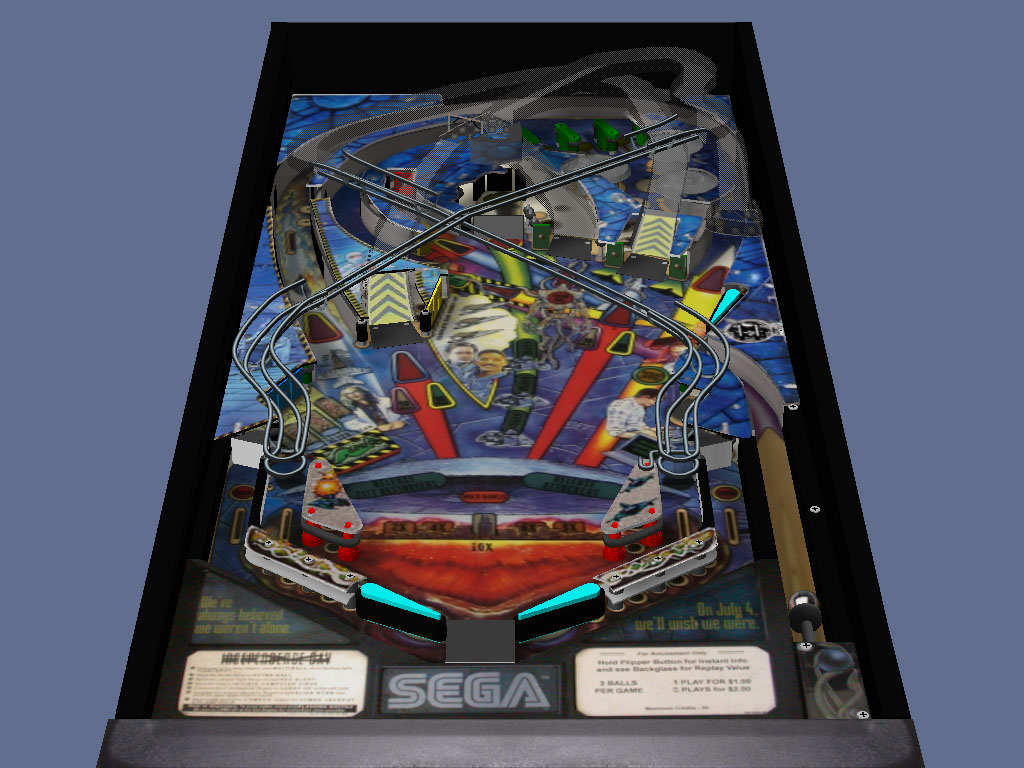
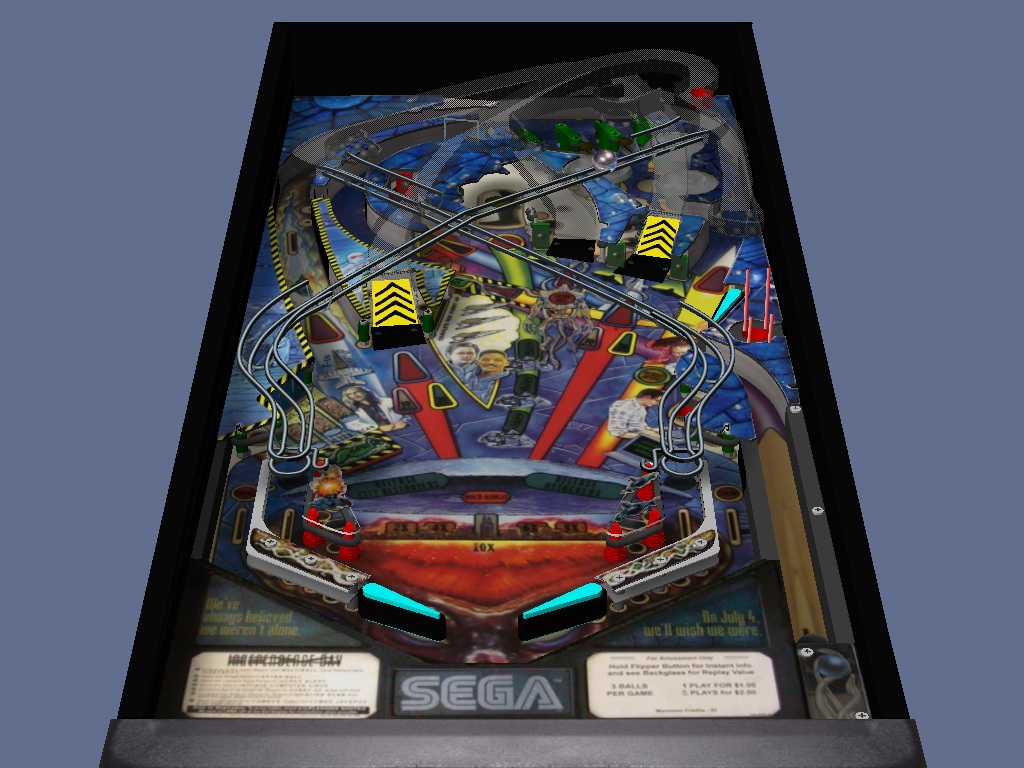
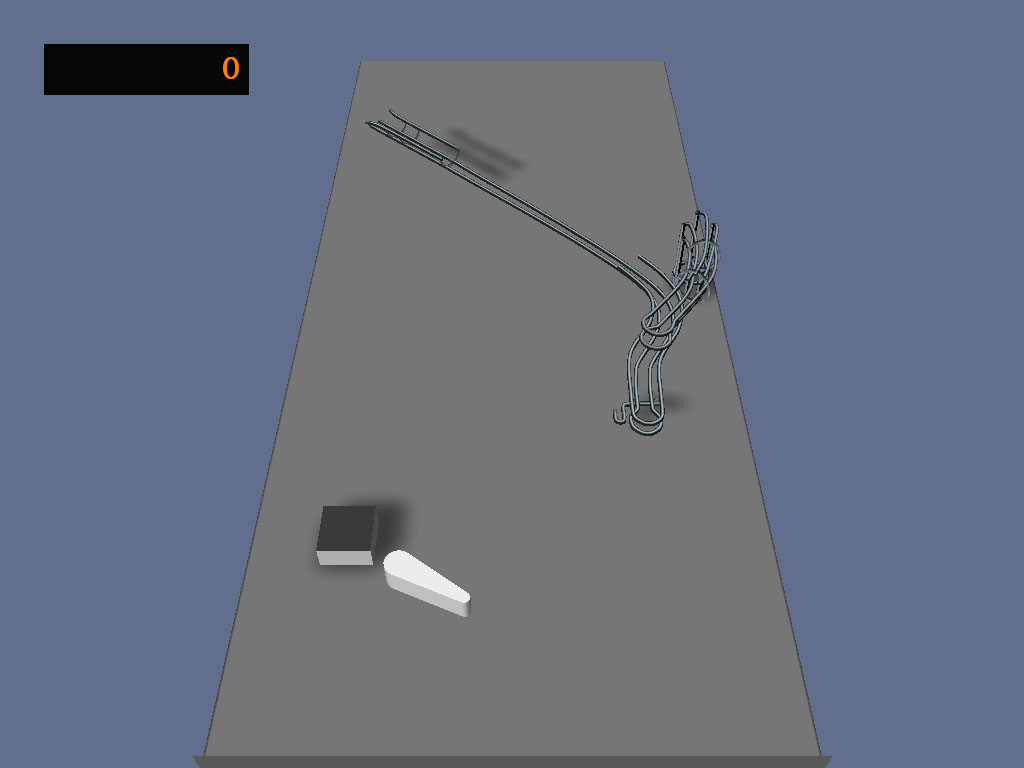
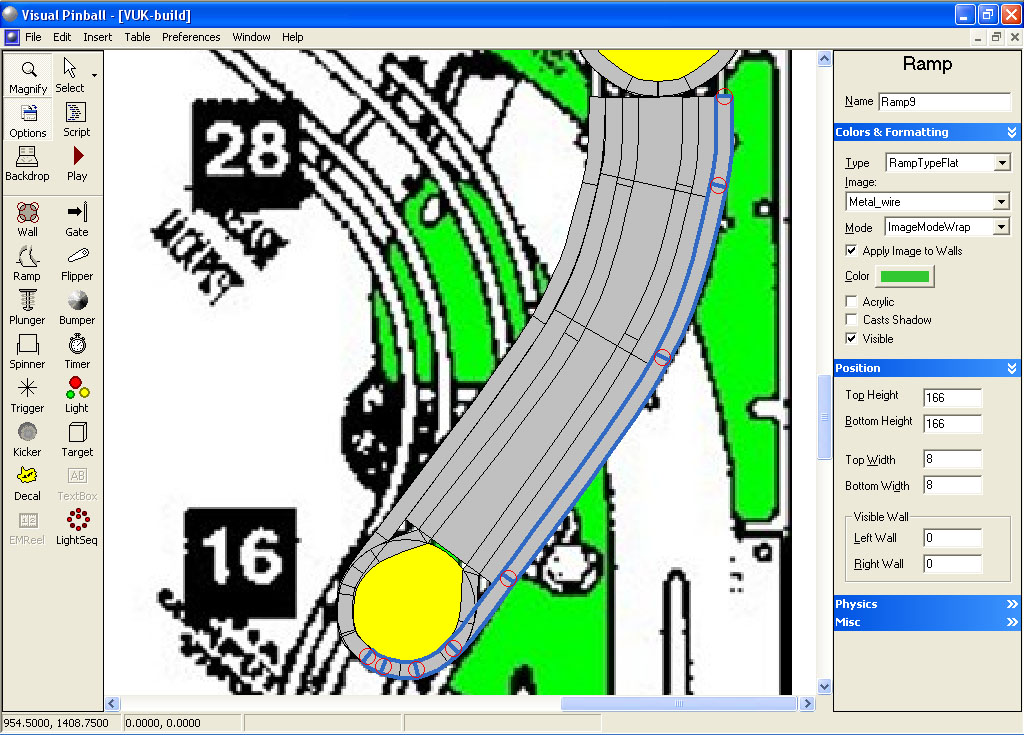
That’s it for the first section. Your ramp should look like this:
 Top
Top











 are all trademarks of VPFORUMS.